
Lesson 3 of 4 · 4:15
Plan, track, and complete a cycle
How a cycle works in Plane, from planning it to letting Plane schedule the next ones.
What you will learn
- A cycle is a set period of time: its dates, its work items, and its progress.
- Plane sets a cycle's status from its dates: upcoming, active, completed. Without dates, it's a draft. Cycles don't overlap by default.
- Create a cycle and fill it with work items. A work item is in one cycle at a time.
- Read the burn-down's scope, ideal line, pending work, and trailing status. Only completed work counts as done; cancelled work is left out; scope goes up when work joins mid-cycle.
- Plane completes a cycle when its end date passes and locks it against edits. Transfer work items moves only unfinished work, and the finished cycle keeps its numbers.
- Complete a cycle early, choose what happens to unfinished work, and start the next cycle early.
- Configure auto-schedule, auto-rollover, parallel cycles, and manual cycle advancement in Project settings, under Features, then Cycles.
What a cycle is
0:00A cycle is a set period of time your team plans work into. Its dates set the window. Its work items set the scope. Its progress shows, every day, whether you're on pace.
Cycles run one after another. When one ends, its unfinished work moves on to the next, and the finished cycle keeps its numbers.
Plan a cycle
0:26Plane sets each cycle's status from its dates. A cycle is upcoming before it starts, active while it runs, and completed after it ends.
- Click Add cycle.
- Give it a title and a goal, then pick its dates.
- Click Create cycle.
- In the new cycle, click Add existing work item. It lists every work item that isn't in a cycle yet.
- Pick what the team can finish in the cycle, then click Add selected work items.
By default, cycles can't overlap. Leave the dates out, and Plane saves the cycle as a draft.
You can also choose a cycle from a work item's Cycle property. A work item is in one cycle at a time, so choosing another moves it.
Track progress
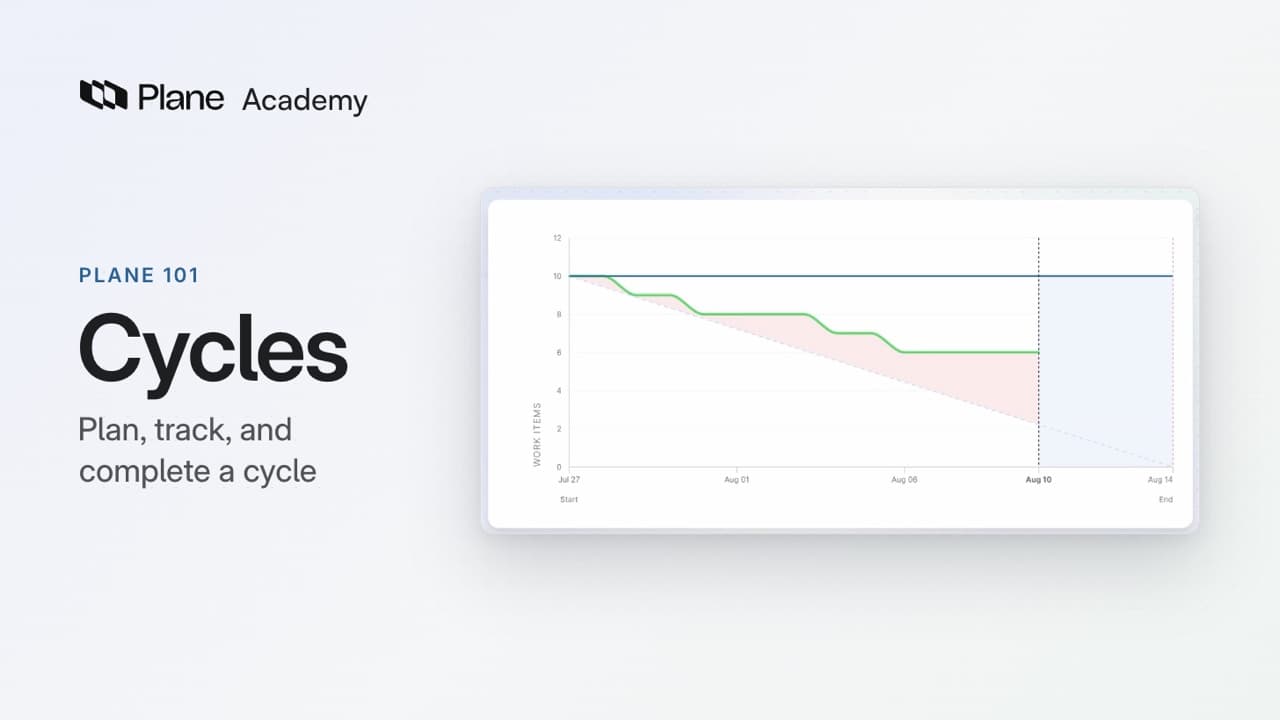
1:21The active cycle sits at the top of the Active tab with its burn-down chart. The chart starts from scope, every work item in the cycle. The ideal line falls from scope to zero by the end date, and the pending line tracks the work still open.
When pending sits above ideal, the cycle is trailing. Only work in the Completed group counts as done, and Plane leaves cancelled work out of the count. Add work mid-cycle, and the scope line steps up.
Across your projects, the workspace Cycles page shows every active cycle in one place.
Complete a cycle
2:21Once its end date passes, Plane completes a cycle and locks it against edits.
To move its unfinished work to another cycle:
- On the completed cycle, click Transfer work items.
- Choose the cycle to move the work into, then click Submit.
Only unfinished work moves. Completed and cancelled work items stay behind, and the finished cycle keeps its numbers.
A cycle can also end early. Choose Complete cycle from the cycle's menu, then leave its unfinished work in place or move it to an upcoming cycle.
Start cycle does the opposite. It starts the next cycle today and keeps its end date.
Automate cycles
3:07- Open Project settings, then Features, then Cycles, where you turn cycles on for each project.
- Turn on Auto-schedule cycles and set a title, a length in weeks, a cooldown between cycles, and the date the first one starts.
- Set Number of future cycles to choose how many upcoming cycles to keep scheduled, then click Save.
- Turn on Auto-rollover work items to move unfinished work to the next cycle on its own.
Plane keeps upcoming cycles lined up. Each time one starts, it adds the next. Each work item's Cycle property counts the cycles it has been through.
On Enterprise Grid, Parallel cycles lets cycles overlap, and Manual cycle advancement puts Start cycle and Complete cycle on each cycle.
Try it in your workspace
Create a cycle for the next two weeks. Add three work items to it. Then open one of them and find the cycle in its Cycle property.
Transcript
Show the transcript
What a cycle is
0:02In Plane, a cycle is a set period of time your team plans work into. Its dates set the window. Its work items set the scope. And its progress shows, every day, whether you're on pace.
0:15Cycles run one after another, in a steady rhythm. When one ends, its unfinished work moves on to the next, and the finished cycle keeps its numbers. Let's take a closer look.
Plan a cycle
0:30Plane sets each cycle's status from its dates. A cycle is upcoming before it starts, active while it runs, and completed after it ends.
0:40To plan the next cycle, click Add cycle. Give it a title and a goal, then pick its dates, August 17 to 28.
0:51By default, cycles can't overlap, so it's always clear which one is running. Leave the dates out, and Plane saves the cycle as a draft.
1:01Then fill it. Add existing work item lists everything that isn't in a cycle yet. Pick what the team can finish in those two weeks.
1:11You can also choose a cycle from a work item, in its Cycle property. A work item is in one cycle at a time, so choosing another moves it.
Track progress
1:23Once a cycle is running, the question is whether it's on pace. The active cycle sits at the top of the Active tab, with its burn-down chart.
1:33The chart starts from scope, every work item in the cycle. The ideal line falls from scope to zero by the end date. And the pending line tracks the work still open.
1:45When pending sits above ideal, the cycle is trailing. Reports launch has four more work items open than the ideal pace allows.
1:55Progress follows state groups. Only work in the Completed group counts as done, and Plane leaves cancelled work out of the count.
2:04Scope can change, too. Add CORE-30, an urgent bug, mid-cycle, and the scope line steps up. Now the cycle is trailing by five.
2:15And across your projects, the workspace Cycles page shows every active cycle in one place.
Complete a cycle
2:24Every cycle ends. Once its end date passes, Plane completes it and locks it against edits.
2:31Reports launch ended with two work items still open. Click Transfer work items, choose Report delivery, and they move to the next cycle.
2:43Only unfinished work moves. Completed and cancelled work items stay behind, and the finished cycle keeps its numbers.
2:51A cycle can also end early. Choose Complete cycle, then leave its unfinished work in place or move it to an upcoming cycle.
3:02Start cycle does the opposite. It starts the next cycle today and keeps its end date.
Automate cycles
3:10Plane can keep that rhythm for you. Open Project settings, then Features, then Cycles, where you turn cycles on for each project.
3:19Turn on Auto-schedule cycles and set a title, a length in weeks, a cooldown between cycles, and the date the first one starts.
3:29Plane creates Cycle 1, Cycle 2, and Cycle 3, and keeps three lined up. Each time one starts, it adds the next.
3:40Turn on Auto-rollover, and unfinished work moves to the next cycle on its own. Each work item's Cycle property counts the cycles it has been through.
3:50On Enterprise Grid, Parallel cycles lets cycles overlap, and Manual cycle advancement puts Start cycle and Complete cycle on each cycle.
Recap
4:02Dates set the window. Work items set the scope. And progress shows whether you're on pace, cycle after cycle.
Read next
Plans
- Pro:
- Progress charts, the workspace Cycles page, and starting or completing a cycle early
- Business:
- Auto-schedule cycles
- Enterprise Grid:
- Parallel cycles and manual cycle advancement