
Lesson 12 of 15 · 4:32
Read, search, and export audit logs
How audit logs record who changed what, and when, from reading the workspace log and tracing one person's access to exporting the result as evidence.
In this course
- 1What is Enterprise Grid?1:55
- 2Multiple workspaces4:43
- 3Single sign-on4:30
- 4Custom roles4:34
- 5Group syncing4:25
- 6Work item types4:43
- 7Work item hierarchy4:28
- 8Approvals4:12
- 9Workspace governance4:28
- 10Workspace automations4:26
- 11Plane Runner4:49
- 12Audit logs4:32
- 13Sensitive data scanning4:30
- 14Work item security4:18
- 15Cascading properties4:07
What you will learn
- Audit logs record who changed what, and when. The workspace log covers members, roles, and settings, and a project's log shows that project's entries.
- God mode keeps the instance's sign-ins, and accounts deactivated there. An instance admin reads them in God mode, under Audit logs.
- Each entry is written once. Plane allows no edits or deletes, and chains every entry to the one before it. The log does not record changes to work items.
- Search matches an event, an actor, or an event object. Category, date, actor, and outcome filters combine with search.
- Download exports the current search and filters as Excel or CSV, up to 100,000 entries, with each entry's outcome, IP address, old and new values, and its place in the chain.
- Plane deletes export files after the export retention set in God mode, seven days by default. Every read, export, and download adds an entry.
A record of who changed what
0:00Audit logs record who changed what in Plane, and when. Workspace and project audit logs are part of Enterprise Grid.
The workspace log covers members, roles, and settings. A project's log shows that project's entries, and God mode keeps the instance's sign-ins.
Read the workspace log
0:32- As a workspace admin, open Workspace settings, then Audit logs. Only admins and owners can open it.
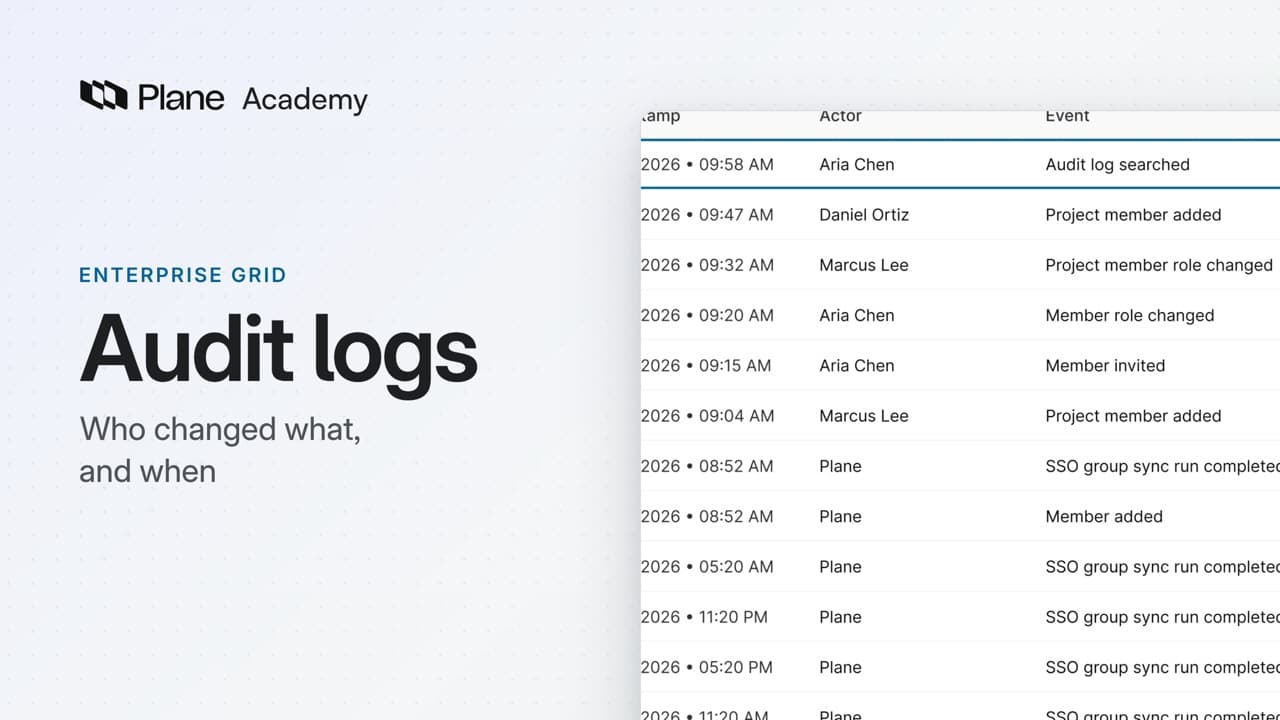
- Each row is one entry, newest first, with its Timestamp, Actor, Event, Event object, and Category.
Entries cover the workspace's controls: members joining and leaving, roles and permission groups, group syncing, relation types, governance, webhooks, and access tokens.
When Plane makes a change itself, such as finishing a governance migration, the actor reads Plane. Each entry keeps the actor's name from that moment, so a later rename or departure does not change it.
Each entry is written once. Plane allows no edits or deletes, even by admins, and chains every entry to the one before it.
The audit log does not record changes to work items. Each work item keeps its own activity.
Trace one person's access
1:41Auditors often sample one person and ask how their access began, changed, and ended.
- Start with Search events. Search matches an event, an actor, or an event object. Type the person's name to list what they did and what was done to their access.
- In the film, the entries show the person added to the workspace, moved to another project, and then removed.
- To narrow the list, open the filter menu. Under Category, check Member and Permission, then set a custom date range for the review period.
- Actor shows one person's actions, and Outcome separates successful actions from failed ones. Filters and search combine.
A project admin can read one project's entries. In Project settings, Audit logs lists that project's member, role, and configuration changes.
Sign-ins, and accounts deactivated in God mode, go to the instance's log, not the workspace's. An instance admin reads them in God mode, under Audit logs.
Export the evidence
3:01- To hand the evidence to auditors, choose Download, then Excel or CSV. The export follows your search and filters.
- Plane prepares the file in the background. It appears under Previous exports, with who exported it, when, its format, and its status.
The file holds more than the table: each entry's outcome, IP address, old and new values, and its place in the chain.
The log records its own use too. Every read, export, and download adds an entry under Security.
One export holds up to 100,000 entries. A larger set fails instead of arriving cut short, so export long periods in parts.
Plane keeps every entry, but it deletes export files after the export retention set in God mode, seven days by default. Your auditors work from the file, so they do not need admin access to the workspace.
Review the record
4:12The audit log records who changed what, and when. Search and filters find what an auditor asks for, and an export carries it as evidence.
Try it in your workspace
Open Workspace settings, then Audit logs, and search for one person's name.
Transcript
Show the transcript
A record of who changed what
0:02Audit logs record who changed what in Plane, and when. Workspace and project audit logs are part of Enterprise Grid.
0:11The workspace log covers members, roles, and settings. A project's log shows that project's entries, and God mode keeps the instance's sign-ins.
0:23You'll read the log, trace one person's access, and export the result as evidence. Let's take a closer look.
Read the workspace log
0:35As a workspace admin, open Workspace settings, then Audit logs. Only admins and owners can open it.
0:44Each row is one entry, newest first, with its Timestamp, Actor, Event, Event object, and Category.
0:54Entries cover the workspace's controls: members joining and leaving, roles and permission groups, group syncing, relation types, governance, webhooks, and access tokens.
1:08When Plane makes a change itself, such as finishing a governance migration, the actor reads Plane.
1:15Each entry keeps the actor's name from that moment, so a later rename or departure doesn't change it.
1:23Each entry is written once. Plane allows no edits or deletes, even by admins, and chains every entry to the one before it.
1:33The audit log doesn't record changes to work items. Each work item keeps its own activity.
Trace one person's access
1:43Auditors often sample one person and ask how their access began, changed, and ended. Start with Search events.
1:53Search matches an event, an actor, or an event object. Type the person's name to list what they did and what was done to their access.
2:03Here, the entries show the person added to the workspace, moved to another project, and then removed.
2:11To narrow the list, open the filter menu. Under Category, check Member and Permission, then set a custom date range for the review period.
2:25Actor shows one person's actions, and Outcome separates successful actions from failed ones. Filters and search combine.
2:35A project admin can read one project's entries. In Project settings, Audit logs lists that project's member, role, and configuration changes.
2:47Sign-ins, and accounts deactivated in God mode, go to the instance's log, not the workspace's. An instance admin reads them in God mode, under Audit logs.
Export the evidence
3:03To hand the evidence to auditors, choose Download, then Excel or CSV. The export follows your search and filters.
3:14Plane prepares the file in the background. It appears under Previous exports, with who exported it, when, its format, and its status.
3:26The file holds more than the table: each entry's outcome, IP address, old and new values, and its place in the chain.
3:36The log records its own use too. Every read, export, and download adds an entry under Security.
3:44One export holds up to 100,000 entries. A larger set fails instead of arriving cut short, so export long periods in parts.
3:55Plane keeps every entry, but it deletes export files after the export retention set in God mode, seven days by default.
4:05Your auditors work from the file, so they don't need admin access to the workspace.
Review the record
4:13The audit log records who changed what, and when. Search and filters find what an auditor asks for, and an export carries it as evidence.
Read next
Plans
- Enterprise Grid:
- Workspace and project audit logs