
Lesson 15 of 15 · 4:07
Build linked dropdowns with cascading properties
How a cascading property gives a work item type two to four linked dropdowns, from adding the property and its levels to building the options for each context and using it on change requests.
In this course
- 1What is Enterprise Grid?1:55
- 2Multiple workspaces4:43
- 3Single sign-on4:30
- 4Custom roles4:34
- 5Group syncing4:25
- 6Work item types4:43
- 7Work item hierarchy4:28
- 8Approvals4:12
- 9Workspace governance4:28
- 10Workspace automations4:26
- 11Plane Runner4:49
- 12Audit logs4:32
- 13Sensitive data scanning4:30
- 14Work item security4:18
- 15Cascading properties4:07
What you will learn
- A cascading property is one custom property with two to four linked dropdowns, where each choice narrows the next. Cascading properties are part of Enterprise Grid.
- A workspace admin adds one from a work item type's Properties tab, with Property type set to Cascading, names its levels, and can add up to four. Levels cannot be reordered.
- Each level has its own Mandatory switch, and turning one on turns on every level above it. A mandatory level needs a value only when the option above it has options under it.
- Add cascading options builds the tree: options under each first-level option, a Sub-level label to rename the next dropdown for one branch, and Save. The Default context's tree covers every project, and each context you add keeps a tree of its own.
- Removing a saved option asks you to type Confirm. Work items that used it lose the value, and Plane adds the old path to their descriptions.
- On a work item the property is one dropdown named for its first level. Each pick narrows the next, changing an earlier level clears the levels below it, and an incomplete path is dropped or refused with the missing level named.
- The Table layout shows each work item's whole path, each level gets its own filter, and Plane's forms check mandatory levels only when someone picks or creates, not for saved values, the API, or imports.
One property, linked dropdowns
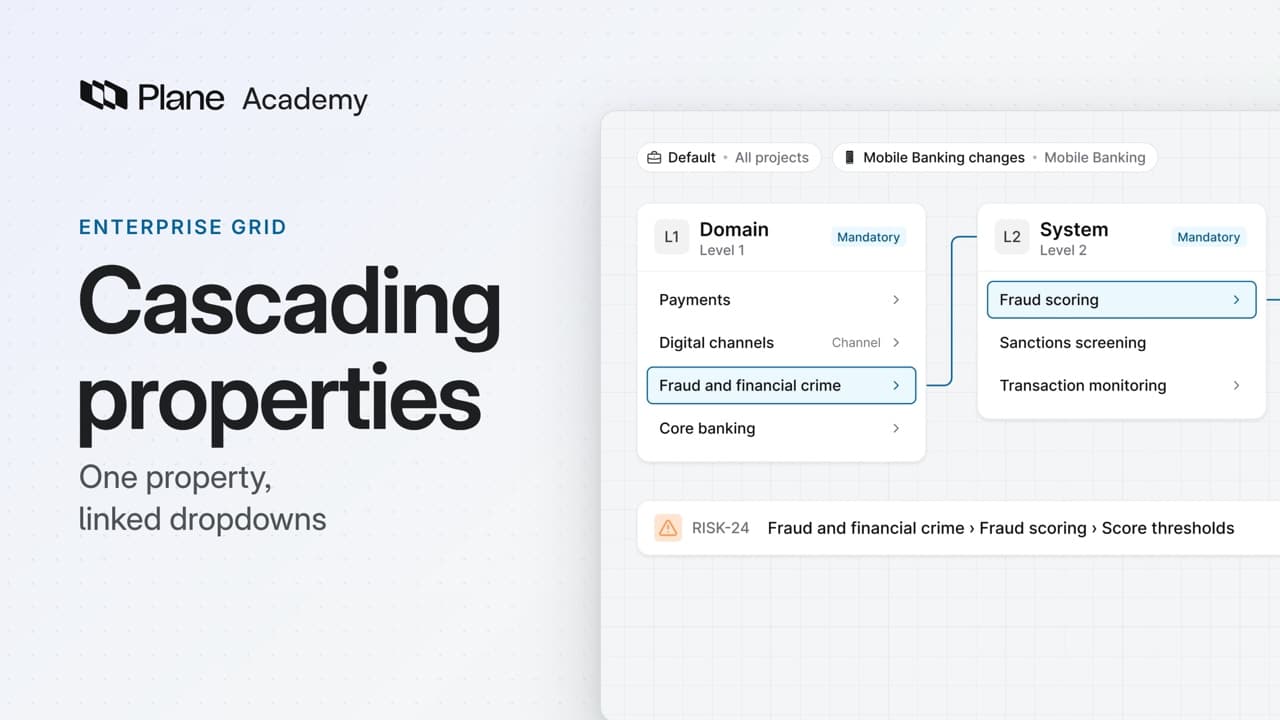
0:00Cascading properties are fields made of linked dropdowns, where each choice narrows the options in the next. They are part of Enterprise Grid.
A change request can record the system it affects down to the component, from a list the workspace maintains.
Add the property and its levels
0:31A workspace admin opens Workspace settings, then Work item types, and selects Change request.
- On its Properties tab, choose Add properties, then Create new property.
- Name it Affected system, and set Property type to Cascading. A Levels section appears with two rows, Level 1 and Level 2.
- Rename them Domain and System, then choose Add level for a third, Component. Four is the limit, and you cannot reorder them.
- Each level has its own Mandatory switch. Turn it on for Component, and Domain and System turn on with it.
A mandatory level needs a value only when the option above it has options under it. Then choose Create.
Build the options for each context
1:24Add cascading options opens next. The options form a tree, where each option below the first level sits under one above it.
- Type the domains in Add L1 option, such as Payments and Digital channels. Then select the plus on a domain to add its systems.
- To rename the next dropdown for one branch, select an option's name and fill in Sub-level label, such as Channel under Digital channels.
- Choose Save. This tree belongs to the Default context, and every other context you add keeps a tree of its own.
Add one for the mobile project's change requests, and give it mobile systems only. The levels and mandatory rules stay the same in every context.
Removing a saved option later asks you to type Confirm. Work items that used it lose the value, and Plane adds the old path to their descriptions.
Use it on change requests
2:28In the risk project, a change request shows the property as one dropdown, named for its first level: Select Domain.
- Pick a domain, and the next dropdown lists only its systems. Under Digital channels, it reads Select Channel.
- Change the domain, and every level below it clears, so the path always follows one branch.
- Stop at an option with more below it, then click away. Plane drops the change and names the level you skipped.
The create form will not save a change request with an incomplete path. It says which level the path must reach.
In the Table layout, the property's column shows each change request's whole path. A system with nothing under it, like Sanctions screening, completes the path at two levels, even though Component is mandatory.
Each level gets its own filter, named for the level, not for a sub-level label.
Plane's forms check mandatory levels when someone picks or creates. They do not recheck existing values, and the API and imports can leave the property empty.
Define, scope, and use
3:45Change requests now record their affected system as one path, from lists the workspace controls, and you can filter by any level.
Try it in your workspace
Open Workspace settings, then Work item types, select a type, and on its Properties tab choose Add properties, then Create new property, with Property type set to Cascading.
Transcript
Show the transcript
One property, linked dropdowns
0:02Cascading properties are fields made of linked dropdowns, where each choice narrows the options in the next. They're part of Enterprise Grid.
0:12A change request can record the system it affects down to the component, from a list the workspace maintains.
0:20You'll add one to the Change request type, set its levels and options, give one project its own list, and use it on work items. Let's take a closer look.
Add the property and its levels
0:34A workspace admin opens Workspace settings, then Work item types, and selects Change request. On its Properties tab, choose Add properties, then Create new property.
0:47Name it Affected system, and set Property type to Cascading. A Levels section appears with two rows, Level 1 and Level 2.
0:58Rename them Domain and System, then choose Add level for a third, Component. Four is the limit, and you can't reorder them.
1:08Each level has its own Mandatory switch. Turn it on for Component, and Domain and System turn on with it.
1:16A mandatory level needs a value only when the option above it has options under it. Then choose Create.
Build the options for each context
1:28Add cascading options opens next. The options form a tree, where each option below the first level sits under one above it.
1:37Type the domains in Add L1 option, such as Payments and Digital channels. Then select the plus on a domain to add its systems.
1:47To rename the next dropdown for one branch, select an option's name and fill in Sub-level label, such as Channel under Digital channels.
1:57Choose Save. This tree belongs to the Default context, and every other context you add keeps a tree of its own.
2:06Add one for the mobile project's change requests, and give it mobile systems only. The levels and mandatory rules stay the same in every context.
2:17Removing a saved option later asks you to type Confirm. Work items that used it lose the value, and Plane adds the old path to their descriptions.
Use it on change requests
2:31In the risk project, a change request shows the property as one dropdown, named for its first level: Select Domain.
2:40Pick a domain, and the next dropdown lists only its systems. Under Digital channels, it reads Select Channel.
2:49Change the domain, and every level below it clears, so the path always follows one branch.
2:56Stop at an option with more below it, then click away. Plane drops the change and names the level you skipped.
3:04The create form won't save a change request with an incomplete path. It says which level the path must reach.
3:12In the Table layout, the property's column shows each change request's whole path.
3:18A system with nothing under it, like Sanctions screening, completes the path at two levels, even though Component is mandatory.
3:28Each level gets its own filter, named for the level, not for a sub-level label.
3:35Plane's forms check mandatory levels when someone picks or creates. They don't recheck existing values, and the API and imports can leave the property empty.
Define, scope, and use
3:48Change requests now record their affected system as one path, from lists the workspace controls, and you can filter by any level.
Read next
Plans
- Enterprise Grid:
- Cascading properties