
Lesson 4 of 15 · 4:34
Build custom roles from permission groups
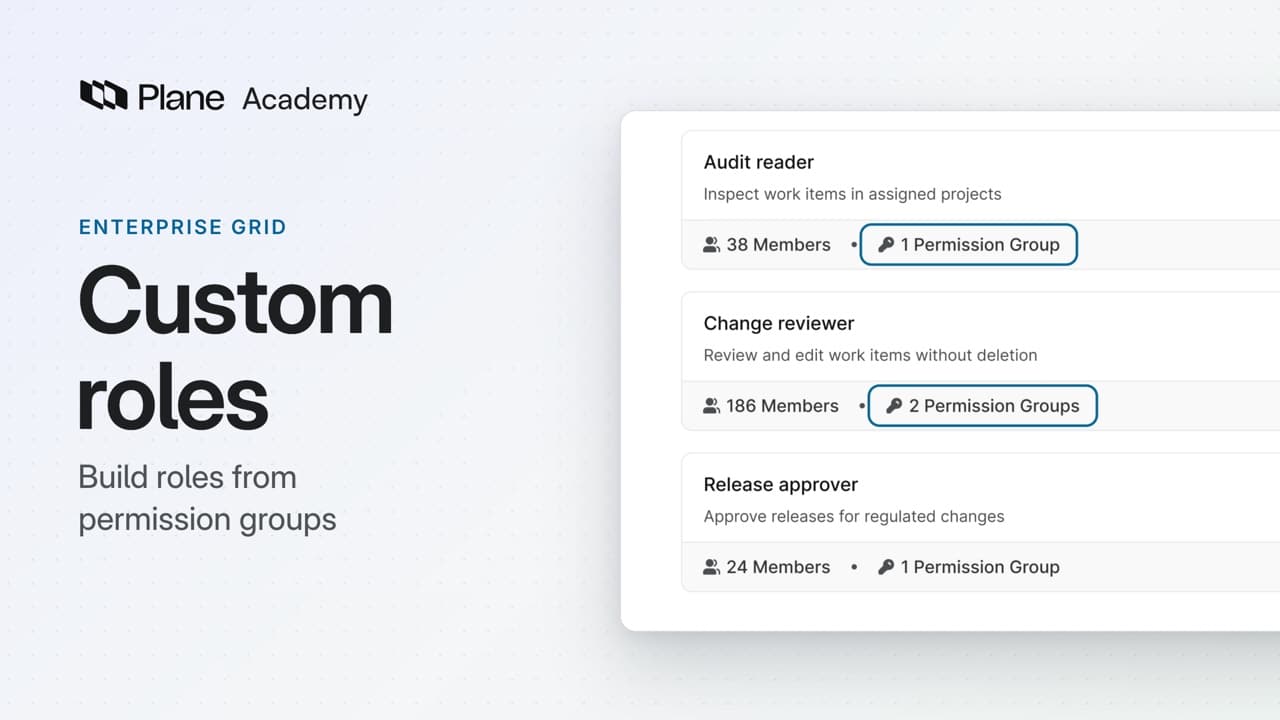
How custom roles define access by responsibility, from building roles from permission groups and checking what each person can do to changing shared policy in one place.
In this course
- 1What is Enterprise Grid?1:55
- 2Multiple workspaces4:43
- 3Single sign-on4:30
- 4Custom roles4:34
- 5Group syncing4:25
- 6Work item types4:43
- 7Work item hierarchy4:28
- 8Approvals4:12
- 9Workspace governance4:28
- 10Workspace automations4:26
- 11Plane Runner4:49
- 12Audit logs4:32
- 13Sensitive data scanning4:30
- 14Work item security4:18
- 15Cascading properties4:07
What you will learn
- Custom roles define access by responsibility, so a reviewer and an auditor can hold different permissions on the same work.
- A permission group is a reusable set of permissions. A role combines one or more groups, and each member holds a role in the workspace or in a project.
- Workspace roles and project roles are separate catalogs. A group attaches only to roles of its own scope.
- A new role grants nothing until a group is attached. Groups only add permissions, so one group cannot remove what another grants.
- You define project roles once and assign them project by project. Each person can check their own access on the Permissions page.
- A workspace owner or admin keeps broader project access, whatever project role they hold. A workspace role's project permissions apply to all current and future projects.
- Editing a shared group reaches every role that uses it, from each member's next request. The groups that come with Plane cannot be edited.
Access by responsibility
0:00Custom roles define access by responsibility, so a reviewer and an auditor can hold different permissions on the same work.
A permission group is a reusable set of permissions. A role combines one or more groups, and each member holds a role in the workspace or in a project.
Build least-privilege roles
0:36Least privilege starts with small groups. Workspace roles and project roles are separate catalogs. A group attaches only to roles of its own scope.
- As a workspace admin, open Workspace settings, then Project roles and permission groups.
- Under Permission Groups, choose Create Permission Group. Name it Work item visibility, and select View Work Items.
- Plane also selects the permissions that viewing depends on, such as states and work item types. Leave create, edit, and delete off, then create the group.
- Under Roles, create Audit reader. A new role grants nothing until a group is attached, so choose Manage permission group and select Work item visibility.
- Create a second group, Review changes, with Edit Work Items and Add Comments. Then create Change reviewer with both groups.
The reviewer can edit and comment, and neither role can create or delete work items. Groups only add permissions. One group cannot remove what another grants, so check every group attached to a role.
Assign and verify each role
2:03You define project roles once and assign them project by project.
- Open a project's settings, then Members.
- Give the reviewer Change reviewer. Give the auditor Audit reader, in this project and in the second project they audit.
Each person can check their own access, and only their own. In Workspace settings, open Permissions, select Project permissions, and choose a project.
For the reviewer, View Work Items, Edit Work Items, and Add Comments show a tick. Create Work Items and Delete Work Items show a cross. For the auditor, only viewing is ticked, in both projects. Viewing also allows reactions and votes, so the role is not strictly read-only.
Check the workspace role too. A workspace owner or admin keeps broader project access, whatever project role they hold. For an auditor who needs every project, use a workspace role instead. Its project permissions apply to all current and future projects.
Review the access in place
4:14Two roles separate review from audit, and one shared group carries what they have in common. To review access, check the role's scope and every group attached to it.
Try it in your workspace
Open Workspace settings, then Project roles and permission groups, and create a permission group under Permission Groups.
Transcript
Show the transcript
Access by responsibility
0:02Custom roles define access by responsibility, so a reviewer and an auditor can hold different permissions on the same work. They're part of Enterprise Grid.
0:14A permission group is a reusable set of permissions. A role combines one or more groups, and each member holds a role in the workspace or in a project.
0:25You'll build two roles that share a group, check what each person can do, then change the shared group once. Let's take a closer look.
Build least-privilege roles
0:39Least privilege starts with small groups. As a workspace admin, open Workspace settings, then Project roles and permission groups.
0:49Workspace roles and project roles are separate catalogs. A group attaches only to roles of its own scope.
0:57Under Permission Groups, choose Create Permission Group. Name it Work item visibility, and select View Work Items.
1:07Plane also selects the permissions that viewing depends on, such as states and work item types. Leave create, edit, and delete off, then create the group.
1:18Under Roles, create Audit reader. A new role grants nothing until a group is attached, so choose Manage permission group and select Work item visibility.
1:31Create a second group, Review changes, with Edit Work Items and Add Comments. Then create Change reviewer with both groups.
1:44The result is separation of duties. The reviewer can edit and comment, and neither role can create or delete work items.
1:53Groups only add permissions. One group can't remove what another grants, so check every group attached to a role.
Assign and verify each role
2:06You define project roles once and assign them project by project. Open a project's settings, then Members.
2:14Give the reviewer Change reviewer. Give the auditor Audit reader, in this project and in the second project they audit.
2:25Each person can check their own access, and only their own. In Workspace settings, open Permissions, select Project permissions, and choose a project.
2:36For the reviewer, View Work Items, Edit Work Items, and Add Comments show a tick. Create Work Items and Delete Work Items show a cross.
2:46For the auditor, only viewing is ticked, in both projects. Viewing also allows reactions and votes, so the role isn't strictly read-only.
2:58Check the workspace role too. A workspace owner or admin keeps broader project access, whatever project role they hold.
3:07For an auditor who needs every project, use a workspace role instead. Its project permissions apply to all current and future projects.
Change shared policy once
3:22When policy changes, change the group. In this example, reviewers and auditors both need to see attachments.
3:30Editing a group shows no preview of who it affects, so check first. Both role cards list Work item visibility.
3:41Open Work item visibility, select View Attachments, and choose Save changes.
3:49The change reaches every role that uses the group. Both roles grant attachment viewing from each member's next request.
3:58Reopen Permissions as each person. Both can view attachments. Only the reviewer can edit and comment.
4:06The groups that come with Plane can't be edited, so put shared policy in groups you create.
Review the access in place
4:14Two roles separate review from audit, and one shared group carries what they have in common. To review access, check the role's scope and every group attached to it.
Read next
Plans
- Enterprise Grid:
- Custom roles and permission groups