
Lesson 5 of 15 · 4:25
Assign access from your directory groups
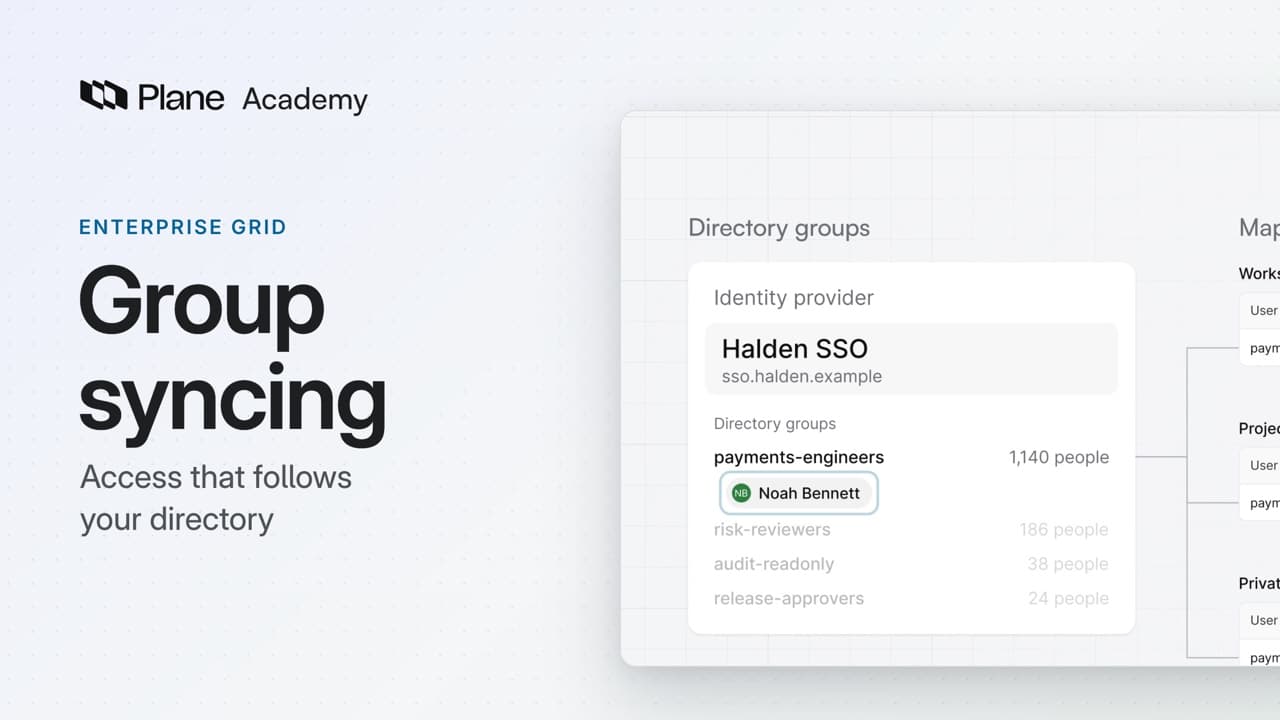
How group syncing assigns access from the directory groups your identity team already manages, from mapping a group and following a team change to seeing what removing access needs.
In this course
- 1What is Enterprise Grid?1:55
- 2Multiple workspaces4:43
- 3Single sign-on4:30
- 4Custom roles4:34
- 5Group syncing4:25
- 6Work item types4:43
- 7Work item hierarchy4:28
- 8Approvals4:12
- 9Workspace governance4:28
- 10Workspace automations4:26
- 11Plane Runner4:49
- 12Audit logs4:32
- 13Sensitive data scanning4:30
- 14Work item security4:18
- 15Cascading properties4:07
What you will learn
- Group syncing assigns Plane access from directory groups. You map a group to a workspace role, a project role, or a private collection, and Plane applies the mappings each time it syncs.
- Group attribute key names the attribute that carries a person's groups. Mapping names must match the directory's group names exactly.
- Apply to all projects covers every project, including ones created later. Default workspace role covers a person who matches a project or collection mapping but no workspace mapping.
- Sync on login is on by default. At the next sync, Plane adds what the new group maps to, and earlier access stays unless Auto remove is on.
- Where a person's groups overlap, the highest matching role or access wins for each workspace, project, and collection.
- With Auto remove on, removing someone from their mapped groups removes synced project and collection memberships and deactivates their synced workspace membership. Memberships added by hand stay, and Plane keeps the last workspace admin.
- OIDC and LDAP can refresh existing members on a schedule when Offline sync is on. SAML syncs only at sign-in. A scheduled sync that cannot fetch a person's groups skips that person.
Access that follows the directory
0:00Group syncing assigns Plane access from the directory groups your identity team already manages.
You map a directory group to a workspace role, a project role, or a private collection. Plane applies the mappings each time it syncs.
Map directory groups to access
0:31Start with a sign-in provider that passes group membership.
- As a workspace admin, open Workspace settings, then Group syncing, and turn on Enable group syncing.
- Set Group attribute key to the attribute that carries a person's groups. Mapping names must match the directory's group names exactly.
- Under Workspace role mapping, choose Add group sync. Enter the group, select a workspace role such as Member, and choose Add.
- Under Project role mapping, give the same group a project role in one project. Apply to all projects covers every project, including ones created later.
- Under Private collection access mapping, give the group View, Comment, or Edit access to a private collection.
Default workspace role covers a person who matches a project or collection mapping but no workspace mapping. Someone who matches nothing gets no membership.
Sync on login is on by default. The next time someone in that group signs in, they have the workspace, the project, and the collection.
Every change to group syncing and its mappings is recorded in the workspace's audit log.
Follow a team change
2:07When someone changes teams, their access should change with them. Move the person from one mapped group to another in the directory.
At the next sync, Plane adds what the new group maps to. What they had before stays, unless Auto remove is on. It is off by default. Turn it on, and a sync removes synced memberships that no longer match.
Where a person's groups overlap, the highest matching role or access wins for each workspace, project, and collection.
Remove access when someone leaves
2:54For a leaver, remove the person from their mapped groups. With Auto remove on, a sync removes their synced project and collection memberships and deactivates their synced workspace membership.
Removal needs a sync. Offline sync is off by default. Turn it on, and OIDC and LDAP refresh existing members on a schedule. SAML syncs only at sign-in.
Do not rely on disabling the directory account. If a scheduled sync cannot fetch a person's groups, it skips that person, and their memberships stay.
Check the group attribute before you turn Auto remove on. A sign-in that arrives without groups can count as no match, and remove access.
Memberships added by hand stay, and Plane keeps the last workspace admin in place. To end someone's access at once, an instance admin deactivates the account in God mode.
Review how access follows the directory
4:04Mappings turn directory groups into workspace, project, and collection access. Each sync applies them, and Auto remove decides whether access that no longer matches is taken away.
Try it in your workspace
Open Workspace settings, then Group syncing, turn on Enable group syncing, and add a workspace role mapping.
Transcript
Show the transcript
Access that follows the directory
0:02Group syncing assigns Plane access from the directory groups your identity team already manages. It's part of Enterprise Grid.
0:11You map a directory group to a workspace role, a project role, or a private collection. Plane applies the mappings each time it syncs.
0:21You'll map a group, follow one person through a team change, and see what removing access needs. Let's take a closer look.
Map directory groups to access
0:34Start with a sign-in provider that passes group membership. As a workspace admin, open Workspace settings, then Group syncing, and turn on Enable group syncing.
0:46Group attribute key names the attribute that carries a person's groups. Here it's groups. Mapping names must match the directory's group names exactly.
0:58Under Workspace role mapping, choose Add group sync. Enter the group, payments-engineers, select Member, and choose Add.
1:10Under Project role mapping, give the same group the Contributor role in one project. Apply to all projects covers every project, including ones created later.
1:24Under Private collection access mapping, give the group View, Comment, or Edit access to a private collection.
1:34Default workspace role covers a person who matches a project or collection mapping but no workspace mapping. Someone who matches nothing gets no membership.
1:46Sync on login is on by default. The next time someone in that group signs in, they have the workspace, the project, and the collection.
1:59Every change to group syncing and its mappings is recorded in the workspace's audit log.
Follow a team change
2:10When someone changes teams, their access should change with them. Move the person from payments-engineers to risk-reviewers in the directory.
2:19At the next sync, Plane adds what the new group maps to. Here that's the Change reviewer role in Risk Engineering.
2:29What they had before stays, unless Auto remove is on. It's off by default. Turn it on, and a sync removes synced memberships that no longer match.
2:43Where a person's groups overlap, the highest matching role or access wins for each workspace, project, and collection.
Remove access when someone leaves
2:56For a leaver, remove the person from their mapped groups. With Auto remove on, a sync removes their synced project and collection memberships and deactivates their synced workspace membership.
3:11Removal needs a sync. Offline sync is off by default. Turn it on, and OIDC and LDAP refresh existing members on a schedule. SAML syncs only at sign-in.
3:25Don't rely on disabling the directory account. If a scheduled sync can't fetch a person's groups, it skips that person, and their memberships stay.
3:35Check the group attribute before you turn Auto remove on. A sign-in that arrives without groups can count as no match, and remove access.
3:45Memberships added by hand stay, and Plane keeps the last workspace admin in place.
3:52To end someone's access at once, an instance admin deactivates the account in God mode.
4:03Mappings turn directory groups into workspace,
Review how access follows the directory
4:06project, and collection access. Each sync applies them, and Auto remove decides whether access that no longer matches is taken away.
Read next
Plans
- Enterprise Grid:
- Group syncing