
Lesson 11 of 15 · 4:49
Write your own rules with Plane Runner
How Plane Runner runs code you write inside Plane, from writing a function with typed parameters to calling it from a script and running that script from a workspace automation.
In this course
- 1What is Enterprise Grid?1:55
- 2Multiple workspaces4:43
- 3Single sign-on4:30
- 4Custom roles4:34
- 5Group syncing4:25
- 6Work item types4:43
- 7Work item hierarchy4:28
- 8Approvals4:12
- 9Workspace governance4:28
- 10Workspace automations4:26
- 11Plane Runner4:49
- 12Audit logs4:32
- 13Sensitive data scanning4:30
- 14Work item security4:18
- 15Cascading properties4:07
What you will learn
- Plane Runner runs code you write inside Plane: scripts that respond to events, and functions that hold logic scripts reuse.
- Your rules run in a sandbox on your own instance, reach Plane through the Runner app, and leave a record of every run.
- A function needs a description, typed parameters, and a return type. The code must define a function of that name, or the form will not save.
- A script's type sets what runs it: an automation, a workflow transition, or a schedule. A test is a real run, so its comment is posted too.
- Scripts run sandboxed: no modules, no eval, and fetch only to domains your instance allows.
- Run Script calls a saved script from a workspace automation. Runner joins the workspace as an admin, and only workspace admins can write or test scripts.
Your own rules, run inside Plane
0:00Plane Runner runs code you write inside Plane: scripts that respond to events, and functions that hold logic scripts reuse. It is part of Enterprise Grid.
Your rules run in a sandbox on your own instance, reach Plane through the Runner app, and leave a record of every run.
Write a function
0:33- As a workspace admin, open Workspace settings, then Plane Runner. Scripts and Functions each have a tab, and Plane's system functions come first, locked.
- Choose New Function and name it
checkChangeReadiness. Plane starts the code with a function of that name. - Add the required description. Under Parameters, add four, each with a name, a type, and a description. New parameters start as required.
- They carry what the rule needs: the change request's risk rating, its customer impact, its approval count, and its change window.
- Return Type records what comes back: whether the change is ready, and the reasons when it is not.
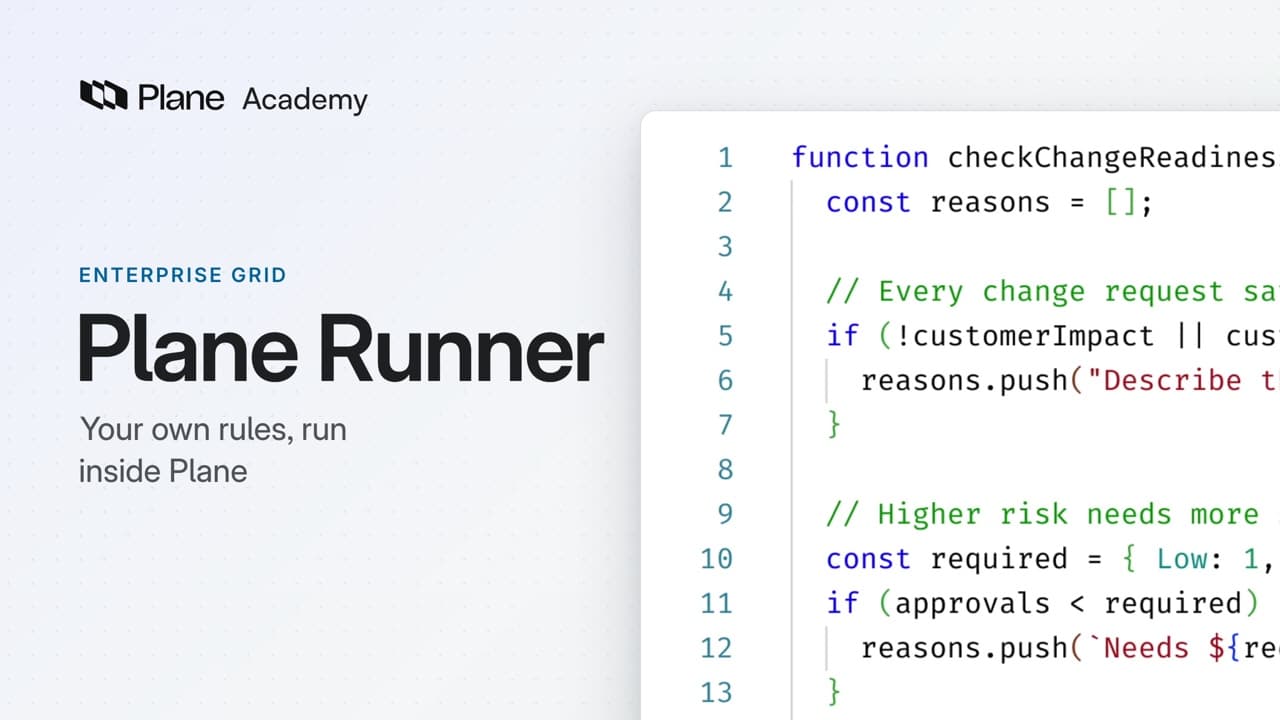
The code holds the rule. A change must describe its customer impact, and a high-risk change needs an approval count of two and a weekday change window.
The code must define a function of that name, or the form will not save. Below, Plane writes the usage example. Choose Create Function.
Call it from a script
2:05A function runs only when a script calls it. The script's type sets what runs it: an automation, a workflow transition, or a schedule.
- On Scripts, choose New Script and keep the type Automation. The template's main function receives the event that started the run.
- Choose Functions, pick
checkChangeReadiness, and choose Insert. The call arrives with its four parameters, ready to fill. - This script reads the change request's four properties, passes them to the function, and comments the reasons if it is not ready.
- Open Test, enter an event as JSON, and run it. Success means the script ran, and Output shows its answer: not ready, and why.
A test is a real run, so the comment is posted too. An error, or a run past ten seconds, shows Error and its message.
Scripts run sandboxed: no modules, no eval, and fetch only to domains your instance allows. Save checks the code and the functions it calls.
Run it from an automation
3:25- In Automations, create Check change readiness for the three projects that use change requests, with the trigger State changed.
- Add the conditions Type is Change request and State is In review, so it runs as each change enters review.
- Add the action Run Script, choose the saved script, then Save and use. Enable the automation.
A project lead moves a change request to In review. Moments later, a comment from Runner lists what it is missing.
Runner is the app your scripts act through, and it joins the workspace as an admin. Only workspace admins can write or test scripts.
The automation's run history lists the run, and the Scripts tab shows the script's executions, success rate, and last run.
Review the rule
4:29checkChangeReadiness is written once, tested in a script, and run as each change request enters review, with every run recorded.
Try it in your workspace
Open Workspace settings, then Plane Runner, choose New Function, and name it checkChangeReadiness.
Transcript
Show the transcript
Your own rules, run inside Plane
0:02Plane Runner runs code you write inside Plane: scripts that respond to events, and functions that hold logic scripts reuse. It's part of Enterprise Grid.
0:14Your rules run in a sandbox on your own instance, reach Plane through the Runner app, and leave a record of every run.
0:23You'll write a function, test it from a script, then run the script from a workspace automation. Let's take a closer look.
Write a function
0:35As a workspace admin, open Workspace settings, then Plane Runner. Scripts and Functions each have a tab, and Plane's system functions come first, locked.
0:47Choose New Function and name it checkChangeReadiness. Plane starts the code with a function of that name.
0:56Add the required description. Under Parameters, add four, each with a name, a type, and a description. New parameters start as required.
1:09They carry what the rule needs: the change request's risk rating, its customer impact, its approval count, and its change window.
1:19Return Type records what comes back: whether the change is ready, and the reasons when it isn't.
1:27The code holds the rule.
1:33A change must describe its customer impact,
1:40and a high-risk change needs an approval count of two
1:48and a weekday change window.
1:52The code must define a function of that name, or the form won't save. Below, Plane writes the usage example. Choose Create Function.
Call it from a script
2:07A function runs only when a script calls it. The script's type sets what runs it: an automation, a workflow transition, or a schedule.
2:18On Scripts, choose New Script and keep the type Automation. The template's main function receives the event that started the run.
2:28Choose Functions, pick checkChangeReadiness, and choose Insert. The call arrives with its four parameters, ready to fill.
2:39This script reads the change request's four properties, passes them to the function, and comments the reasons if it isn't ready.
2:48Open Test, enter an event as JSON, and run it. Success means the script ran, and Output shows its answer: not ready, and why.
3:02A test is a real run, so the comment is posted too. An error, or a run past ten seconds, shows Error and its message.
3:12Scripts run sandboxed: no modules, no eval, and fetch only to domains your instance allows. Save checks the code and the functions it calls.
Run it from an automation
3:28In Automations, create Check change readiness for the three projects that use change requests, with the trigger State changed.
3:39Add the conditions Type is Change request and State is In review, so it runs as each change enters review.
3:49Add the action Run Script, choose the saved script, then Save and use. Enable the automation.
4:00Now a project lead moves a change request to In review. Moments later, a comment from Runner lists what it's missing.
4:10Runner is the app your scripts act through, and it joins the workspace as an admin. Only workspace admins can write or test scripts.
4:20The automation's run history lists the run, and the Scripts tab shows the script's executions, success rate, and last run.
Review the rule
4:30checkChangeReadiness is written once, tested in a script, and run as each change request enters review, with every run recorded.
Read next
Plans
- Enterprise Grid:
- Plane Runner and workspace automations