
Lesson 13 of 15 · 4:30
Scan your workspace for exposed sensitive data
How sensitive data scanning finds exposed credentials and personal data in your workspace's content, from running a scan and reviewing its findings to tuning what it reports.
In this course
- 1What is Enterprise Grid?1:55
- 2Multiple workspaces4:43
- 3Single sign-on4:30
- 4Custom roles4:34
- 5Group syncing4:25
- 6Work item types4:43
- 7Work item hierarchy4:28
- 8Approvals4:12
- 9Workspace governance4:28
- 10Workspace automations4:26
- 11Plane Runner4:49
- 12Audit logs4:32
- 13Sensitive data scanning4:30
- 14Work item security4:18
- 15Cascading properties4:07
What you will learn
- Sensitive data scanning finds exposed credentials and personal data, such as card numbers, government IDs, and API keys, in work items, comments, pages, text properties, intake submissions, and project descriptions.
- Only workspace admins and owners see Sensitive data scanning, and scans run only when an admin starts one. On a self-hosted instance, an instance admin first starts the scanner service.
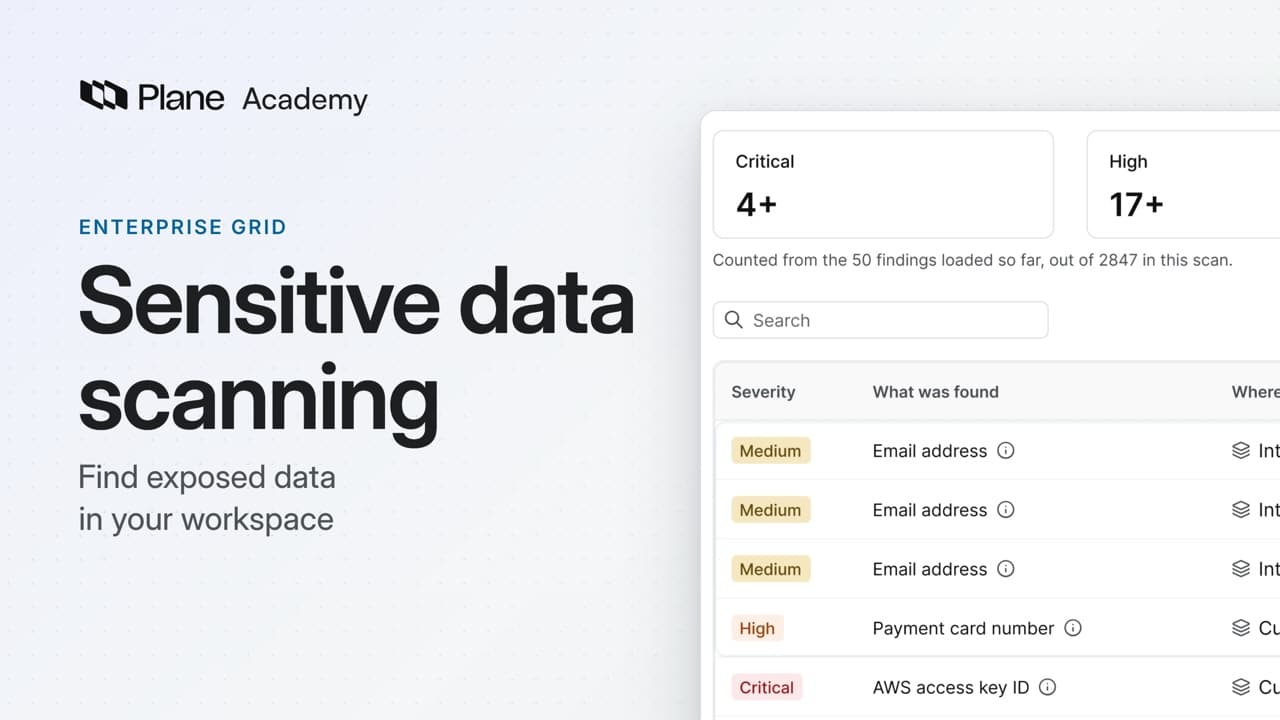
- Each finding shows the severity, what was found, where it is, the detector's confidence, and the status, but never the value. It stores only a keyed fingerprint of the value.
- Group by secret uses the keyed fingerprint to collect each value's locations. Scanning never edits content, and once a value is removed at its source, the next scan marks the open finding Stale.
- Under Select action, mark a finding as in review, or as non sensitive for a safe value. Plane records each scan, decision, and setting change in the workspace audit log, under Security.
- Detectors and the allow list decide what every scan reports. You can switch off a detector, set its minimum confidence, override its severity, add a custom pattern, and allow safe values by exact value, email domain, or regex.
- Detectors do not flag names, postal addresses, or dates of birth, and scans do not read attachments or version history.
Find exposed data in your workspace
0:00Sensitive data scanning finds exposed credentials and personal data in your workspace's content, such as card numbers, government IDs, and API keys.
It reads work items, comments, pages, text properties, intake submissions, and project descriptions, without keeping any value it finds.
Run a scan
0:31To find what is already exposed, open Workspace settings, then Sensitive data scanning. Only workspace admins and owners see it.
On a self-hosted instance, an instance admin first starts the scanner service. Until then, the page says Sensitive data scanning isn't set up.
- Choose Run scan. By default, the Configure scan dialog covers every project and every content type, with no date limit.
- You can narrow the scope to particular projects or content types, or to content updated within a date range.
- The rate limit, 500 rows a second by default, sets how fast the scan reads from your database.
Scans run only when an admin starts one. There is no schedule, and nothing checks content as it is saved.
Scan history records who ran each scan, when, and what it found. Rescanning unchanged content does not duplicate findings or reset a decision.
Review the findings
1:45- Open a finished scan to act on what it found. Its result counts findings from Critical to Low, then lists them one per row.
- Each row shows the severity, what was found, where it is, the detector's confidence, and the status, but never the value.
The finding does not store the value either, only a keyed fingerprint of it. The scanner's logs and exports leave it out too.
Group by secret uses the fingerprint to collect each value's locations, such as one access key pasted in three places.
Scanning never edits content. Once someone removes the value at its source, the next scan marks the open finding Stale.
Under Select action, choose Mark as in review, or Mark as non sensitive for a safe value, like a published test card.
Plane also records each scan, decision, and setting change in the workspace audit log, under Security.
Tune what it reports
2:58Detectors and the allow list decide what every scan in the workspace reports.
- Start on the Detectors tab. Six built-in groups cover card and bank details, contact data, credentials, and government IDs for the US, the UK, the EU, and India.
- Switch off a detector you do not need, or edit one to set its minimum confidence or override its severity. Each change applies from the next scan.
- For your own identifiers, such as internal account numbers, add a custom pattern and test it on sample text. The sample is not saved.
The allow list keeps future scans from reporting safe values, by exact value, email domain, or regex. A project entry skips a whole project.
Detectors match known patterns, so they do not flag names, postal addresses, or dates of birth. Scans do not read attachments or version history.
Scan, review, and tune
4:10Sensitive data scanning finds where exposed data sits in your workspace and records each decision, without ever storing the value.
Try it in your workspace
Open Workspace settings, then Sensitive data scanning, and choose Run scan to check every project and every content type.
Transcript
Show the transcript
Find exposed data in your workspace
0:02Sensitive data scanning finds exposed credentials and personal data in your workspace's content, such as card numbers, government IDs, and API keys.
0:13It reads work items, comments, pages, text properties, intake submissions, and project descriptions, without keeping any value it finds.
0:24You'll run a scan, review its findings, and tune what it reports. Let's take a closer look.
Run a scan
0:35To find what's already exposed, open Workspace settings, then Sensitive data scanning. Only workspace admins and owners see it.
0:46On a self-hosted instance, an instance admin first starts the scanner service. Until then, the page says Sensitive data scanning isn't set up.
0:57Choose Run scan. By default, the Configure scan dialog covers every project and every content type, with no date limit.
1:08You can narrow the scope to particular projects or content types, or to content updated within a date range.
1:16The rate limit, 500 rows a second by default, sets how fast the scan reads from your database.
1:24Scans run only when an admin starts one. There's no schedule, and nothing checks content as it's saved.
1:33Scan history records who ran each scan, when, and what it found. Rescanning unchanged content doesn't duplicate findings or reset a decision.
Review the findings
1:49Open a finished scan to act on what it found. Its result counts findings from Critical to Low, then lists them one per row.
1:59Each row shows the severity, what was found, where it is, the detector's confidence, and the status, but never the value.
2:09The finding doesn't store the value either, only a keyed fingerprint of it. The scanner's logs and exports leave it out too.
2:18Group by secret uses the fingerprint to collect each value's locations, such as one access key pasted in three places.
2:27Scanning never edits content. Once someone removes the value at its source, the next scan marks the open finding Stale.
2:39Under Select action, choose Mark as in review, or Mark as non sensitive for a safe value, like a published test card.
2:50Plane also records each scan, decision, and setting change in the workspace audit log, under Security.
Tune what it reports
3:02Detectors and the allow list decide what every scan in the workspace reports. Start on the Detectors tab.
3:10Six built-in groups cover card and bank details, contact data, credentials, and government IDs for the US, the UK, the EU, and India.
3:22Switch off a detector you don't need, or edit one to set its minimum confidence or override its severity. Each change applies from the next scan.
3:34For your own identifiers, such as internal account numbers, add a custom pattern and test it on sample text. The sample isn't saved.
3:46The allow list keeps future scans from reporting safe values, by exact value, email domain, or regex. A project entry skips a whole project.
3:59Detectors match known patterns, so they don't flag names, postal addresses, or dates of birth. Scans don't read attachments or version history.
Scan, review, and tune
4:11Sensitive data scanning finds where exposed data sits in your workspace and records each decision, without ever storing the value.