
Lesson 7 of 15 · 4:28
Set a work item hierarchy and custom relations
How a work item hierarchy sets which type can sit under which, and custom relations name how work items connect across projects, from setting the levels of work to connecting two work items.
In this course
- 1What is Enterprise Grid?1:55
- 2Multiple workspaces4:43
- 3Single sign-on4:30
- 4Custom roles4:34
- 5Group syncing4:25
- 6Work item types4:43
- 7Work item hierarchy4:28
- 8Approvals4:12
- 9Workspace governance4:28
- 10Workspace automations4:26
- 11Plane Runner4:49
- 12Audit logs4:32
- 13Sensitive data scanning4:30
- 14Work item security4:18
- 15Cascading properties4:07
What you will learn
- Work item hierarchy and custom relations are workspace rules for how work items connect, applied the same way in every project.
- Hierarchy sets which work item types can sit under which. It builds on workspace work item types, so define those first.
- Once Enable hierarchy is on, you cannot turn it off. Every type starts at level 0, and higher levels hold broader work.
- Each level holds only the level directly below it, and level 0 holds only level 0. If existing links break the new levels, Plane shows how many it would clear and asks you to type confirm.
- A custom relation has a title and a name for each direction. It is ready in every project, for anyone who can edit a work item.
- Renaming a relation changes how it reads on every work item that uses it. Custom relations sit apart from dependencies.
- Add relation can search every project when Workspace level is on. Each work item's activity records the link, and the other work item shows the opposite direction.
One structure for how work connects
0:00Work item hierarchy and custom relations are workspace rules for how work items connect, applied the same way in every project.
Hierarchy sets which work item types can sit under which. Custom relations give the links between work items your own names, such as is assessed by.
Set the levels of work
0:35A shared hierarchy breaks work down the same way in every project. It builds on workspace work item types, so define those first.
- As a workspace admin, open Workspace settings, then Work item types, then the Hierarchy tab.
- Turn on Enable hierarchy. Once it is on, you cannot turn it off, so agree the levels with your process owners before you start.
- Every type starts at level 0. Drag a type into the space at the top to make a new level. Higher levels hold broader work.
- Choose Save changes.
Each level holds only the level directly below it. A type on a higher level can hold a type on the level directly below, and not a type further down. A level 0 work item, such as a task, holds only other level 0 work items.
If existing links break the new levels, Plane shows how many parent and sub-work item links it would clear, and asks you to type confirm. Save anyway clears those links, and each work item's activity records it. Go back and fix saves nothing.
Define a relation
2:04Plane's default relations, such as Relates to and Duplicate, are general. A regulated change often needs a link with one precise meaning.
- Open Workspace settings, then Relations, and choose Add relation.
- Give it a title, and a name for each direction, such as is assessed by and assesses.
- Choose Save.
The relation is ready in every project in the workspace, for anyone who can edit a work item.
Renaming a relation later changes how it reads on every work item that uses it. The workspace's audit log records each change to a relation type.
Custom relations sit apart from dependencies. Blocking and scheduling links stay under Add dependency.
Connect the work
3:00Open a work item on a higher level, then create a work item and pick it as the parent. The type list now offers only the level below.
Plane checks the same rule when a work item changes type, in the app and through the API, and refuses a change that breaks the levels.
To record a custom link:
- Choose Add relation. The list holds every default and custom relation, in both directions.
- Pick the direction you want. Turn on Workspace level to search every project, then select the work item and add it.
The first work item lists the second under that direction. The second lists the first under the opposite direction, and each work item's activity records the link.
Review how work connects
4:07Hierarchy keeps every project's work in the same levels. Custom relations give each link one precise meaning, and both work items record it.
Try it in your workspace
Open Workspace settings, then Work item types, then the Hierarchy tab, and turn on Enable hierarchy.
Transcript
Show the transcript
One structure for how work connects
0:02Work item hierarchy and custom relations are workspace rules for how work items connect, applied the same way in every project. Both are part of Enterprise Grid.
0:14Hierarchy sets which work item types can sit under which. Custom relations give the links between work items your own names, such as is assessed by.
0:26You'll set the levels, define a relation, and link two work items across projects. Let's take a closer look.
Set the levels of work
0:37A shared hierarchy breaks work down the same way in every project. It builds on workspace work item types, so define those first.
0:47As a workspace admin, open Workspace settings, then Work item types, then the Hierarchy tab. Turn on Enable hierarchy.
0:59Once it's on, you can't turn it off, so agree the levels with your process owners before you start.
1:06Every type starts at level 0. Drag a type into the space at the top to make a new level. Higher levels hold broader work.
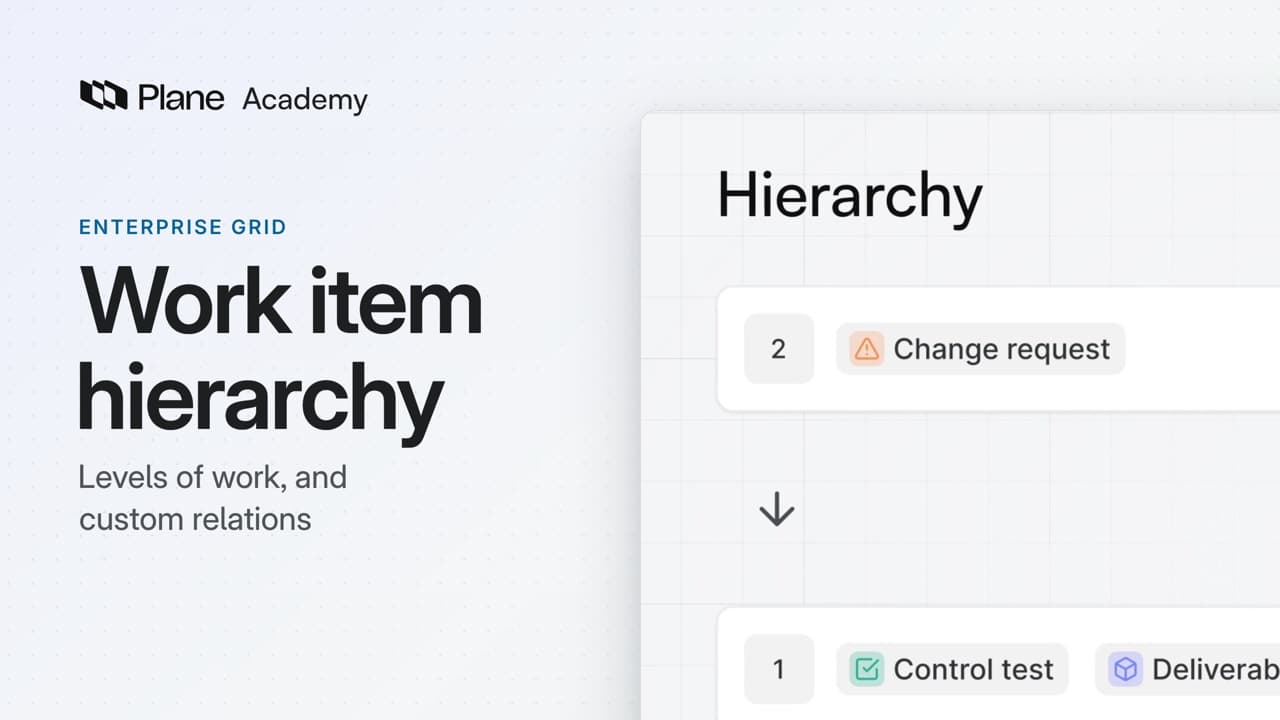
1:17Drag Control test and Deliverable up to make level 1, then Change request above them, to level 2. Task stays at level 0.
1:29Each level holds only the level directly below it. A change request can hold a deliverable, but not a task. Tasks hold only other tasks.
1:40Choose Save changes. If existing links break the new levels, Plane shows how many parent and sub-work item links it would clear, and asks you to type confirm.
1:53Save anyway clears those links, and each work item's activity records it. Go back and fix saves nothing.
Define a relation
2:06Plane's default relations, such as Relates to and Duplicate, are general. A regulated change often needs a link with one precise meaning.
2:17Open Workspace settings, then Relations, and choose Add relation. Give it a title, Risk assessment, and a name for each direction: is assessed by, and assesses. Choose Save. The relation is ready in every project in the workspace, for anyone who can edit a work item.
2:40Renaming a relation later changes how it reads on every work item that uses it. The workspace's audit log records each change to a relation type.
2:51Custom relations sit apart from dependencies. Blocking and scheduling links stay under Add dependency.
Connect the work
3:03Open PAYMENTS-42, Change payment approval limit. It's a change request, now at level 2.
3:11Create a work item and pick PAYMENTS-42 as its parent. The type list now offers only the level below: Control test and Deliverable.
3:23Plane checks the same rule when a work item changes type, in the app and through the API, and refuses a change that breaks the levels.
3:33Now record the risk assessment. Choose Add relation. The list holds every default and custom relation, in both directions.
3:43Pick is assessed by. Turn on Workspace level to search every project, then select RISK-17 and add it.
3:53PAYMENTS-42 now lists RISK-17 under is assessed by. RISK-17 lists PAYMENTS-42 under assesses, and each work item's activity records the link.
Review how work connects
4:09Hierarchy keeps every project's work in the same levels. Custom relations give each link one precise meaning, and both work items record it.
Read next
Plans
- Enterprise Grid:
- Work item hierarchy and custom relations