
Lesson 14 of 15 · 4:18
Restrict who sees sensitive work items
How work item security restricts who can see work items, from creating an audience and attaching it to a work item type or one work item to checking what others see and removing a restriction.
In this course
- 1What is Enterprise Grid?1:55
- 2Multiple workspaces4:43
- 3Single sign-on4:30
- 4Custom roles4:34
- 5Group syncing4:25
- 6Work item types4:43
- 7Work item hierarchy4:28
- 8Approvals4:12
- 9Workspace governance4:28
- 10Workspace automations4:26
- 11Plane Runner4:49
- 12Audit logs4:32
- 13Sensitive data scanning4:30
- 14Work item security4:18
- 15Cascading properties4:07
What you will learn
- Work item security restricts who can see work items. An audience, a named list of people, attaches to a work item type or to one work item.
- Owners and admins manage audiences on the Audience tab of Workspace roles and permission groups. An audience takes workspace roles, project roles, and specific members, and each change saves as you make it.
- Workspace owners and admins are always in. Project admins are in only with the project Admin role, and then only in their own projects. Effective audience counts everyone who matches and lists them by name.
- A type's Audience tab restricts every work item of that type. A single work item takes audiences from its menu, and its own audiences replace its type's, so they can widen access or narrow it.
- People outside the audience no longer see restricted work items in lists, boards, cycles, modules, dashboards, pages, search, or the counts, and a link to one opens Work item does not exist. Assignees and subscribers still see them.
- Manage audience clears a work item's own restriction. Disable lifts an audience's restrictions and keeps the audience; Delete removes it and every restriction it holds, so in a published project check its Usage tab first.
Restrict who sees sensitive work items
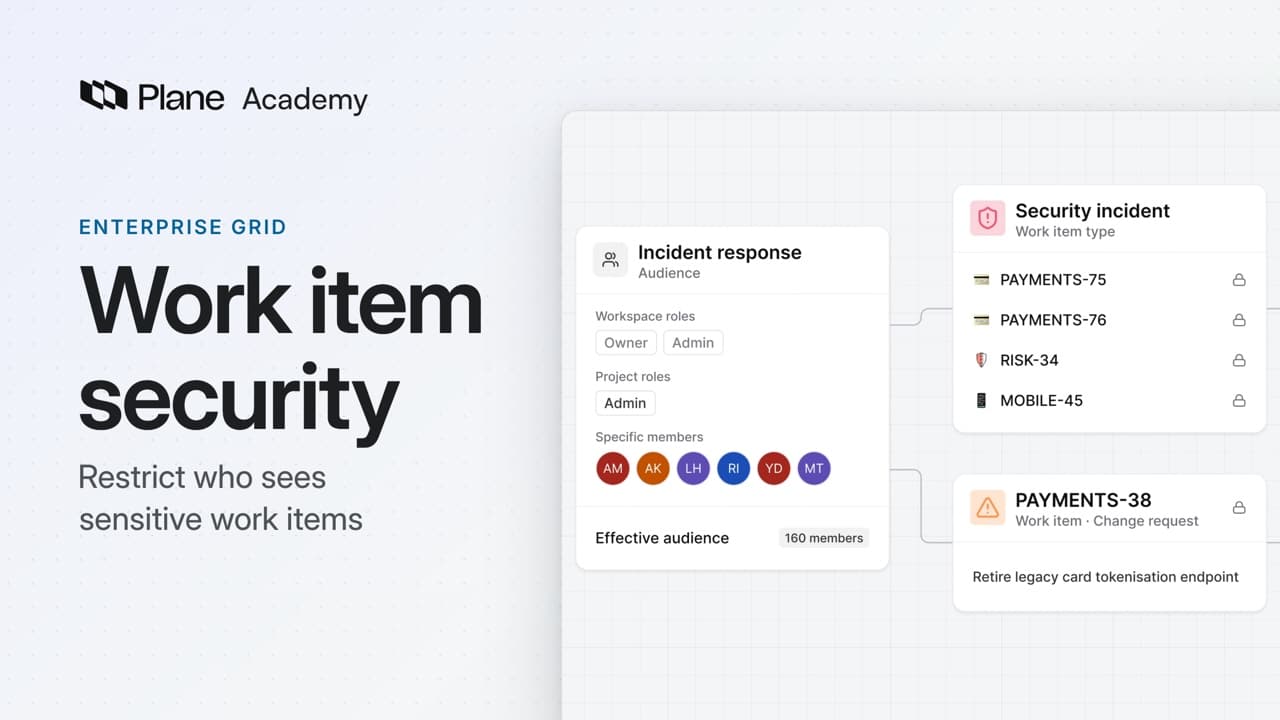
0:00Work item security restricts who can see work items. You attach an audience, a named list of people, to a work item type or to one work item.
On Enterprise Grid, that helps a regulated company keep security incidents and other sensitive work in shared projects, hidden from people who do not handle them.
Create an audience
0:34Open Workspace settings, then Workspace roles and permission groups, and choose the Audience tab. Owners and admins manage audiences here.
- Choose Create audience, then add a title, such as Incident response, and a description. The audience opens on its Configure tab.
- Add workspace roles, project roles, or specific members. Each change saves as you make it.
Workspace owners and admins are always in. Project admins are in only if you add the project Admin role, and then only in their own projects.
Effective audience counts everyone who matches and lists them by name. Usage stays empty until you attach the audience.
Restrict a type, then one work item
1:26- To restrict a type, find it under Work item types in Workspace settings, and open its Audience tab.
- Under Restrict work item visibility, choose Add audience and pick the audience. You can add several.
People outside the audience no longer see the type's work items in lists, boards, cycles, modules, dashboards, pages, or search.
Anyone assigned or subscribed to one of them still sees it. Plane subscribes whoever creates, changes, or comments on a work item.
Open one of them, and a banner says its type restricts it. The peek view shows a lock too.
- To restrict a single work item, open its menu and choose Add audience. You need edit access and the right to view audiences.
- Pick one or more audiences and choose Save changes. Its banner now reads Restricted work item, with a Manage audience button.
A work item's own audiences replace its type's, so they can widen access or narrow it. Anyone in any of them can see it.
Check what others see, then remove it
2:42For a member outside the audience, restricted work items are gone from lists, boards, cycles, modules, and search, and from the counts.
A link to one opens Work item does not exist, the page a deleted work item shows. Mentions and notifications do not reach them.
Owners and admins still see every restricted work item, with its banner. The audience's Usage tab lists each type and work item it restricts.
- To lift a work item's own restriction, choose Manage audience, clear the audience, save, and type Confirm.
- If its type has an audience, that applies again. If not, anyone with normal project access sees it.
Disable lifts an audience's restrictions but keeps the audience, so you can turn it back on. Delete removes it and every restriction it holds.
In a published project, deleting an audience can show its work items to anyone with the link, so check its Usage tab first.
Create, restrict, and check
3:56An audience decides who sees a type or one work item. Owners, admins, assignees, and subscribers always do, and everyone else finds nothing.
Try it in your workspace
Open Workspace settings, then Workspace roles and permission groups, choose the Audience tab, and create an audience with a title and a description.
Transcript
Show the transcript
Restrict who sees sensitive work items
0:02Work item security restricts who can see work items. You attach an audience, a named list of people, to a work item type or one work item.
0:13On Enterprise Grid, that helps a regulated company keep security incidents and other sensitive work in shared projects, hidden from people who don't handle them.
0:24You'll create an audience, restrict a type and one work item, check what others see, and remove a restriction. Let's take a closer look.
Create an audience
0:38Open Workspace settings, then Workspace roles and permission groups, and choose the Audience tab. Owners and admins manage audiences here.
0:48Choose Create audience, then add a title, such as Incident response, and a description. The audience opens on its Configure tab.
0:59Add workspace roles, project roles, or specific members. Each change saves as you make it.
1:07Workspace owners and admins are always in. Project admins are in only if you add the project Admin role, and then only in their own projects.
1:17Effective audience counts everyone who matches and lists them by name. Usage stays empty until you attach the audience.
Restrict a type, then one work item
1:30To restrict a type, find it under Work item types in Workspace settings, and open its Audience tab.
1:38Under Restrict work item visibility, choose Add audience and pick the audience. You can add several.
1:46People outside the audience no longer see the type's work items in lists, boards, cycles, modules, dashboards, pages, or search.
1:57Anyone assigned or subscribed to one of them still sees it. Plane subscribes whoever creates, changes, or comments on a work item.
2:07Open one of them, and a banner says its type restricts it. The peek view shows a lock too.
2:14To restrict a single work item, open its menu and choose Add audience. You need edit access and the right to view audiences.
2:24Pick one or more audiences and choose Save changes. Its banner now reads Restricted work item, with a Manage audience button.
2:34A work item's own audiences replace its type's, so they can widen access or narrow it. Anyone in any of them can see it.
Check what others see, then remove it
2:47For a member outside the audience, restricted work items are gone from lists, boards, cycles, modules, and search, and from the counts.
2:58A link to one opens Work item does not exist, the page a deleted work item shows. Mentions and notifications don't reach them.
3:08Owners and admins still see every restricted work item, with its banner. The audience's Usage tab lists each type and work item it restricts.
3:18To lift a work item's own restriction, choose Manage audience, clear the audience, save, and type Confirm.
3:27If its type has an audience, that applies again. If not, anyone with normal project access sees it.
3:35Disable lifts an audience's restrictions but keeps the audience, so you can turn it back on. Delete removes it and every restriction it holds.
3:46In a published project, deleting an audience can show its work items to anyone with the link, so check its Usage tab first.
Create, restrict, and check
3:57An audience decides who sees a type or one work item. Owners, admins, assignees, and subscribers always do, and everyone else finds nothing.
Read next
Plans
- Enterprise Grid:
- Work item security with audiences