
Lesson 10 of 15 · 4:26
Automate work across projects with workspace automations
How workspace automations update work items from rules you define once in the workspace, from building a rule with a trigger, a condition, and actions to seeing what it did.
In this course
- 1What is Enterprise Grid?1:55
- 2Multiple workspaces4:43
- 3Single sign-on4:30
- 4Custom roles4:34
- 5Group syncing4:25
- 6Work item types4:43
- 7Work item hierarchy4:28
- 8Approvals4:12
- 9Workspace governance4:28
- 10Workspace automations4:26
- 11Plane Runner4:49
- 12Audit logs4:32
- 13Sensitive data scanning4:30
- 14Work item security4:18
- 15Cascading properties4:07
What you will learn
- Workspace automations update work items from rules you define once in the workspace.
- Each automation has a trigger, optional conditions, and actions, and runs the same way in every project you choose.
- A new automation stays off until you enable it. Enable needs a trigger and at least one action.
- With workspace governance on, project admins can view an automation's activity but cannot edit its triggers or actions.
- Edit the rule in the workspace, even while it is enabled. The next work item in every linked project follows the change.
- The work item's activity shows the changes, made by the automation's own bot user, and run history lists each run.
- A work item that fails the condition still makes a run, marked failed. Changes to the automation are not in the workspace audit log.
One rule for many projects
0:00Workspace automations update work items for you, using rules you define once in the workspace. They are part of Enterprise Grid.
Each automation has a trigger, optional conditions, and actions. It runs the same way in every project you choose.
Build the rule once
0:30- As a workspace admin, open Workspace settings, then Automations. The automations Workspace Governance moved up from projects are already here, each still linked to its project.
- Choose Create automation and name it Prioritize new work. Under Select projects, pick Payments Platform, Risk Engineering, and Mobile Banking. The other choice, All projects, covers every project in the workspace, including projects created later.
- Add the trigger. Under Plane events, choose Work item created. Others fire on an update, a change of state or assignee, or a new comment.
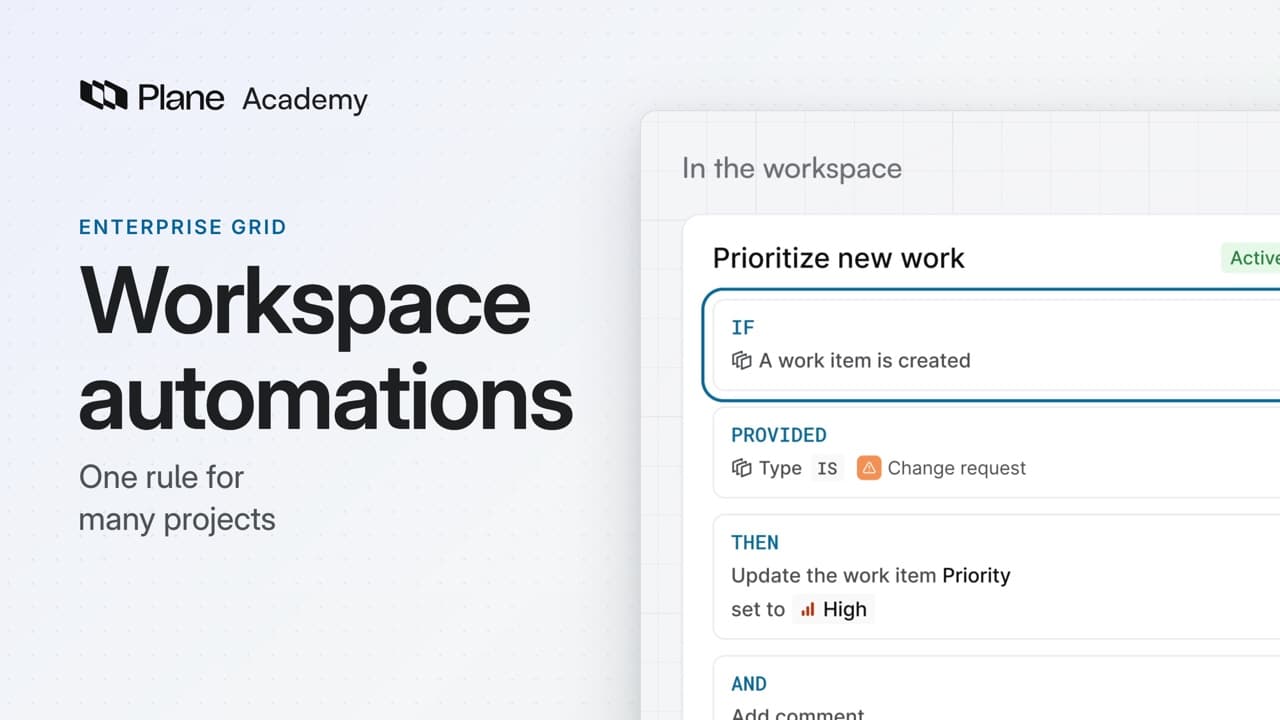
- Add the condition Type is Change request, so the rule acts only on change requests. Conditions can also test state, priority, labels, and assignees.
- Add two actions. Change property sets Priority to High, and Add comment asks for a risk review. Actions run in the order you add them.
The page now reads as one rule: if a work item is created, provided its type is Change request, set its priority and add the comment.
Turn it on across projects
2:01A new automation stays off until you enable it, and Enable needs a trigger and at least one action. Choose Enable, and the list shows it as Active.
From then on, it runs each time a work item is created in those three projects. No project has to copy the rule.
With Workspace Governance on, each project lists the automations linked to it. Project admins can view their activity, but cannot edit triggers or actions.
To change the rule later, edit it here, even while it is enabled. The next work item in every linked project follows the change.
To stop the rule in every project at once, choose Disable. An automation must be disabled before you can delete it.
See what it did
2:58A project lead creates a change request in Payments Platform, with no priority. Moments later it is High, and the risk review comment is there. The work item's activity shows both changes, made by the automation's own bot user.
Back on the automation, open Activity. Run history lists each run with its work item, its time, and how long it took. Expand a run to see who triggered it.
A work item that fails the condition still makes a run, marked failed. A task in Mobile Banking fired the trigger, the condition stopped it, and nothing changed.
The feed also records changes to the automation: who created it, and each step added or changed. Those changes are not in the workspace audit log.
In the list, Last run status shows the latest result, and Executions counts successful runs out of all runs.
Review the automation
4:06Prioritize new work is defined once, runs the same trigger, condition, and actions in all three projects, and records every run.
Try it in your workspace
Open Workspace settings, then Automations, choose Create automation, and name it.
Transcript
Show the transcript
One rule for many projects
0:02Workspace automations update work items for you, using rules you define once in the workspace. They're part of Enterprise Grid.
0:12Each automation has a trigger, optional conditions, and actions. It runs the same way in every project you choose.
0:21You'll build one for new change requests, turn it on, and check what it did. Let's take a closer look.
Build the rule once
0:33As a workspace admin, open Workspace settings, then Automations. The automations Workspace Governance moved up from projects are already here, each still linked to its project.
0:46Choose Create automation and name it Prioritize new work. Under Select projects, pick Payments Platform, Risk Engineering, and Mobile Banking.
1:00The other choice, All projects, covers every project in the workspace, including projects created later.
1:08Add the trigger. Under Plane events, choose Work item created. Others fire on an update, a change of state or assignee, or a new comment.
1:21Add the condition Type is Change request, so the rule acts only on change requests. Conditions can also test state, priority, labels, and assignees.
1:35Then add two actions. Change property sets Priority to High, and Add comment asks for a risk review. Actions run in the order you add them.
1:49The page now reads as one rule: if a work item is created, provided its type is Change request, set its priority and add the comment.
Turn it on across projects
2:03A new automation stays off until you enable it, and Enable needs a trigger and at least one action. Choose Enable, and the list shows it as Active.
2:16From then on, it runs each time a work item is created in those three projects. No project has to copy the rule.
2:25With Workspace Governance on, each project lists the automations linked to it. Project admins can view their activity, but can't edit triggers or actions.
2:37To change the rule later, edit it here, even while it's enabled. The next work item in every linked project follows the change.
2:47To stop the rule in every project at once, choose Disable. An automation must be disabled before you can delete it.
See what it did
3:00Now a project lead creates a change request in Payments Platform, with no priority. Moments later it's High, and the risk review comment is there.
3:12The work item's activity shows both changes, made by the automation's own bot user.
3:19Back on the automation, open Activity. Run history lists each run with its work item, its time, and how long it took. Expand a run to see who triggered it.
3:32A work item that fails the condition still makes a run, marked failed. This task in Mobile Banking fired the trigger, the condition stopped it, and nothing changed.
3:44The feed also records changes to the automation: who created it, and each step added or changed. Those changes aren't in the workspace audit log.
3:56In the list, Last run status shows the latest result, and Executions counts successful runs out of all runs.
Review the automation
4:07Prioritize new work is defined once, runs the same trigger, condition, and actions in all three projects, and records every run.
Read next
Plans
- Enterprise Grid:
- Workspace automations