
Lesson 9 of 15 · 4:28
Set one standard across projects with workspace governance
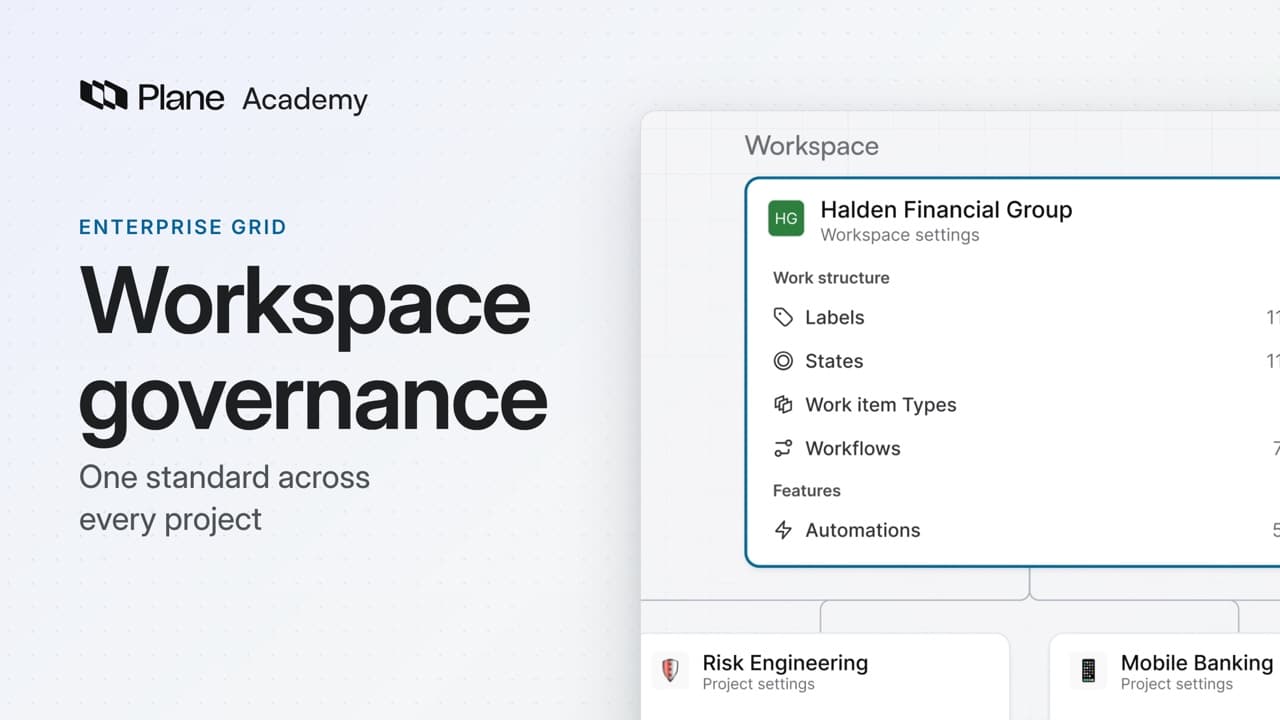
How workspace governance moves shared configuration from projects to the workspace, from reviewing the move before you commit to requiring one workflow for a work item type and checking the record of a workflow edit.
In this course
- 1What is Enterprise Grid?1:55
- 2Multiple workspaces4:43
- 3Single sign-on4:30
- 4Custom roles4:34
- 5Group syncing4:25
- 6Work item types4:43
- 7Work item hierarchy4:28
- 8Approvals4:12
- 9Workspace governance4:28
- 10Workspace automations4:26
- 11Plane Runner4:49
- 12Audit logs4:32
- 13Sensitive data scanning4:30
- 14Work item security4:18
- 15Cascading properties4:07
What you will learn
- Workspace governance moves shared configuration from projects to the workspace, so every project follows the same standard.
- You turn it on once for a workspace, and it is permanent. A read-only migration review shows what will happen before anything changes.
- States with the same name in the same group merge, and so do flat labels with matching names. Workflows do not merge. Automations move to the workspace and still run only in their original projects.
- While the migration runs, Plane locks that workspace until it finishes. Other workspaces are not affected.
- Required sets one workflow for every project that uses a work item type. Any lets projects pick any active workflow, and Constrained limits them to a list you approve.
- If a work item sits in a state the required workflow does not have, map that state before you confirm. A project admin cannot choose another workflow.
- Each workspace workflow keeps a history of its edits. History does not record the Required rule, and it is not a rollback.
One standard across projects
0:00Workspace governance moves shared configuration from projects to the workspace, so every project follows the same standard. It is part of Enterprise Grid.
States, workflows, labels, work item types, and automations become workspace settings. Projects use them, and project admins no longer edit them.
Review the move to workspace control
0:36You turn governance on once for a workspace, and it is permanent.
- As a workspace admin, open Workspace settings, then Workspace Governance, and choose Enable.
- Before anything changes, choose Start migration review. The review is read-only, and shows what will happen to each kind of setting.
States with the same name in the same group merge into one. A state that only one project uses stays as it is. Workflows do not merge. Each project's default workflow moves across under the project's name, and every project keeps the workflow it uses today. Flat labels with matching names merge. Automations move to the workspace, and still run only in their original projects.
Choose Review and enable, type confirm, then Enable governance.
While the migration runs, Plane locks this workspace until it finishes. Other workspaces are not affected. Schedule it for a quiet hour.
When it finishes, the page shows who enabled governance, and when. States, workflows, and labels now appear in Workspace settings.
Require one workflow for a work item type
2:00Moving ownership does not change which workflow a project uses. Workflow rules do that, one work item type at a time.
- Open Work item types, choose Change request, then the Governance tab. Changing a rule needs permission to edit workspace workflows.
- There are three modes. Any lets projects pick any active workflow. Constrained limits them to a list you approve. Required sets one workflow for every project that uses the type.
- Choose Required, confirm, select Regulated change, and save. Plane checks for work items in states that workflow does not have.
In this workspace, one work item sits in Ready for release, which Regulated change does not include. Map that state to In review, then confirm. The work item moves to In review. Every project that uses Change request now runs Regulated change.
In a project's settings, the type's Workflow tab shows Regulated change with the selector turned off. A project admin cannot choose another workflow. The server rejects the change too, so the rule does not depend on the settings page.
The rule covers one type. Other work item types keep their own rules.
Check the record of a change
3:31Each workspace workflow keeps a history of its edits.
- In Workspace settings, open Workflows, choose Regulated change, edit its description, and save.
- Choose History. The entry names the person, the change, and the time. Hover the time for the exact date.
History covers edits to the workflow. It does not record the Required rule, and it is not a rollback.
Verify the standard in place
4:05Change requests now follow Regulated change in every project that uses them. You reviewed the move before committing, mapped existing work, and can see who edited the workflow.
Try it in your workspace
Open Workspace settings, then Workspace Governance, choose Enable, and start the migration review before you commit.
Transcript
Show the transcript
One standard across projects
0:02Workspace governance moves shared configuration from projects to the workspace, so every project follows the same standard. It's part of Enterprise Grid.
0:13States, workflows, labels, work item types, and automations become workspace settings. Projects use them, and project admins no longer edit them.
0:25You'll review the move, require one workflow for a work item type, and check the record of a workflow edit. Let's take a closer look.
Review the move to workspace control
0:39You turn governance on once for a workspace, and it's permanent. As a workspace admin, open Workspace settings, then Workspace Governance, and choose Enable.
0:51Before anything changes, choose Start migration review. The review is read-only, and shows what will happen to each kind of setting.
1:01States with the same name in the same group merge into one. A state that only one project uses stays as it is.
1:11Workflows don't merge. Each project's default workflow moves across under the project's name, and every project keeps the workflow it uses today.
1:23Flat labels with matching names merge. Automations move to the workspace, and still run only in their original projects.
1:32Choose Review and enable, type confirm, then Enable governance.
1:39While the migration runs, Plane locks this workspace until it finishes. Other workspaces aren't affected. Schedule it for a quiet hour.
1:50When it finishes, the page shows who enabled governance, and when. States, workflows, and labels now appear in Workspace settings.
Require one workflow for a work item type
2:04Moving ownership doesn't change which workflow a project uses. Workflow rules do that, one work item type at a time.
2:13Open Work item types, choose Change request, then the Governance tab. Changing a rule needs permission to edit workspace workflows.
2:22There are three modes. Any lets projects pick any active workflow. Constrained limits them to a list you approve. Required sets one workflow for every project that uses the type.
2:36Choose Required, confirm, select Regulated change, and save. Plane checks for work items in states that workflow doesn't have.
2:48In this workspace, one work item sits in Ready for release, which Regulated change doesn't include. Map that state to In review, then confirm.
3:00The work item moves to In review. Every project that uses Change request now runs Regulated change.
3:08In a project's settings, the type's Workflow tab shows Regulated change with the selector turned off. A project admin can't choose another workflow.
3:18The server rejects the change too, so the rule doesn't depend on the settings page.
3:24The rule covers one type. Other work item types keep their own rules.
Check the record of a change
3:34Each workspace workflow keeps a history of its edits. In Workspace settings, open Workflows, choose Regulated change, edit its description, and save.
3:48Then choose History. The entry names the person, the change, and the time. Hover the time for the exact date.
3:58History covers edits to the workflow. It doesn't record the Required rule, and it isn't a rollback.
Verify the standard in place
4:06Change requests now follow Regulated change in every project that uses them. You reviewed the move before committing, mapped existing work, and can see who edited the workflow.
Read next
Plans
- Enterprise Grid:
- Workspace governance and workflows by work item type