
Lesson 6 of 15 · 4:43
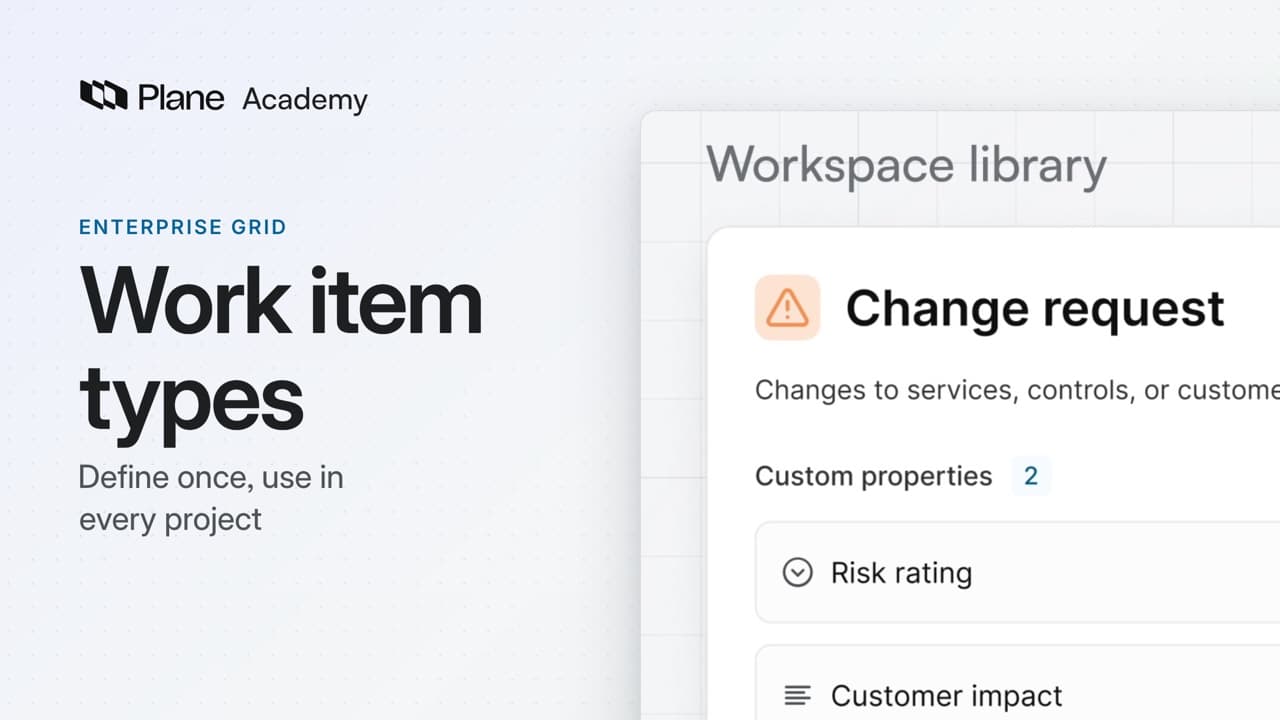
Define work item types once for every project
How workspace work item types let you define a type and its properties once, then use them in every project, from moving the definition to the workspace to requiring a property where your policy needs it.
In this course
- 1What is Enterprise Grid?1:55
- 2Multiple workspaces4:43
- 3Single sign-on4:30
- 4Custom roles4:34
- 5Group syncing4:25
- 6Work item types4:43
- 7Work item hierarchy4:28
- 8Approvals4:12
- 9Workspace governance4:28
- 10Workspace automations4:26
- 11Plane Runner4:49
- 12Audit logs4:32
- 13Sensitive data scanning4:30
- 14Work item security4:18
- 15Cascading properties4:07
What you will learn
- Workspace work item types give every project the same definition of a kind of work, with the same fields. The workspace owns each type and its properties.
- Projects import the type and cannot change its fields. Turning on workspace types is permanent, and Plane keeps each project's own types separate.
- A property in the library is not on any work item until you add it to a type. Mark as mandatory on the default configuration makes people choose a value.
- Import from workspace adds the workspace's definition to a project, not a copy. The fields can only be edited in the workspace.
- A context sets whether a field is required, by project and by work item type. When more than one context matches, the most specific one wins, and the Default context applies last.
- A required field checks that a value exists when a work item is created. It does not judge the value, and it does not check older work items.
One definition for every project
0:00Workspace work item types give every project the same definition of a kind of work, with the same fields.
The workspace owns each type and its properties. Projects import the type, and cannot change its fields.
Move the definition to the workspace
0:35Without workspace types, each project keeps its own work item types. Workspace types replace them with one shared library.
Turning on workspace types is permanent. Plane migrates each project's own types, keeps them separate, and adds the project's identifier to each name.
A workspace admin maintains the library in Workspace settings, under Work item types.
Import the type into a project
2:11In a project that does not use the type yet, a project admin opens Project settings, then Work item types, and chooses Import from workspace.
Select Change request and add it. The project now uses the workspace's definition, not a copy.
Every project that uses the type shows the same two fields and the same risk options. The fields can only be edited in the workspace.
Require a field where policy needs it
2:45The same field can be required in some projects and optional in others. A context sets that, by project and by work item type.
- Open Customer impact, then Configurations, and add a context.
- Select the projects and the Change request type, then create it.
- Open the context's menu, choose Edit details, select Mandatory property, and save. The Default context stays optional.
When more than one context matches, the most specific one wins. The Default context applies last.
Create a Change request in a project where both fields are required, and leave the risk rating empty. Plane blocks it and names the missing field. Leave Customer impact empty, and Plane blocks that too. Fill in both, and the work item is created.
In a project where Customer impact falls back to the Default context, the same type needs only the risk rating.
A required field checks that a value exists when a work item is created. It does not judge the value, and it does not check older work items.
Try it in your workspace
Open Workspace settings, then Work item types, open Change request, then Properties, and add the shared fields.
Transcript
Show the transcript
One definition for every project
0:02Workspace work item types give every project the same definition of a kind of work, with the same fields. They're part of Enterprise Grid.
0:13The workspace owns each type and its properties. Projects import the type, and can't change its fields.
0:21You'll add two shared fields to a Change request type, import it into a project, and make one field required only where policy needs it. Let's take a closer look.
Move the definition to the workspace
0:37Without workspace types, each project keeps its own work item types. Workspace types replace them with one shared library.
0:47Turning on workspace types is permanent. Plane migrates each project's own types, keeps them separate, and adds the project's identifier to each name.
0:58This workspace already uses workspace types. A workspace admin maintains the library in Workspace settings, under Work item types.
Define the shared fields
1:12Change request needs two fields: a risk rating, and a note on customer impact. Both are kept in the library's Properties tab.
1:22Risk rating is a Dropdown with three options: Low, Medium, and High. Every project gets the same three choices.
1:32Open the property, and in its Default configuration choose Mark as mandatory. Leave the default value empty, so people have to choose a rating.
1:44For the second field, choose Add new property. Name it Customer impact, choose Text, then Single line, and create it.
1:57A property in the library isn't on any work item yet. Open Change request, then Properties, choose Add existing properties, and select both.
Import the type into a project
2:14Two projects already use Change request. In the third, a project admin opens Project settings, then Work item types, and chooses Import from workspace.
2:26Select Change request and add it. The project now uses the workspace's definition, not a copy.
2:36All three projects show the same two fields and the same risk options. The fields can only be edited in the workspace.
Require a field where policy needs it
2:48The same field can be required in some projects and optional in others. A context sets that, by project and by work item type.
2:58In this example, the two customer-facing projects must fill in Customer impact. The risk project can leave it empty.
3:07Open Customer impact, then Configurations, and add a context. Select the payments and mobile projects, and the Change request type, then create it.
3:22Open the context's menu, choose Edit details, select Mandatory property, and save. The Default context stays optional.
3:34When more than one context matches, the most specific one wins. The Default context applies last.
3:42Now create a Change request in the payments project without a risk rating. Plane blocks it and names the missing field.
3:52Leave Customer impact empty, and Plane blocks that too. Fill in both, and the work item is created.
4:03In the risk project, the same type needs only the risk rating. Customer impact falls back to the Default context.
4:12A required field checks that a value exists when a work item is created. It doesn't judge the value, and it doesn't check older work items.
Review the shared definition
4:24One Change request definition now serves three projects, with one risk scale. Customer impact is required only where its context says so.
Read next
Plans
- Enterprise Grid:
- Workspace work item types and properties