
Lesson 7 of 12 · 6:17
Back up, restore, and upgrade self-hosted Plane with Prime CLI
How Prime CLI backs up, restores, upgrades, and checks the health of a self-hosted Plane instance after the install, and how a single backup moves Plane to a new server.
In this course
- 1Self-hosted Plane4:35
- 2Install with Docker5:09
- 3Domain, HTTPS, email5:45
- 4Sign-in and SSO5:47
- 5Plans and licenses5:40
- 6Run your instance5:27
- 7Back up, restore, and upgrade6:17
- 8Production data5:18
- 9Kubernetes with Helm6:29
- 10Integrations and the MCP server5:52
- 11Plane AI, search, and scanning5:52
- 12Airgapped Plane5:06
What you will learn
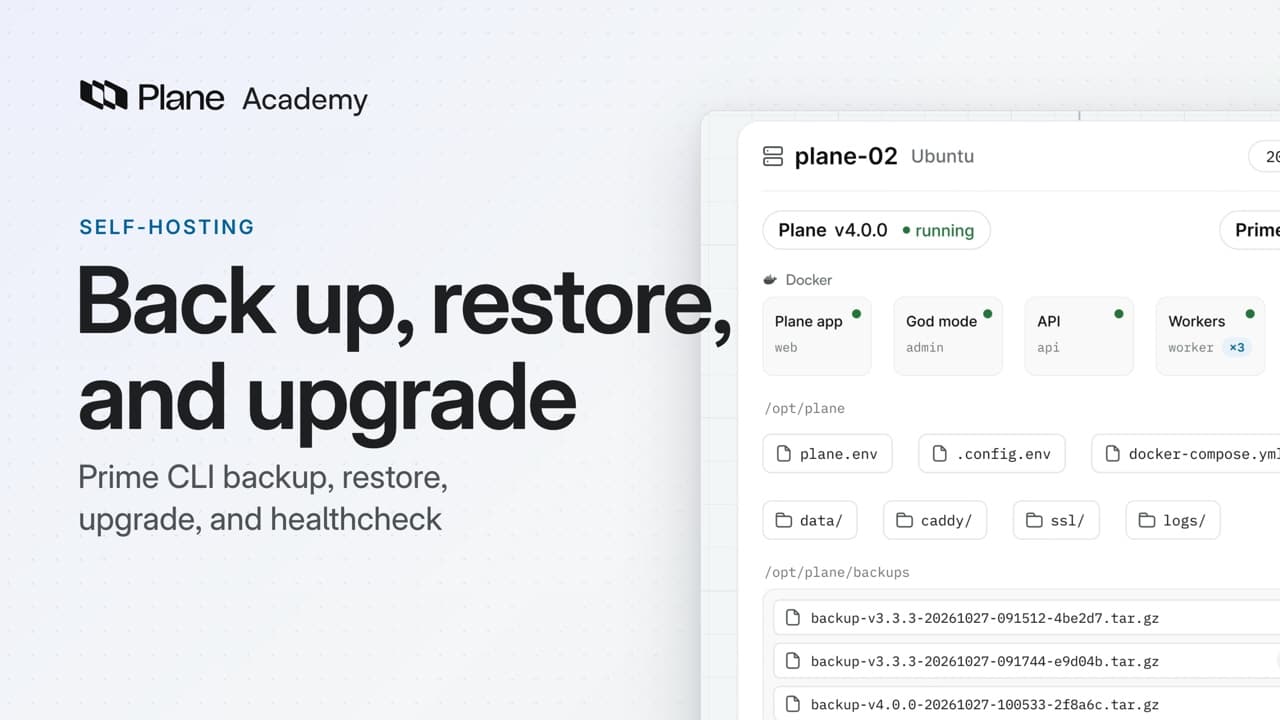
- prime-cli backup packs /opt/plane into one compressed file in /opt/plane/backups while Plane keeps running: plane.env, the compose file, the data folder with the database and uploads, the proxy's certificates, and the logs. An external database or S3 bucket is not in the file.
- Plane keeps writing while a backup runs. For a consistent copy of the database, run prime-cli stop first, then start Plane again.
- prime-cli restore needs the file's name. It stops Plane, takes a safety backup, puts the backup's files in place, and starts Plane again. Work items and files added after that backup are no longer there, and the safety backup lets you undo a restore the same way.
- prime-cli status shows your version, the latest one, and how many releases you are behind. prime-cli update-cli updates the tool itself, and Prime CLI will not upgrade Plane until it is up to date.
- prime-cli upgrade backs up the instance, downloads the release, stops the services, runs the migrator, and prints the new version. If a step after the stop fails, it restores the backup it took first, and after a success it deletes that backup, so take your own first. There is no downgrade.
- prime-cli healthcheck lists every service, and /api/ready/ on your domain answers 200 when the API can reach the database and cache, and 503 when it cannot.
- prime-cli logs reads a service's log, prime-cli bundle writes one masked file for support, and prime-cli scale adds workers without stopping Plane. Keep the beat worker, Argus, and the migrator at one.
- To move to a new server on the same domain, unlink your license keys, stop Plane and take a backup, install Plane on the new server, copy the backups folder into /opt/plane, restore, point the domain at the new server, and activate the keys there.
Prime CLI after the install
0:00Prime CLI is the command-line tool that installs self-hosted Plane on Docker. After the install, it backs the instance up, restores it, upgrades it, and checks its health. A single backup also moves Plane to a new server.
Back up and restore
0:24- Run
sudo prime-cli backup. It packs/opt/planeinto one compressed file while Plane keeps running:plane.env, the compose file, and the data folder, which holds the database and uploads. The proxy's certificates and the logs go in too. - An external database or S3 bucket is not in the file, so back those up with their own tools.
- The file goes to
/opt/plane/backups, named with the Plane version and the time you took it. - Plane keeps writing while a backup runs. For a consistent copy of the database, run
sudo prime-cli stopfirst, then start Plane again.
To restore:
- Run
sudo prime-cli restorewith the file's name. Leave it out, and it only lists the backups you can choose. - It says what it will do and asks you to confirm. Then it stops Plane and takes a safety backup of the instance as it is.
- Next, it puts the backup's files in place and starts Plane. Work items and files added after that backup are no longer there.
If a later step fails, Prime CLI restores the safety backup. That file stays in the folder, so you can undo a restore the same way.
Check status and upgrade
1:58- To check for a new release, run
sudo prime-cli status. It shows your version, the latest one, and how many releases you are behind. - Before you upgrade, run
sudo prime-cli update-cli. Prime CLI will not upgrade Plane until it is up to date itself. - Run
sudo prime-cli upgrade. It names both versions and waits for a yes. - Once you confirm, it backs up the instance and downloads the new release, then checks the settings and free disk space. Plane keeps running through all of it.
- Downtime starts when it stops the services. It removes the old images, saves a copy of the database, and creates fresh containers.
- Next, the migrator updates the database, and the last five lines of its log scroll by. Then Prime CLI waits for the API to start.
- It ends by printing the new version and your address. Plane is back, and the downtime is over.
If a step after the stop fails, it restores the backup it took first. Then, if Plane is not running, run sudo prime-cli start.
After a successful upgrade, it deletes that backup. Take your own first, so you still have one to restore.
To choose a release other than the latest, add --version. There is no downgrade. To go back, restore a backup from the older version.
Keep it healthy, and move it
3:41- To check every service, run
sudo prime-cli healthcheck. Running services read healthy, finished jobs read gracefully stopped, and switched-off ones read disabled. Anything else makes the command fail, so scripts can catch it.--watchrefreshes the table until you press Ctrl+C. - From any machine, call
/api/ready/on your domain, with the slash at the end. It returns 200 when the API can reach the database and cache, and 503 when it cannot. - For a service's logs, run
sudo prime-cli logswith its name.--tail 50starts at the last fifty lines, and--followkeeps reading until you press Ctrl+C. Without a name, you get every service, each line tagged with its service. - When you need support, run
sudo prime-cli bundle. It writes one file with recent logs, container details, and a summary page.--since 1hkeeps the last hour, and--with-configadds your settings. The bundle masks passwords, keys, and tokens. - To run more background jobs at once, add workers.
sudo prime-cli scale viewlists every service you can scale.sudo prime-cli scale worker 3writes the new count toplane.envand starts the extra workers, without stopping Plane. Keep the beat worker at one replica, or scheduled jobs run more than once. Never take Argus or a migrator above one either.
To move to a new server on the same domain:
- Unlink your license keys first.
- Stop Plane and take a backup.
- Install Plane on the new server, copy the backups folder into
/opt/plane, and restore your backup. - Point the domain at the new server, and activate your license keys there.
Recap
5:56Take your own backup before every upgrade, and check health when it is done. To change servers, restore a backup on the new one.
Try it in your workspace
Run sudo prime-cli backup on your server, then list /opt/plane/backups to find the file named with your Plane version and the time you took it.
Transcript
Show the transcript
Prime CLI after the install
0:02Prime CLI is the command-line tool that installs self-hosted Plane on Docker.
0:09After the install, it backs the instance up, restores it, upgrades it, and checks its health.
0:16You'll see each one, and how a single backup moves Plane to a new server. Let's take a closer look.
Back up and restore
0:27To take a backup, run prime-cli backup. It packs /opt/plane into one compressed file while Plane keeps running.
0:38That's plane.env, the compose file, and the data folder, which holds the database and uploads. The proxy's certificates and the logs go in too.
0:50An external database or S3 bucket isn't in the file, so back those up with their own tools.
0:57The file goes to /opt/plane/backups, named with the Plane version and the time you took it.
1:05Plane keeps writing while a backup runs. For a consistent copy of the database, run prime-cli stop first, then start Plane again.
1:16prime-cli restore needs the file's name. Leave it out, and it only lists the backups you can choose.
1:24It says what it will do and asks you to confirm. Then it stops Plane and takes a safety backup of the instance as it is.
1:33Next, it puts the backup's files in place and starts Plane. Work items and files added after that backup are no longer there.
1:43If a later step fails, Prime CLI restores the safety backup. That file stays in the folder, so you can undo a restore the same way.
1:57To check for a new release, run prime-cli status.
Check status and upgrade
2:01It shows your version, the latest one, and how many releases you're behind.
2:07Before you upgrade, run prime-cli update-cli. Prime CLI won't upgrade Plane until it's up to date itself.
2:17Then run prime-cli upgrade. It names both versions and waits for a yes.
2:24Once you confirm, it backs up the instance and downloads the new release, then checks the settings and free disk space. Plane keeps running through all of it.
2:35Downtime starts when it stops the services. It removes the old images, saves a copy of the database, and creates fresh containers.
2:45Next, the migrator updates the database, and the last five lines of its log scroll by. Then Prime CLI waits for the API to start.
2:55It ends by printing the new version and your address. Plane is back, and the downtime is over.
3:02If a step after the stop fails, it restores the backup it took first. Then, if Plane isn't running, run prime-cli start.
3:13After a successful upgrade, it deletes that backup. Take your own first, so you still have one to restore.
3:21To choose a release other than the latest, add --version. There's no downgrade. To go back, restore a backup from the older version.
3:35To check every service, run prime-cli healthcheck. Running services read healthy,
Keep it healthy, and move it
3:42finished jobs read gracefully stopped, and switched-off ones read disabled.
3:48Anything else makes the command fail, so scripts can catch it. --watch refreshes the table until you press Ctrl+C.
3:58From any machine, call /api/ready/ on your domain, with the slash at the end.
4:05It returns 200 when the API can reach the database and cache, and 503 when it can't.
4:13For a service's logs, run prime-cli logs with its name. --tail 50 starts at the last fifty lines.
4:23--follow keeps reading until you press Ctrl+C. Without a name, you get every service, each line tagged with its service.
4:33When you need support, run prime-cli bundle. It writes one file with recent logs, container details, and a summary page.
4:43--since 1h keeps the last hour, and --with-config adds your settings. The bundle masks passwords, keys, and tokens.
4:55To run more background jobs at once, add workers. prime-cli scale view lists every service you can scale.
5:03prime-cli scale worker 3 writes the new count to plane.env and starts the extra workers, without stopping Plane.
5:13Keep the beat worker at one replica, or scheduled jobs run more than once. Never take Argus or a migrator above one either.
5:22To move to a new server on the same domain, unlink your license keys first.
5:29Then stop Plane and take a backup.
5:33Install Plane on the new server, copy the backups folder into /opt/plane, and restore your backup.
5:42Then point the domain at the new server, and activate your license keys there.
5:48Take your own backup before every upgrade, and check health when it's done. To change servers, restore a backup on the new one.