
Lesson 10 of 12 · 5:52
Connect integrations and the MCP server to self-hosted Plane
How integrations turn on for a self-hosted instance, with an app on the provider's side and its keys in plane.env, from GitHub end to end and four more in one pass to Plane's own MCP server for AI tools.
In this course
- 1Self-hosted Plane4:35
- 2Install with Docker5:09
- 3Domain, HTTPS, email5:45
- 4Sign-in and SSO5:47
- 5Plans and licenses5:40
- 6Run your instance5:27
- 7Back up, restore, and upgrade6:17
- 8Production data5:18
- 9Kubernetes with Helm6:29
- 10Integrations and the MCP server5:52
- 11Plane AI, search, and scanning5:52
- 12Airgapped Plane5:06
What you will learn
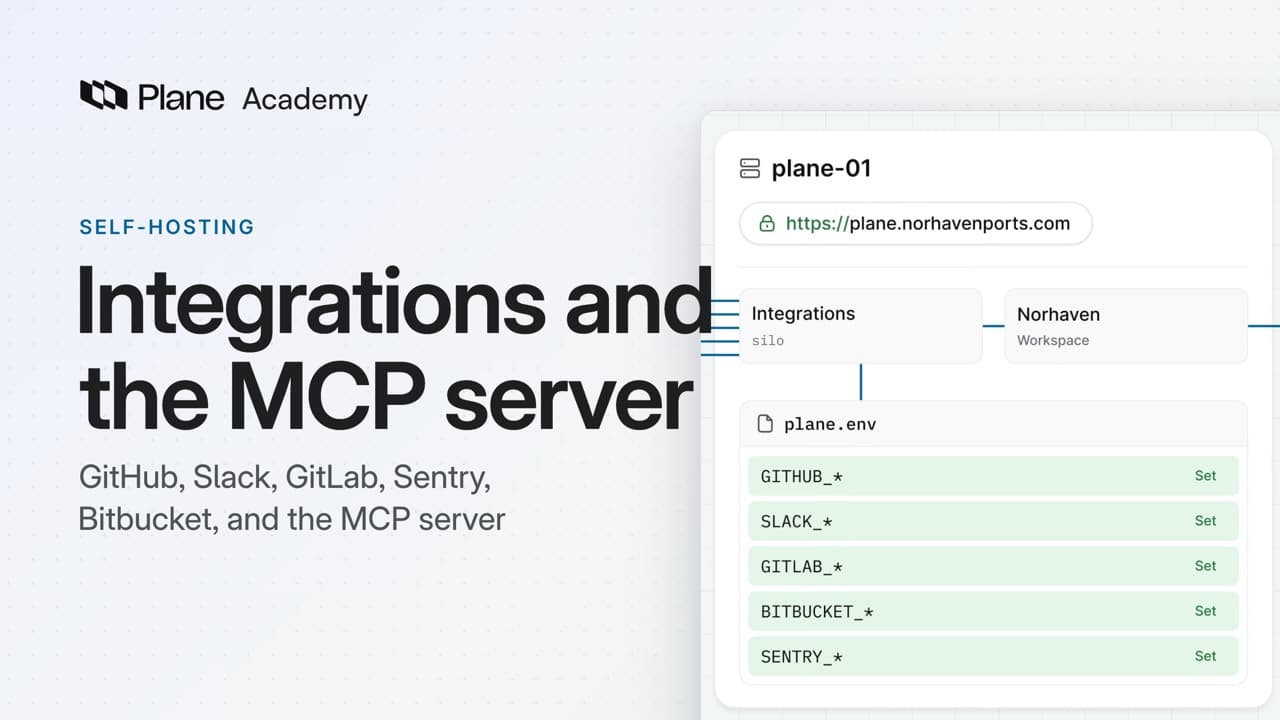
- Integrations run in one container, silo, at /silo on your Plane domain. Silo turns each of the five on only when its keys are in plane.env, and God mode's GitHub and GitLab pages set up sign-in, not integrations.
- Until the keys are set, an integration's card in Workspace settings, Integrations, reads Not configured. Set the keys, restart Plane, and it shows Configure. Integrations need the Pro plan or higher, and on the Free plan each card shows Upgrade.
- For GitHub, create a GitHub App whose callback, setup, and webhook URLs point at /silo, opt out of expiring user tokens, and give Plane five values: the app's ID, its client ID and secret, its private key, and its slug.
- Encode the private key on one line with base64 -w 0, then one sudo prime-cli configure command with -e before each key sets all five. It lists the keys with the secrets masked and asks before writing plane.env and restarting Plane.
- After the restart, a workspace admin connects the organization and installs the app on all repositories or only some. An organization connects to one workspace on the instance, and admins and members can each connect a personal GitHub account.
- Slack's app comes from the docs' manifest, GitLab needs a confidential application with six scopes, Bitbucket an OAuth consumer, and Sentry a public integration with its slug and base URL. One configure command sets all twelve keys, and one restart turns all four on.
- For the MCP server, register it under Integrations with Build your own, with read and write on all workspace resources, run it with Docker Compose next to Valkey behind TLS, and add it to a client such as VS Code. It acts as the person who signed in.
Integrations on a self-hosted instance
0:00Integrations connect a Plane workspace to tools such as GitHub, Slack, GitLab, Bitbucket, and Sentry.
On a self-hosted instance, you turn each one on yourself, with an app on the provider's side and its keys in plane.env. This lesson sets up GitHub end to end, the other four in one pass, and Plane's MCP server, so AI tools can create work items and query projects.
See how integrations turn on
0:32Integrations run in one container called silo, at /silo on your Plane domain.
God mode's GitHub and GitLab pages set up sign-in, not integrations. Silo turns each of the five on only when its keys are in plane.env.
- Until then, the integration's card in Workspace settings, then Integrations, reads Not configured, and tells workspace admins to contact their instance admin.
- Set the keys and restart Plane, and the card shows Configure instead.
Integrations need the Pro plan or higher. On the Free plan, each card shows Upgrade.
Connect GitHub, end to end
1:16- On GitHub, create a GitHub App in your organization's developer settings. Its callback, setup, and webhook URLs all point at
/siloon your Plane domain. - Opt out of expiring user tokens, or the connection stops working after a while.
- Set the permissions and events the docs list, create the app, then generate a client secret and a private key.
- Plane needs five values: the app's ID, its client ID and secret, its private key, and its slug. Use the slug, not the display name.
- Encode the private key on one line with
base64 -w 0. Prime CLI won't take a value with line breaks. - One command sets all five:
sudo prime-cli configure, with-ebefore each key.
sudo prime-cli configure \
  -e GITHUB_APP_ID=<app-id> \
  -e GITHUB_APP_NAME=<app-slug> \
  -e GITHUB_CLIENT_ID=<client-id> \
  -e GITHUB_CLIENT_SECRET=<client-secret> \
  -e "GITHUB_PRIVATE_KEY=$(cat private_key.pem | base64 -w 0)"
Configure lists the five keys, with the secret and private key masked, and asks before writing plane.env and restarting Plane.
After the restart, the GitHub card shows Configure. A workspace admin connects the organization and installs the app on all repositories or only some. An organization connects to only one workspace on the instance.
Then admins and members can each connect a personal GitHub account, so their actions show under their own name instead of the app's bot.
Add four more integrations, then the MCP server
2:52- On Slack, create the app from the docs' manifest, with your Plane domain in each of its URLs. Its keys are the client ID, the client secret, and the signing secret, which lets Plane check that requests come from Slack.
- For GitLab, add a confidential application with Plane's redirect URI and six scopes. Its ID and secret are the keys.
- Bitbucket needs an OAuth consumer with Plane's callback URL. Plane takes its key and secret, and any random string as a webhook secret.
- Sentry needs a public integration with Plane's webhook and redirect URLs and the docs' schema. Copy its client ID and secret. Plane also needs the integration's slug and the Sentry URL. Set the URL even for
sentry.io, becauseplane.envships it empty. - One configure command sets all twelve keys, and one restart turns all four on.
- Back in Slack's Event Subscriptions, retry the request URL. Plane answers it only once Slack's keys are set.
For a self-hosted instance, you run the MCP server yourself, and register it in Plane as an OAuth app.
- Under Integrations, Build your own creates the app. Its setup URL is the server's address, and both its redirect URIs point at the server.
- Tick read and write on all workspace resources. Narrower scopes make the sign-in fail.
- Create the app and copy its client ID and secret. Plane shows the secret only once.
- Docker Compose runs the server next to Valkey, which stores its tokens. Its variables name your Plane address, the client ID and secret, and its own public address.
docker compose up -dstarts it on port8211. Put TLS in front, because sign-in fails without HTTPS.- To check it, curl
/http/mcp. A 401 means it's up and waiting for a sign-in. - Then add the server to an MCP client, such as VS Code. On first use, you sign in to Plane and choose a workspace.
The server acts as the person who signed in, so their role in the workspace still applies.
Recap
5:30All five integrations now run from keys in plane.env, and AI tools reach your workspace through your own MCP server.
Try it in your workspace
Open Workspace settings, then Integrations, and see which cards read Not configured. Those are the integrations whose keys are not yet in plane.env.
Transcript
Show the transcript
Integrations on a self-hosted instance
0:02Integrations connect a Plane workspace to tools such as GitHub, Slack, GitLab, Bitbucket, and Sentry.
0:11On a self-hosted instance, you turn each one on yourself, with an app on the provider's side and its keys in plane.env.
0:20You'll set up GitHub end to end, the other four in one pass, and Plane's MCP server, so AI tools can create work items and query projects. Let's take a closer look.
See how integrations turn on
0:36Integrations run in one container called silo, at /silo on your Plane domain.
0:43God mode's GitHub and GitLab pages set up sign-in, not integrations. Silo turns each of the five on only when its keys are in plane.env.
0:55Until then, its card in Workspace settings, Integrations, reads Not configured, and tells workspace admins to contact their instance admin.
1:06Set the keys and restart Plane, and the card shows Configure instead.
1:12Integrations need the Pro plan or higher. On the Free plan, each card shows Upgrade.
Connect GitHub, end to end
1:22On GitHub, create a GitHub App in your organization's developer settings.
1:28Its callback, setup, and webhook URLs all point at /silo on your Plane domain.
1:36Opt out of expiring user tokens, or the connection stops working after a while.
1:42Set the permissions and events the docs list, create the app, then generate a client secret and a private key.
1:50Plane needs five values: the app's ID, its client ID and secret, its private key, and its slug. Use the slug, not the display name.
2:01Encode the private key on one line with base64 -w 0. Prime CLI won't take a value with line breaks.
2:11One command sets all five: sudo prime-cli configure, with -e before each key.
2:19Configure lists the five keys, with the secret and private key masked, and asks before writing plane.env and restarting Plane.
2:29After the restart, the GitHub card shows Configure. A workspace admin connects the organization and installs the app on all repositories or only some.
2:40An organization connects to only one workspace on the instance.
2:45Then admins and members can each connect a personal GitHub account, so their actions show under their own name instead of the app's bot.
Add four more integrations, then the MCP server
2:58On Slack, create the app from the docs' manifest, with your Plane domain in each of its URLs.
3:06Its keys are the client ID, the client secret, and the signing secret, which lets Plane check that requests come from Slack.
3:15For GitLab, add a confidential application with Plane's redirect URI and six scopes. Its ID and secret are the keys.
3:24Bitbucket needs an OAuth consumer with Plane's callback URL. Plane takes its key and secret, and any random string as a webhook secret.
3:35Sentry needs a public integration with Plane's webhook and redirect URLs and the docs' schema. Copy its client ID and secret.
3:45Plane also needs the integration's slug and the Sentry URL. Set the URL even for sentry.io, because plane.env ships it empty.
3:56One configure command sets all twelve keys, and one restart turns all four on.
4:03Back in Slack's Event Subscriptions, retry the request URL. Plane answers it only once Slack's keys are set.
4:11For a self-hosted instance, you run the MCP server yourself, and register it in Plane as an OAuth app.
4:20Under Integrations, Build your own creates the app. Its setup URL is the server's address, and both its redirect URIs point at the server.
4:31Tick read and write on all workspace resources. Narrower scopes make the sign-in fail.
4:38Create the app and copy its client ID and secret. Plane shows the secret only once.
4:46Docker Compose runs the server next to Valkey, which stores its tokens. Its variables name your Plane address, the client ID and secret, and its own public address.
4:58docker compose up -d starts it on port 8211. Put TLS in front, because sign-in fails without HTTPS.
5:08To check it, curl /http/mcp. A 401 means it's up and waiting for a sign-in.
5:17Then add the server to an MCP client, such as VS Code. On first use, you sign in to Plane and choose a workspace.
5:26The server acts as the person who signed in, so their role in the workspace still applies.
Recap
5:34All five integrations now run from keys in plane.env, and AI tools reach your workspace through your own MCP server.
Read next
- GitHub integration in the docs (opens in a new tab)
- Slack integration in the docs (opens in a new tab)
- GitLab integration in the docs (opens in a new tab)
- Bitbucket integration in the docs (opens in a new tab)
- Sentry integration in the docs (opens in a new tab)
- Self-host the MCP server in the docs (opens in a new tab)
Plans
- Pro:
- Integrations and the MCP server
- Business:
- Integrations and the MCP server
- Enterprise Grid:
- Integrations and the MCP server