
Lesson 5 of 12 · 5:40
Activate plans and manage license keys on self-hosted Plane
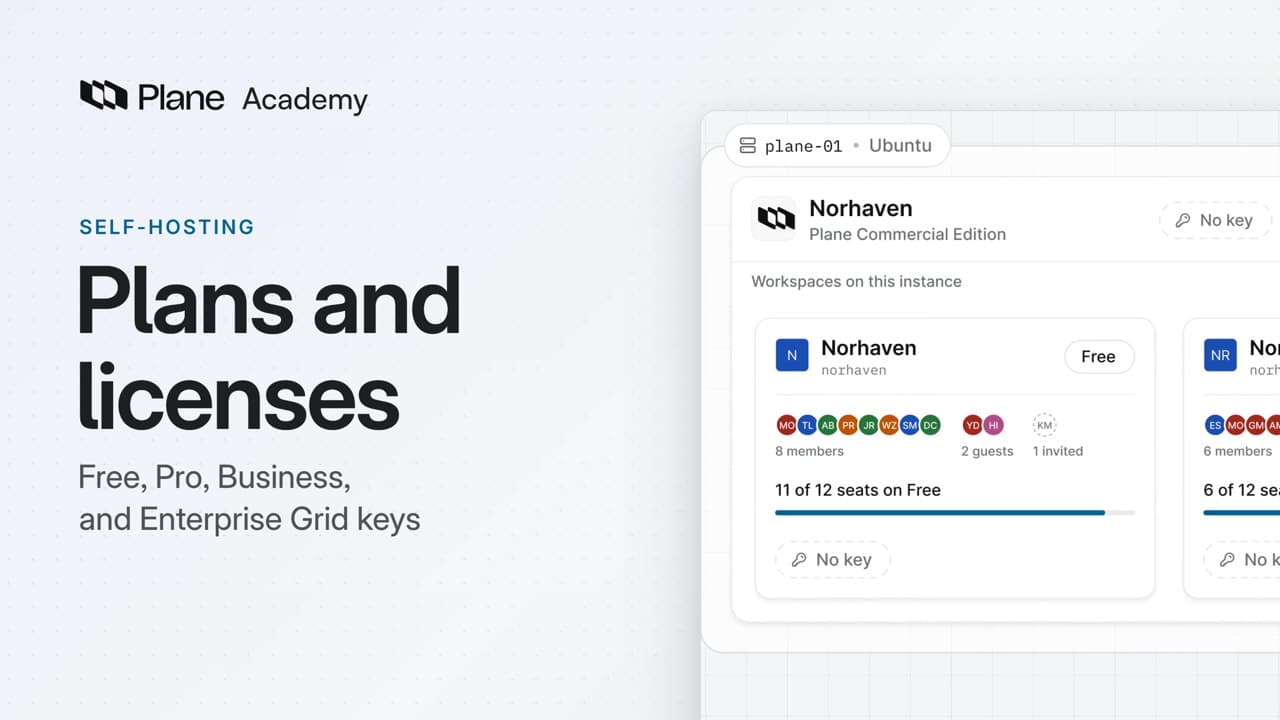
How Free, Pro, Business, and Enterprise Grid work on a self-hosted instance, from activating a workspace key and an instance key to reading your seats and the license sync and moving a key to a new server.
In this course
- 1Self-hosted Plane4:35
- 2Install with Docker5:09
- 3Domain, HTTPS, email5:45
- 4Sign-in and SSO5:47
- 5Plans and licenses5:40
- 6Run your instance5:27
- 7Back up, restore, and upgrade6:17
- 8Production data5:18
- 9Kubernetes with Helm6:29
- 10Integrations and the MCP server5:52
- 11Plane AI, search, and scanning5:52
- 12Airgapped Plane5:06
What you will learn
- Self-hosted Plane starts every workspace on the Free plan. A Pro or Business key turns on one workspace, and an Enterprise Grid key covers every workspace on the instance, including ones created later.
- Free needs no key and covers 12 people in each workspace, guests and pending invitations included, with no trial. Past 12, a Free workspace locks until you activate a plan or remove people, and only its Billing and plans and Members pages stay open.
- Pro and Business keys come from prime.plane.so, Plane's customer portal, for 10 seats or more, and arrive by email. Enterprise Grid comes through sales. The portal's Licenses page lists each license with its plan, status, and seats.
- A workspace admin activates Pro or Business under Workspace settings, then Billing and plans, by pasting the key into the Activate Workspace card. The portal binds the key to that workspace on that instance, so it can't turn on a second one.
- Owners, admins, and members each use a seat, a pending invitation holds one until it's accepted, and each seat covers five guests. Invitations stop when the seats run out, and Manage seats adds more.
- Plan and seat changes reach the instance through the license sync, every 30 minutes over outbound HTTPS to prime.plane.so, or right away with Sync on the License card. Offline, the plan keeps working for up to seven days after the last good sync, then the workspace drops to Free until a sync gets through.
- Enterprise Grid is activated for the whole instance in God mode, under Billing. Every active user account uses a seat, a person in several workspaces counts once, and a key with fewer seats than the instance has users is refused. Activation releases any Pro or Business key on the instance.
- Unlink license key on the License card releases a key: its features stop at once, the workspaces move to Free, your data stays, and the subscription goes on. To move Plane to a new server, unlink on the old one, restore Plane on the new one, and activate the same key there. A new domain on the same server needs no unlink.
Plans and licenses
0:00Self-hosted Plane starts every workspace on the Free plan. A license key turns on a paid plan.
A Pro or Business key turns on one workspace. An Enterprise Grid key covers every workspace on the instance.
The plans on your instance
0:28Free needs no key. It covers 12 people in each workspace, guests and pending invitations included. A self-hosted instance has no trial.
Past 12, a Free workspace locks until you activate a plan or remove people. Only its Billing and plans page and its Members page stay open.
You buy Pro and Business one workspace at a time, and the others stay on Free. Pro adds work item types, and Business adds recurring work items.
Enterprise Grid is one key for the whole instance. It covers every workspace, including ones created later, and adds instance-wide features such as LDAP.
Keys come from prime.plane.so, Plane's customer portal. Buy Pro or Business there for 10 seats or more, and the key arrives by email. Enterprise Grid comes through sales. Either way, the portal's Licenses page lists each license with its plan, status, and seats. Open one to copy its key.
Activate a workspace plan
1:41A workspace admin activates Pro or Business from the workspace itself.
- Open Workspace settings, then Billing and plans.
- On Free, the page shows the Activate Workspace card. Paste the key and choose Activate.
- The portal binds the key to this workspace on this instance, so the same key can't turn on a second workspace.
- The page now shows the plan and its seats, and a License card with the bound workspace and the last sync.
Owners, admins, and members each use a seat, and a pending invitation holds one until it's accepted. Each seat also covers five guests.
At activation, the portal counts members the same way. If they need more seats than the key has, a card-paid license adds and bills them. A license billed by invoice fails instead.
Invitations stop when the seats run out. To add seats, choose Manage seats, set how many, and confirm the charge on the next step.
Plan and seat changes reach the instance through the license sync. It runs every 30 minutes and needs outbound HTTPS to prime.plane.so. Choose Sync on the License card to sync right away, for example after you add seats on the portal.
If the instance can't reach the portal, the plan keeps working for up to seven days after the last good sync. After two hours without a sync, the page shows License sync failed, with the date the plan ends. Then the workspace drops to Free until a sync gets through.
Activate Enterprise Grid and manage keys
3:29Enterprise Grid syncs the same way, but you activate it for the whole instance.
- As an instance admin, open God mode, at your domain under
/god-mode, then Billing. - On Enterprise Grid, every active user account on the instance uses a seat, guests included. A person in several workspaces counts once.
- In the Activate Enterprise card, paste the key and choose Activate. If the key has fewer seats than the instance has users, activation fails.
- The key covers every workspace on the instance. Activation releases any Pro or Business key there, and its workspace moves under Enterprise Grid.
Each workspace's Billing and plans page now says that instance admins manage the license, its seats, and its sync.
To release a key, open the menu on the License card and choose Unlink license key. It's the same in a workspace and in God mode. The plan's features stop right away, and the workspaces it covered move to Free. Your data stays, and unlinking doesn't cancel the subscription.
To move Plane to a new server, unlink the key on the old one first. Then install and restore Plane on the new server, and activate the same key there. If the old server is already gone, open the license on the portal and choose Delink license instead.
Moving to a new domain on the same server needs no unlink. The instance keeps its ID, and its keys stay bound to it.
Recap
5:16Every workspace starts on Free. A Pro or Business key turns on one workspace, an Enterprise Grid key covers the whole instance, and each one syncs with the portal every 30 minutes.
Try it in your workspace
Open Workspace settings, then Billing and plans, and find the Activate Workspace card where a Pro or Business key goes.
Transcript
Show the transcript
Plans and licenses
0:02Self-hosted Plane starts every workspace on the Free plan. A license key turns on a paid plan.
0:10A Pro or Business key turns on one workspace. An Enterprise Grid key covers every workspace on the instance.
0:19You'll activate both kinds of key, read your seats and the license sync, and move a key to a new server. Let's take a closer look.
The plans on your instance
0:32Free needs no key. It covers 12 people in each workspace, guests and pending invitations included. A self-hosted instance has no trial.
0:44Past 12, a Free workspace locks until you activate a plan or remove people. Only its Billing and plans page and its Members page stay open.
0:54You buy Pro and Business one workspace at a time, and the others stay on Free. Pro adds work item types, and Business adds recurring work items.
1:05Enterprise Grid is one key for the whole instance. It covers every workspace, including ones created later, and adds instance-wide features such as LDAP.
1:17Keys come from prime.plane.so, Plane's customer portal. Buy Pro or Business there for 10 seats or more, and the key arrives by email.
1:28Enterprise Grid comes through sales. Either way, the Licenses page lists each license with its plan, status, and seats. Open one to copy its key.
Activate a workspace plan
1:44A workspace admin activates Pro or Business from the workspace itself. Open Workspace settings, then Billing and plans.
1:53On Free, the page shows the Activate Workspace card. Paste the key and choose Activate.
2:02The portal binds the key to this workspace on this instance, so the same key can't turn on a second workspace.
2:10The page now shows the plan and its seats, and a License card with the bound workspace and the last sync.
2:18Owners, admins, and members each use a seat, and a pending invitation holds one until it's accepted. Each seat also covers five guests.
2:28At activation, the portal counts members the same way. If they need more seats than the key has, a card-paid license adds and bills them. A license billed by invoice fails instead.
2:41Invitations stop when the seats run out. To add seats, choose Manage seats, set how many, and confirm the charge on the next step.
2:51Plan and seat changes reach the instance through the license sync. It runs every 30 minutes and needs outbound HTTPS to prime.plane.so.
3:02Choose Sync on the License card to sync right away, for example after you add seats on the portal.
3:09If the instance can't reach the portal, the plan keeps working for up to seven days after the last good sync.
3:17After two hours without a sync, the page shows License sync failed, with the date the plan ends. Then the workspace drops to Free until a sync gets through.
Activate Enterprise Grid and manage keys
3:33Enterprise Grid syncs the same way, but you activate it for the whole instance. As an instance admin, open God mode, at your domain /god-mode, then Billing.
3:46On Enterprise Grid, every active user account on the instance uses a seat, guests included. A person in several workspaces counts once.
3:57In the Activate Enterprise card, paste the key and choose Activate. If the key has fewer seats than the instance has users, activation fails.
4:08The key covers every workspace on the instance. Activation releases any Pro or Business key there, and its workspace moves under Enterprise Grid.
4:19Each workspace's Billing and plans page now says that instance admins manage the license, its seats, and its sync.
4:27To release a key, open the menu on the License card and choose Unlink license key. It's the same in a workspace and in God mode.
4:37The plan's features stop right away, and the workspaces it covered move to Free. Your data stays, and unlinking doesn't cancel the subscription.
4:49To move Plane to a new server, unlink the key on the old one first. Then install and restore Plane on the new server, and activate the same key there.
5:00If the old server is already gone, open the license on the portal and choose Delink license instead.
5:08Moving to a new domain on the same server needs no unlink. The instance keeps its ID, and its keys stay bound to it.
Recap
5:18Every workspace starts on Free. A Pro or Business key turns on one workspace, an Enterprise Grid key covers the whole instance, and each one syncs with the portal every 30 minutes.