
Lesson 6 of 12 · 5:27
Run your Plane instance from God mode: settings, workspaces, admins, and users
How God mode, the instance admin app of self-hosted Plane, runs the whole instance from its eleven pages, and what to set on a new instance's first day.
In this course
- 1Self-hosted Plane4:35
- 2Install with Docker5:09
- 3Domain, HTTPS, email5:45
- 4Sign-in and SSO5:47
- 5Plans and licenses5:40
- 6Run your instance5:27
- 7Back up, restore, and upgrade6:17
- 8Production data5:18
- 9Kubernetes with Helm6:29
- 10Integrations and the MCP server5:52
- 11Plane AI, search, and scanning5:52
- 12Airgapped Plane5:06
What you will learn
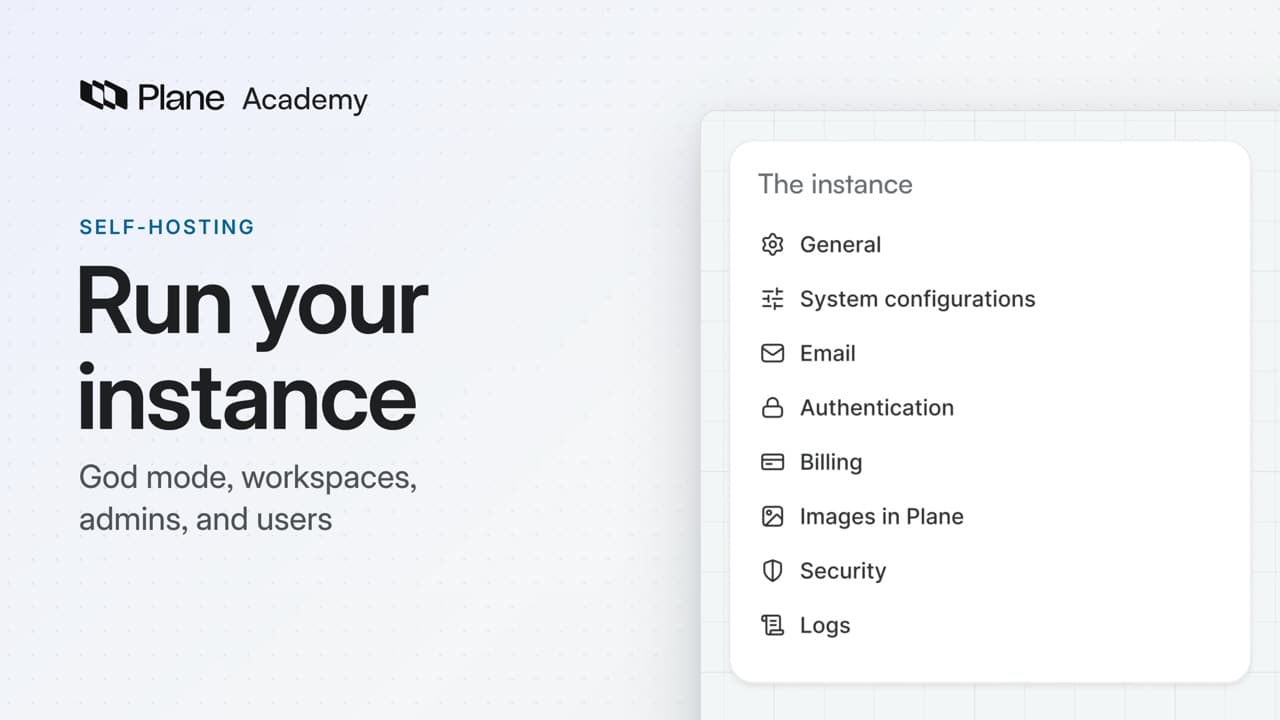
- God mode is the instance admin app of self-hosted Plane. It opens at your domain under /god-mode, only instance admins can sign in, and its eleven pages cover settings for the whole instance, every workspace on it, and everyone with an account.
- General renames the instance and shows the instance ID and an instance admin's email. Telemetry sends Plane anonymous usage data and is on unless you unticked it at setup. If your policy forbids that, turn the switch off and choose Save changes.
- System configurations sets Session expiry, which signs people out after seven days away from Plane by default, Admin session expiry, which ends a God mode session one hour after sign-in by default, and Export retention, seven days by default for work item, worklog, and audit log exports.
- Email holds the mail server, Authentication decides who can sign up and how people sign in, and Billing activates a license for the whole instance. Images in Plane takes an Unsplash access key, Security's Disable access tokens switch stops personal and workspace tokens, and Logs sets how long API request logs are kept, fourteen days by default and a year at most.
- Workspaces lists every workspace on the instance with its URL, its owner's email, and its project and member counts, including the ones people create for themselves. A workspace opens only for its members, and God mode can't delete one. Create workspace makes you its owner, an admin, and its only member.
- User management lists every account with its account type and status. Invite members creates an instance admin who belongs to no workspace, with a password you share yourself. Grant admin access promotes an existing account. Plane won't let you change your own role or remove the last instance admin, so add a second admin on day one.
- Remove deactivates an account. Plane takes the person out of every workspace and project, signs them out everywhere, and replaces their password, and their row reads Suspended. A later sign-in with a code by email or single sign-on reactivates the account. Without a mail server, reset a forgotten password with the reset_password command in the API container.
- Audit logs shows the instance's sign-ins and failed attempts, changes to admins and accounts, and every God mode setting changed with its old and new values. Download saves an Excel or CSV file, which Plane deletes when your export retention runs out.
Run your instance
0:00God mode is the instance admin app of self-hosted Plane. It opens at your domain under /god-mode, and only instance admins can sign in.
Its eleven pages cover settings for the whole instance, every workspace on it, and everyone with an account.
Set up the instance
0:30- To rename the instance, open General. It also shows the instance ID and an instance admin's email.
- Telemetry sends Plane anonymous usage data, and it's on unless you unticked it at setup. If your policy forbids that, turn the switch off and choose Save changes.
- Open System configurations to set how long sessions last. By default, Session expiry signs people out after seven days away from Plane.
- Admin session expiry is stricter. By default, a God mode session ends one hour after sign-in, even while you're working. Set both to match your security policy.
- Export retention sets how many days Plane keeps export files, seven by default, for work item, worklog, and audit log exports.
Email holds the mail server Plane sends from. Authentication decides who can sign up and how people sign in. Billing activates a license for the whole instance.
To let people search Unsplash for project and profile covers, open Images in Plane and add an Unsplash access key.
Security has one switch, Disable access tokens. While it's on, nobody can create personal or workspace access tokens, and existing ones stop working. Service and integration tokens keep working.
To change how long Plane keeps its log of API requests, open Logs. The default is fourteen days, and the maximum is a year.
List and create workspaces
2:15Workspaces lists every workspace on the instance, with its URL, its owner's email, and how many projects and members it has. That includes the ones people create for themselves in the web app. By default, anyone who's signed in can start a workspace.
The list doesn't let you in, though. A workspace opens only for its members, and God mode can't delete one.
- To set one up for a new team, choose Create workspace.
- Name it, check the URL Plane fills in, and pick how many people will use it.
- Plane makes you its owner and an admin, and its only member. Invite the team from Workspace settings, then Members.
Manage admins and users
3:04User management lists every account on the instance, with each person's account type and status.
- Invite members opens a dialog titled Invite instance admin. The account it creates can use God mode and belongs to no workspace.
- Enter their email and a password, or generate one. Plane sends no email, so share the password yourself. Tick the box that prompts them to change it.
- To promote someone who already has an account, open the menu on their row and choose Grant admin access. Remove admin access undoes it.
Plane won't let you change your own role or remove the last instance admin. On day one, add a second admin, so God mode never depends on one account.
Remove deactivates an account. Plane takes the person out of every workspace and project, signs them out everywhere, and replaces their password. Their row then reads Suspended, and the seats they held are free again.
Deactivation doesn't lock anyone out for good. If they can still sign in, with a code by email or single sign-on, Plane reactivates their account.
Without a mail server, people can't reset a forgotten password, and the sign-in page tells them to contact their administrator. On the server, run the reset_password command in the API container with their email, and type the new password twice.
Audit logs shows the instance's sign-ins and failed attempts, changes to admins and accounts, and every God mode setting changed, with its old and new values. Search or filter the entries, then choose Download for an Excel or CSV file. Plane deletes the file when your export retention runs out.
Recap
5:07God mode sets the instance's rules, keeps every workspace in view, and controls who can run it. Its audit log records who changed what.
Try it in your workspace
Open God mode at your domain under /god-mode, then System configurations, and set Session expiry and Admin session expiry to match your security policy.
Transcript
Show the transcript
Run your instance
0:02God mode is the instance admin app of self-hosted Plane. It opens at your domain, /god-mode, and only instance admins can sign in.
0:14Its eleven pages cover settings for the whole instance, every workspace on it, and everyone with an account.
0:22You'll see what each page controls, and what to set on a new instance's first day. Let's take a closer look.
Set up the instance
0:33To rename the instance, open General. It also shows the instance ID and an instance admin's email.
0:42Telemetry sends Plane anonymous usage data, and it's on unless you unticked it at setup. If your policy forbids that, turn the switch off and choose Save changes.
0:54Open System configurations to set how long sessions last. By default, Session expiry signs people out after seven days away from Plane.
1:05Admin session expiry is stricter. By default, a God mode session ends one hour after sign-in, even while you're working. Set both to match your security policy.
1:18Export retention sets how many days Plane keeps export files, seven by default, for work item, worklog, and audit log exports.
1:28Email holds the mail server Plane sends from. Authentication decides who can sign up and how people sign in. Billing activates a license for the whole instance.
1:40To let people search Unsplash for project and profile covers, open Images in Plane and add an Unsplash access key.
1:50Security has one switch, Disable access tokens. While it's on, nobody can create personal or workspace access tokens, and existing ones stop working. Service and integration tokens keep working.
2:05To change how long Plane keeps its log of API requests, open Logs. The default is fourteen days, and the maximum is a year.
List and create workspaces
2:19Workspaces lists every workspace on the instance, with its URL, its owner's email, and how many projects and members it has.
2:28That includes the ones people create for themselves in the web app. By default, anyone who's signed in can start a workspace.
2:37The list doesn't let you in, though. A workspace opens only for its members, and God mode can't delete one.
2:45To set one up for a new team, choose Create workspace. Name it, check the URL Plane fills in, and pick how many people will use it.
2:55Plane makes you its owner and an admin, and its only member. Invite the team from Workspace settings, then Members.
Manage admins and users
3:08User management lists every account on the instance, with each person's account type and status.
3:15Invite members opens a dialog titled Invite instance admin. The account it creates can use God mode and belongs to no workspace.
3:25Enter their email and a password, or generate one. Plane sends no email, so share the password yourself. Tick the box that prompts them to change it.
3:36To promote someone who already has an account, open the menu on their row and choose Grant admin access.
3:45Remove admin access undoes it.
3:49Plane won't let you change your own role or remove the last instance admin. On day one, add a second admin, so God mode never depends on one account.
4:00Remove deactivates an account. Plane takes the person out of every workspace and project, signs them out everywhere, and replaces their password.
4:11Their row then reads Suspended, and the seats they held are free again.
4:17Deactivation doesn't lock anyone out for good. If they can still sign in, with a code by email or single sign-on, Plane reactivates their account.
4:27Without a mail server, people can't reset a forgotten password, and the sign-in page tells them to contact their administrator.
4:36On the server, run the reset_password command in the API container with their email, and type the new password twice.
4:45Audit logs shows the instance's sign-ins and failed attempts, changes to admins and accounts, and every God mode setting changed, with its old and new values.
4:56Search or filter the entries, then choose Download for an Excel or CSV file. Plane deletes the file when your export retention runs out.
Recap
5:08God mode sets the instance's rules, keeps every workspace in view, and controls who can run it. Its audit log records who changed what.