
Lesson 4 of 12 · 5:47
Set up sign-in and SSO for every workspace on self-hosted Plane
How sign-in is set once for every workspace on a self-hosted instance, on God mode's Authentication page, from deciding who can sign up and turning on the methods your company uses to connecting your identity provider over OIDC, SAML, or LDAP.
In this course
- 1Self-hosted Plane4:35
- 2Install with Docker5:09
- 3Domain, HTTPS, email5:45
- 4Sign-in and SSO5:47
- 5Plans and licenses5:40
- 6Run your instance5:27
- 7Back up, restore, and upgrade6:17
- 8Production data5:18
- 9Kubernetes with Helm6:29
- 10Integrations and the MCP server5:52
- 11Plane AI, search, and scanning5:52
- 12Airgapped Plane5:06
What you will learn
- On a self-hosted instance, sign-in is set in one place, God mode's Authentication page, for every workspace at once. It decides who can create an account and which sign-in methods people can use.
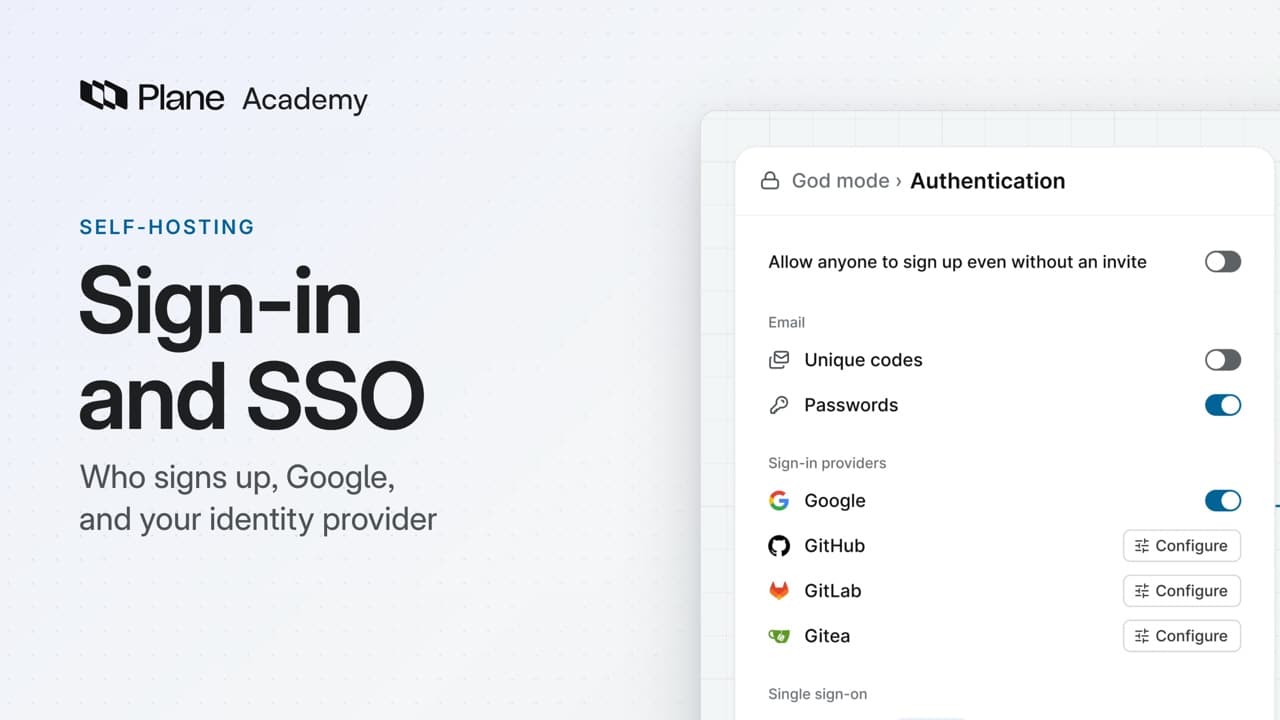
- Allow anyone to sign up even without an invite is on for a new instance, so anyone who reaches your domain can create an account and a workspace of their own. Turn it off, and only people invited to a workspace can sign up. Existing accounts still sign in.
- Unique codes emails a six-digit code that works once, within ten minutes, and needs a mail server set under Email. Passwords lets people sign in with their email and a password. A new instance has Passwords on and Unique codes off.
- Google, GitHub, GitLab, and Gitea work on every plan. Register Plane's Origin URL and Callback URIs with the provider, enter its Client ID and Client secret, choose Save changes, then turn the method's switch on. Saving alone leaves it off.
- OIDC and SAML need a paid plan. One workspace on Pro or Business makes them available across the instance, and Enterprise Grid includes them. LDAP needs Enterprise Grid. Without the plan they need, the cards show Activate instead of Configure.
- OIDC takes Plane's Origin, Redirect, and Logout URLs on the provider's side, and the provider's Client ID, Client secret, and Authorize, Token, and Users' info URLs. SAML takes the provider's Entity ID, SSO URL, and certificate. LDAP takes the Server URI, a Bind DN and Bind Password, and the User Search Base.
- Plane finds accounts by email address, so people keep their accounts when they move to single sign-on with the same email. To make it the only way in, switch off every other method. God mode won't switch off the last method, and keeps a password sign-in for instance admins.
Sign-in and SSO
0:00On a self-hosted instance, you set up sign-in in one place, God mode's Authentication page, for every workspace at once.
It decides who can create an account, and which sign-in methods people can use, including Google and single sign-on through your identity provider. Some methods need a plan.
Decide who can sign up, and how
0:31- To change how people sign in, open God mode, at your domain under
/god-mode, then Authentication. - The first switch, Allow anyone to sign up even without an invite, controls who can create an account. A new instance has it on: anyone who reaches your domain can sign up with an email and a password, and create a workspace of their own.
- Turn it off, and only people invited to a workspace can sign up. Everyone who already has an account still signs in.
The email methods come next.
- Unique codes emails a six-digit code that works once, within ten minutes. It needs a mail server, set in God mode under Email.
- Passwords lets people sign in with their email and a password.
A new instance has Passwords on and Unique codes off.
Add Google, GitHub, GitLab, or Gitea
1:31Google, GitHub, GitLab, and Gitea work on every plan. Each card shows Configure until you add its details.
- Choose Configure next to Google. The page has two halves: what Google gives Plane, and what Plane gives Google.
- Plane's half lists an Origin URL and Callback URIs. They come from the address in your browser, so open God mode at your team's domain before you copy them.
- There is a Callback URI for the web app, the mobile and desktop apps, and God mode's own sign-in. Register the ones your team uses.
- In Google's console, create an OAuth client for a web application. Paste the Origin URL into Authorized JavaScript origins, and the Callback URIs into Authorized redirect URIs.
- Google then gives you a Client ID and a Client secret. Enter both in Google's half, and choose Save changes.
- Saving alone leaves Google off. Turn on its switch, and the sign-in page shows Sign in with Google.
Plane does not limit Google sign-in to your company's domain. With sign-up invite-only, someone new still needs a workspace invitation, whichever button they use.
GitHub takes a Client ID and Client secret from a GitHub OAuth app, and an optional Organization ID that lets in only that organization's members. GitLab and Gitea work the same way, plus a Host: gitlab.com or gitea.com, or your own server's address.
Connect your identity provider
3:16Single sign-on connects Plane to the identity provider your company already runs, over OIDC or SAML, or to your LDAP directory.
OIDC and SAML need a paid plan. One workspace on Pro or Business makes them available across the instance, and Enterprise Grid includes them. LDAP needs Enterprise Grid, the one key for the whole instance. Without the plan they need, the three cards show an Activate button instead of Configure.
- With a plan active, OIDC's form has the same two halves as Google's. Register Plane's Origin URL, Redirect URL, and Logout URL with your identity provider.
- From your provider, enter the Client ID, the Client secret, and the Authorize, Token, and Users' info URLs.
- IdP's name sets the label on the sign-in button. Choose Save changes, then turn OIDC on.
SAML works the same way, with your provider's Entity ID, SSO URL, and certificate.
LDAP checks a person's directory username and password against your LDAP server, so that server must be reachable from Plane. Its form takes the Server URI, a Bind DN and Bind Password to search with, and the User Search Base.
Plane finds accounts by email address, so people keep their accounts when they move to single sign-on with the same email.
To make single sign-on the only way in, switch off Passwords, Unique codes, and every other method. That choice covers the whole instance. No workspace setting enforces single sign-on.
God mode won't switch off the last method. It also keeps a password sign-in for instance admins, so you can't lock yourself out of it.
Recap
5:23The Authentication page sets sign-in for every workspace. It decides who can sign up, offers codes, passwords, and four providers on any plan, and single sign-on with a paid plan.
Try it in your workspace
Open God mode at your domain under /god-mode, then Authentication, and decide whether Allow anyone to sign up even without an invite stays on.
Transcript
Show the transcript
Sign-in and SSO
0:02On a self-hosted instance, you set up sign-in in one place, God mode's Authentication page, for every workspace at once.
0:12It decides who can create an account, and which sign-in methods people can use, including Google and single sign-on through your identity provider.
0:22You'll choose who can sign up, switch on the methods your company uses, and see which ones need a plan. Let's take a closer look.
Decide who can sign up, and how
0:35To change how people sign in, open God mode, at your domain /god-mode, then Authentication.
0:44The first switch, Allow anyone to sign up even without an invite, controls who can create an account.
0:52A new instance has it on. Anyone who reaches your domain can sign up with an email and a password, and create a workspace of their own.
1:02Turn it off, and only people invited to a workspace can sign up. Everyone who already has an account still signs in.
1:10The first method, Unique codes, emails a six-digit code that works once, within ten minutes. It needs a mail server, set in God mode under Email.
1:22Passwords lets people sign in with their email and a password. A new instance has Passwords on and Unique codes off.
Add Google, GitHub, GitLab, or Gitea
1:34Google, GitHub, GitLab, and Gitea work on every plan. Each card shows Configure until you add its details.
1:44Choose Configure next to Google. The page has two halves: what Google gives Plane, and what Plane gives Google.
1:53Plane's half lists an Origin URL and Callback URIs. They come from the address in your browser, so open God mode at your team's domain before you copy them.
2:04There's a Callback URI for the web app, the mobile and desktop apps, and God mode's own sign-in. Register the ones your team uses.
2:14In Google's console, create an OAuth client for a web application. Paste the Origin URL into Authorized JavaScript origins, and those Callback URIs into Authorized redirect URIs.
2:28Google then gives you a Client ID and a Client secret. Enter both in Google's half, and choose Save changes.
2:37Saving alone leaves Google off. Turn on its switch, and the sign-in page shows Sign in with Google.
2:45Plane doesn't limit Google sign-in to your company's domain. With sign-up invite-only, someone new still needs a workspace invitation, whichever button they use.
2:56GitHub takes a Client ID and Client secret from a GitHub OAuth app, and an optional Organization ID that lets in only that organization's members.
3:07GitLab and Gitea work the same way, plus a Host: gitlab.com or gitea.com, or your own server's address.
Connect your identity provider
3:20Single sign-on connects Plane to the identity provider your company already runs, over OIDC or SAML, or to your LDAP directory.
3:32OIDC and SAML need a paid plan. One workspace on Pro or Business makes them available across the instance, and Enterprise Grid includes them.
3:44LDAP needs Enterprise Grid, the one key for the whole instance. Without the plan they need, the three cards show an Activate button instead of Configure.
3:55With a plan active, OIDC's form has the same two halves as Google's. Register Plane's Origin, Redirect, and Logout URLs with your identity provider.
4:07From your provider, enter the Client ID, the Client secret, and the Authorize, Token, and Users' info URLs.
4:16IdP's name sets the label on the sign-in button. Save changes, then turn OIDC on.
4:24SAML works the same way, with your provider's Entity ID, SSO URL, and certificate.
4:32LDAP checks a person's directory username and password against your LDAP server, so that server must be reachable from Plane.
4:42Its form takes the Server URI, a Bind DN and Bind Password to search with, and the User Search Base.
4:51Plane finds accounts by email address, so people keep their accounts when they move to single sign-on with the same email.
4:59To make single sign-on the only way in, switch off Passwords, Unique codes, and every other method.
5:07That choice covers the whole instance. No workspace setting enforces single sign-on.
5:14God mode won't switch off the last method. It also keeps a password sign-in for instance admins, so you can't lock yourself out of it.
Recap
5:24The Authentication page sets sign-in for every workspace. It decides who can sign up, offers codes, passwords, and four providers on any plan, and single sign-on with a paid plan.
Read next
Plans
- Pro:
- OIDC and SAML single sign-on
- Business:
- OIDC and SAML single sign-on
- Enterprise Grid:
- OIDC, SAML, and LDAP