Record customer requests and link them to the work
How customer records hold each company's details and requests, link those requests to work items, and show who's waiting on which work from both sides.

What you will learn
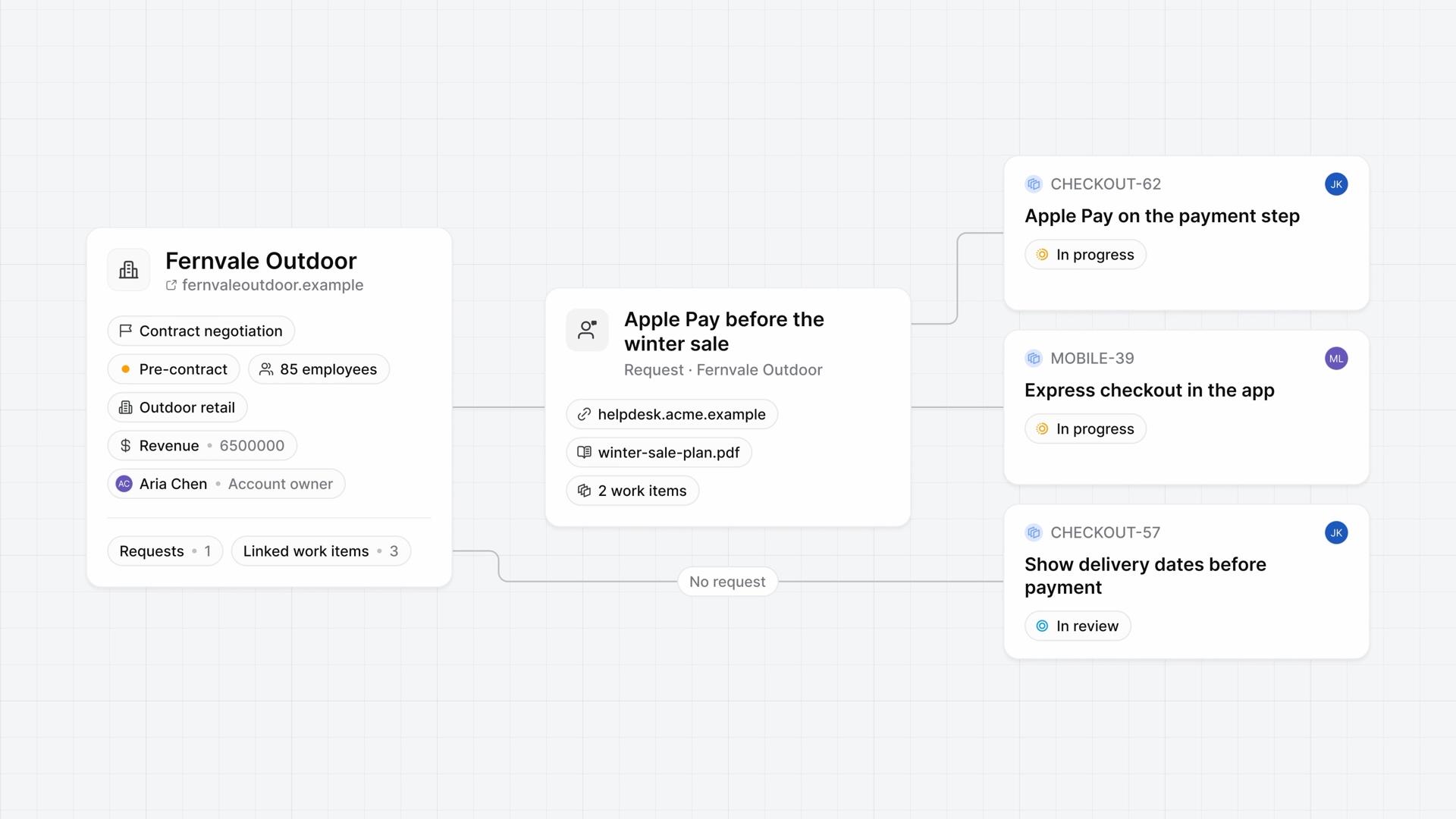
- A customer in Plane is a record of a company you build for: its details, the requests it makes, and the work items each request links to.
- A workspace admin switches on Enable customers in Workspace settings, under Customers. Admins and owners then find Customers under More in the sidebar.
- Every record has nine default properties, from Customer name to Revenue, and you can add your own under Custom properties: Text, Number, Dropdown, Boolean, Date, Member picker, or URL.
- A request is one thing a customer asks for, with a name, a description, and a source link. Link work items picks work items from any project, and Plane links each one to the request and to the customer.
- A request has no status of its own: its work items show how it's going. A work item can also link to a customer with no request.
- A work item's Customers property names every customer behind it, its activity records each link, and its assignees and subscribers get a notification. Plane sends nothing to the customer.
- A project's List layout shows a Customer count and a Customer request count. Plane doesn't filter or group work items by customer, so to see one customer's work, open its Linked work items tab.
The customers behind the work
0:00A customer in Plane is a record of a company you build for: its details, the requests it makes, and the work items each request links to.
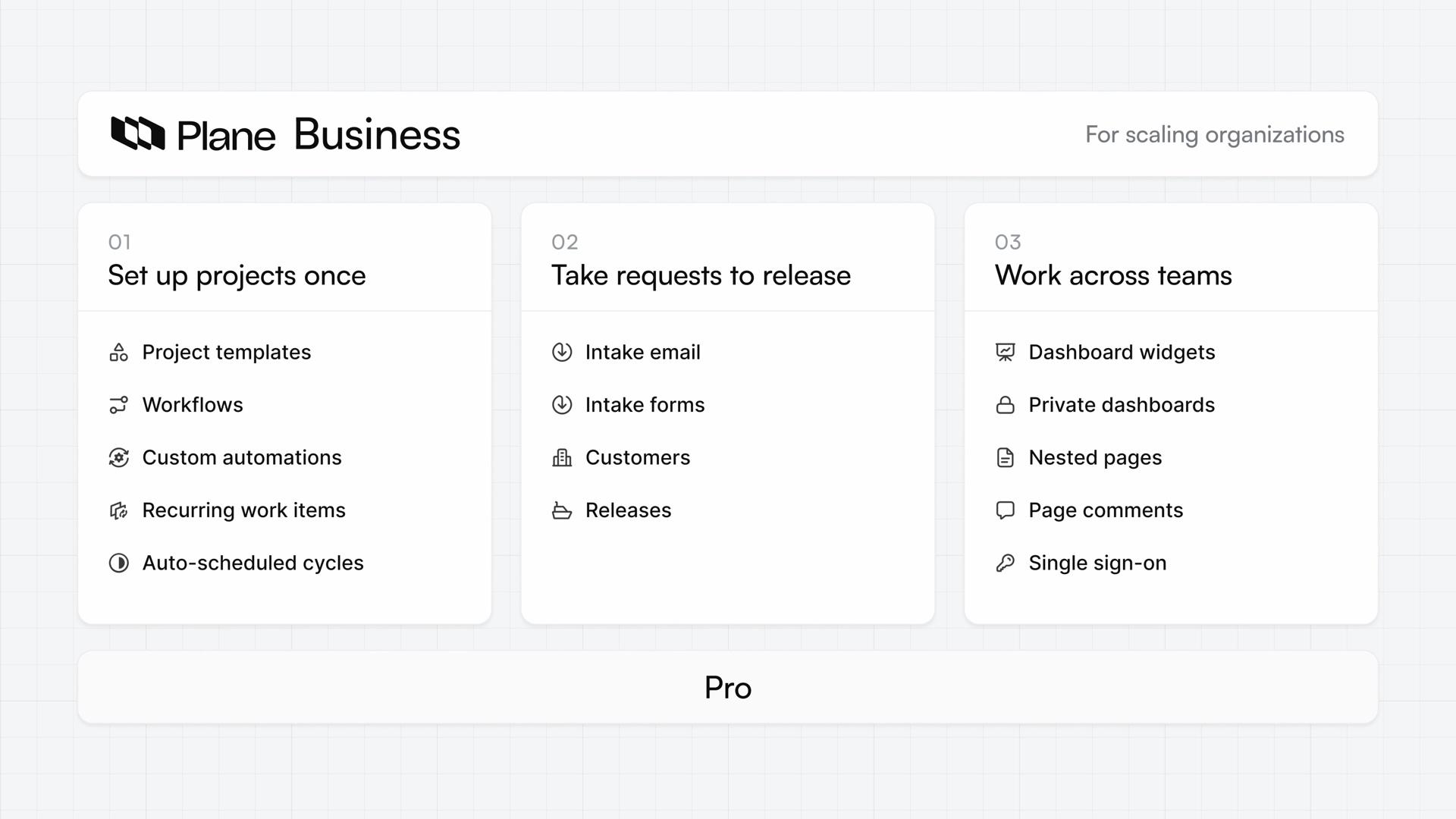
These records show who's waiting on which work, so you can weigh each work item by the customers asking for it. Customers is on Business and higher.
Turn on Customers and set up properties
0:31- A workspace admin opens Workspace settings, then Customers, and switches on Enable customers.
- Admins and owners then find Customers under More in the sidebar. It opens on the Customers list.
Properties describe each customer, like its size, stage, contract, and revenue. They're what you weigh a request against.
Every record has the default properties: Customer name, Description, Email, Website, Employees, Industry, Stage, Contract Status, and Revenue.
- Stage is Lead, Sales qualified lead, Contract negotiation, Closed won, or Closed lost.
- Contract Status is Active, Pre-contract, Signed, or Inactive.
Add your own under Custom properties, like an account owner, and they show on every record. The types are Text, Number, Dropdown, Boolean, Date, Member picker, and URL.
Record customers and their requests
1:43Open Customers under More in the sidebar and choose Create customer record. The form has a field for every property.
The Customers list shows the newest record first, with its website and request count. Search finds records by name, and there are no filters or sorting.
Each customer's page has its description and properties, and two tabs: Requests and Linked work items.
A request is one thing a customer asks for.
- Choose Add request and fill in its name, description, and source link.
- Use Link work items to pick work items from any project. Plane links each one to the request and to the customer.
- Once you save the request, you can attach files, one at a time.
A request has no status of its own. Its work items show how it's going.
A work item can also link to a customer with no request, from the Linked work items tab or with Add customer on the work item.
See work by customer
2:52A customer's Linked work items tab lists the work items linked to it, directly or through a request, and counts them.
From the other side, a work item's Customers property names every customer behind it. Its Requests section lists the requests it's linked to.
The work item's activity records each link, and its assignees and subscribers get a notification. Plane sends nothing to the customer.
In a project's List layout, work items with customers show a Customer count and a Customer request count, so you can compare how many customers want each one.
Plane doesn't filter or group work items by customer. To see one customer's work, open its Linked work items tab.
Removing a work item from a customer, on either side, also removes it from that customer's requests.
Review who's waiting on what
3:53Every customer is now in one list with its request count, and each request links to the work it's waiting on.
Plans
- Business
- Customers
Read next
Related lessons
Transcript
Show the transcript
The customers behind the work
0:02A customer in Plane is a record of a company you build for: its details, the requests it makes, and the work items each request links to.
0:12These records show who's waiting on which work, so you can weigh each work item by the customers asking for it.
0:20You'll set up Customers, create a record, log a request, link work items to it, and read the link from both sides. Let's take a closer look.
Turn on Customers and set up properties
0:35On Business and higher, a workspace admin switches on Enable customers, in Workspace settings under Customers.
0:44Admins and owners then find Customers under More in the sidebar, and it opens on the Customers list.
0:52Properties describe each customer, like its size, stage, contract, and revenue. They're what you weigh a request against.
1:02Every record has the default properties: Customer name, Description, Email, Website, Employees, Industry, Stage, Contract Status, and Revenue.
1:15Stage is Lead, Sales qualified lead, Contract negotiation, Closed won, or Closed lost. Contract Status is Active, Pre-contract, Signed, or Inactive.
1:30Add your own under Custom properties, like an account owner, and they show on every record. The types are Text, Number, Dropdown, Boolean, Date, Member picker, and URL.
Record customers and their requests
1:47Open Customers under More in the sidebar and choose Create customer record. The form has a field for every property.
1:56The Customers list shows the newest record first, with its website and request count. Search finds records by name, and there are no filters or sorting.
2:07Each customer's page has its description and properties, and two tabs: Requests and Linked work items.
2:16A request is one thing a customer asks for. Add request opens a form for its name, description, and source link.
2:25Then use Link work items to pick work items from any project. Plane links each one to the request and to the customer.
2:34A request has no status of its own. Its work items show how it's going. Once you save it, you can attach files, one at a time.
2:44A work item can also link to a customer with no request, from the Linked work items tab or with Add customer on the work item.
See work by customer
2:57A customer's Linked work items tab now lists the work items linked to it, directly or through a request, and counts them.
3:06From the other side, a work item's Customers property names every customer behind it. Its Requests section lists the requests it's linked to.
3:16The work item's activity records each link, and its assignees and subscribers get a notification. Plane sends nothing to the customer.
3:26In a project's List layout, work items with customers show a Customer count and a Customer request count, so you can compare how many customers want each one.
3:38Plane doesn't filter or group work items by customer. To see one customer's work, open its Linked work items tab.
3:47Removing a work item from a customer, on either side, also removes it from that customer's requests.
Review who's waiting on what
3:56Every customer is now in one list with its request count, and each request links to the work it's waiting on.