Plan a release, ship it, and write its changelog
How a release groups the work items that ship together, from turning releases on and setting the scope to shipping it and writing its changelog.

What you will learn
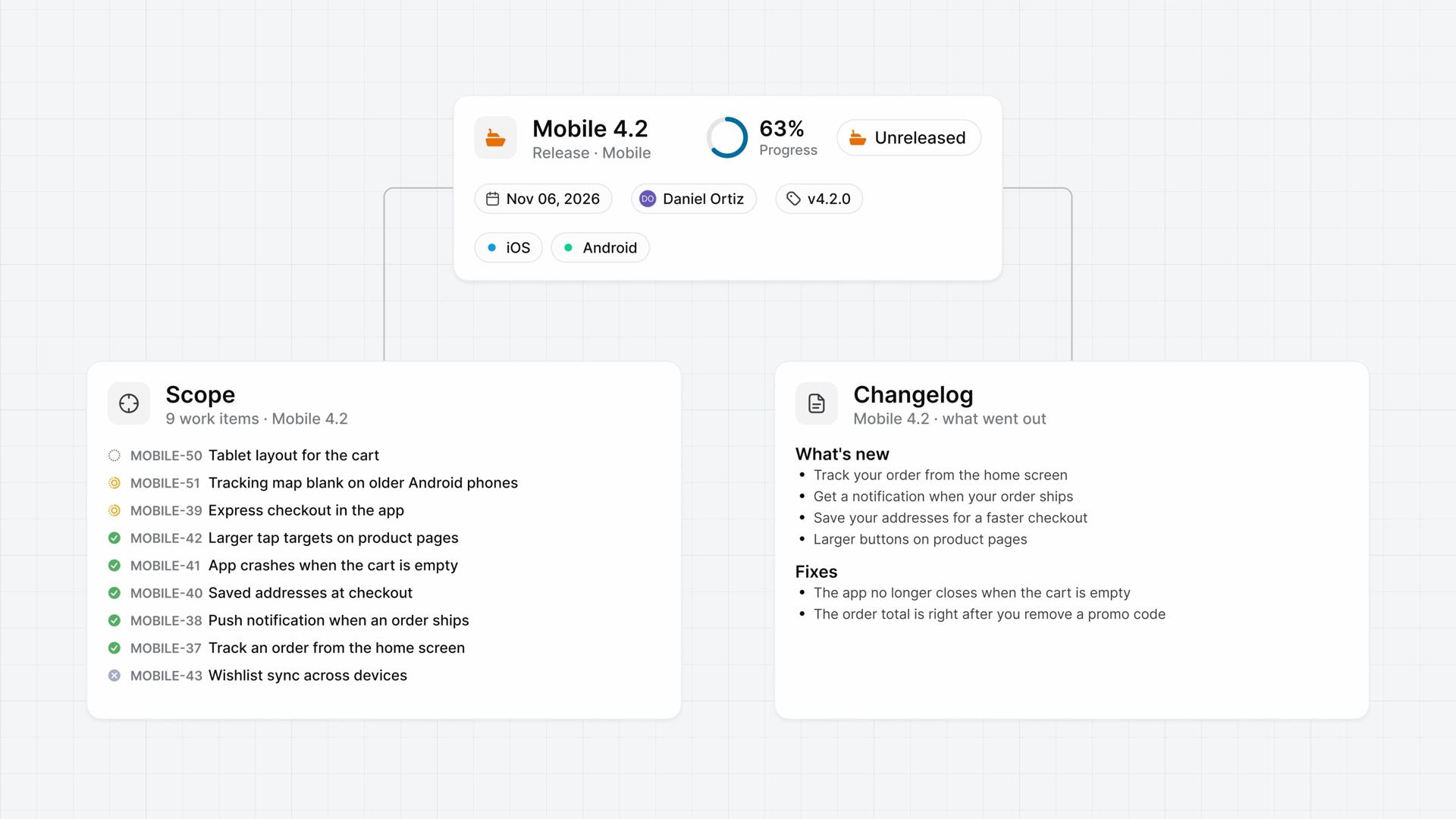
- A release in Plane is a set of work items that ship together, with a target date, a lead, a version tag, and labels. After it ships, its changelog tells the team what went out.
- A project admin switches on Enable Releases in Project settings, under Features, then Releases. No two releases in the workspace can share a name, even across projects.
- Every release starts as Unreleased, and you move it to Released or Cancelled yourself. Finishing every work item doesn't release it.
- On the Scope tab, Add work items puts the project's own work items in the release without changing their state, assignees, or cycle. Each work item's Releases property does the same, and one work item can sit in several releases.
- The Overview tracks Progress, where cancelled work items drop out of the total, and Activity records each change and who made it.
- Release now asks what to do with work items still open: Transfer unresolved work items moves them into another unreleased release in the same project, and Ignore unresolved work items leaves them in place. Neither changes their state.
- The Changelog tab is a document for what went out, written before or after shipping. Workspace releases work the same way, with work items from any project.
Know what shipped
0:00A release in Plane is a set of work items that ship together, with a target date, a lead, a version tag, and labels.
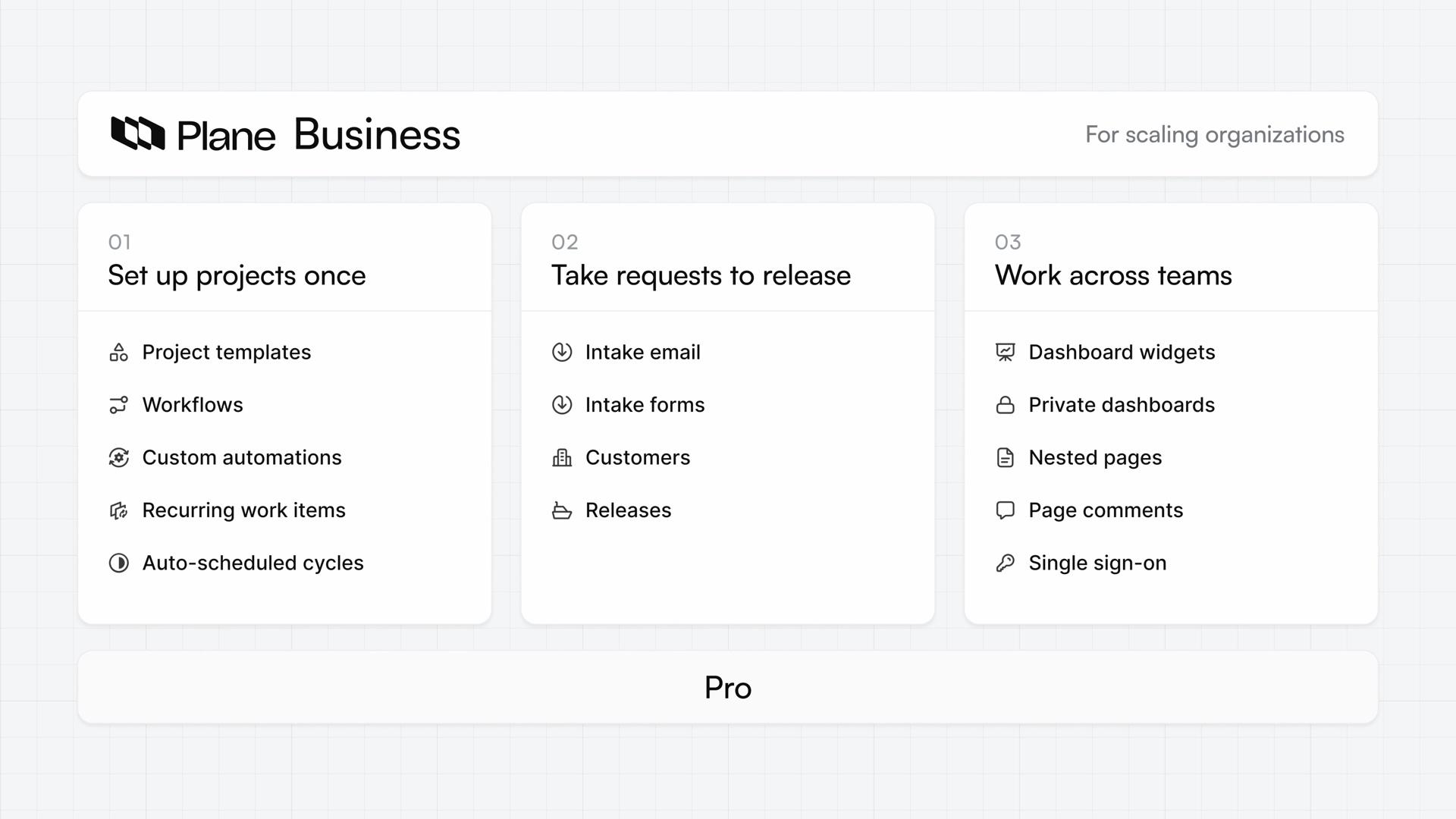
It shows what a version holds and how close it is to done. After it ships, its changelog tells the team what went out. Releases are on Business and higher.
Turn on releases and plan one
0:31A project admin switches on Enable Releases in Project settings, under Features, then Releases. The project's sidebar then lists Releases, and the same settings page holds the project's own release tags and labels.
- Choose Add release and name it. No two releases in the workspace can share a name, even across projects.
- Set a target date and a lead.
- Tag takes one version number. Typing a new one adds it on the spot.
- Add as many labels as you need, then choose Create Release.
Every release starts as Unreleased. You move it to Released or Cancelled yourself. Finishing every work item doesn't release it, and a cancelled release keeps its work items.
Decide what goes in
1:29A release's scope is the work items it ships.
- On the Scope tab, choose Add work items.
- Check the ones you want, and add them.
A project release takes only its own project's work items. Adding one leaves its state, assignees, and cycle as they were. To take a work item out, choose Remove from release in its menu. It stays in the project.
Each work item also has a Releases property in its details, and anyone who can edit the work item can set it. With Releases on under Display, you can set it in the list, board, or table layout. One work item can sit in several releases.
The Overview tracks Progress: completed, pending, and cancelled work items. Cancelled ones drop out of the total, so they don't pull the percentage down. Beside it, Activity records each change and who made it, including every work item added or removed.
Ship it and write it up
2:37- When the work is ready, choose Release now. If some work items are still open, Plane asks what to do with them.
- Choose Transfer unresolved work items to move them into another unreleased release in the same project, or Ignore unresolved work items to leave them in place.
- Check the date it ships, then choose Release. Plane saves that date and sets the status to Released.
Neither choice changes the open work items' state, and a work item that moves keeps any other release it's in.
The Changelog tab is a document for what went out. Anyone who can edit the release can write it, before or after shipping, and it saves as you type.
Workspace releases work the same way, but take work items from any project, so one release can cover several teams. A workspace admin turns them on in Workspace settings, under Features, then Releases, and they appear under More in the sidebar.
See every release by status
3:46One project now ships in releases, each with its scope and changelog, listed by status as Unreleased, Released, or Cancelled.
Plans
- Business
- Releases
Read next
Related lessons
Transcript
Show the transcript
Know what shipped
0:02A release in Plane is a set of work items that ship together, with a target date, a lead, a version tag, and labels.
0:11It shows what a version holds and how close it is to done. After it ships, its changelog tells the team what went out.
0:21In one project, you'll turn releases on, create one, set its scope, ship it, and write its changelog. Let's take a closer look.
Turn on releases and plan one
0:35On Business and higher, a project admin switches on Enable Releases in Project settings, under Features, then Releases.
0:44The project's sidebar then lists Releases, and the same settings page holds the project's own release tags and labels.
0:53Project admins choose Add release and name it. No two releases in the workspace can share a name, even across projects.
1:02Set a target date and a lead. Tag takes one version number, and typing a new one adds it on the spot.
1:11Add as many labels as you need, then choose Create Release. Every release starts as Unreleased.
1:19You move it to Released or Cancelled yourself. Finishing every work item doesn't release it, and a cancelled release keeps its work items.
Decide what goes in
1:33A release's scope is the work items it ships. On the Scope tab, choose Add work items, check the ones you want, and add them.
1:43A project release takes only its own project's work items. Adding one leaves its state, assignees, and cycle as they were.
1:52To take a work item out, choose Remove from release in its menu. It stays in the project.
2:00Each work item also has a Releases property in its details, and anyone who can edit the work item can set it.
2:08With Releases on under Display, you can set it in the list, board, or table layout. One work item can sit in several releases.
2:18The Overview tracks Progress: completed, pending, and cancelled work items. Cancelled ones drop out of the total, so they don't pull the percentage down.
2:30Beside it, Activity records each change and who made it, including every work item added or removed.
Ship it and write it up
2:41When the work is ready, choose Release now. If some work items are still open, Plane asks what to do with them.
2:50Choose Transfer unresolved work items to move them into another unreleased release in the same project, or Ignore unresolved work items to leave them in place.
3:02Neither choice changes their state, and a work item that moves keeps any other release it's in.
3:09Check the date it ships, then choose Release. Plane saves that date and sets the status to Released.
3:17The Changelog tab is a document for what went out. Anyone who can edit the release can write it, before or after shipping, and it saves as you type.
3:28Workspace releases work the same way, but take work items from any project, so one release can cover several teams.
3:37A workspace admin turns them on in Workspace settings, under Features, then Releases, and they appear under More in the sidebar.
See every release by status
3:48One project now ships in releases, each with its scope and changelog, listed by status as Unreleased, Released, or Cancelled.