Verify your domain and connect your identity provider
How single sign-on works for a workspace on Plane Cloud, from verifying your email domain and connecting a SAML or OIDC provider to what people see when they sign in.

What you will learn
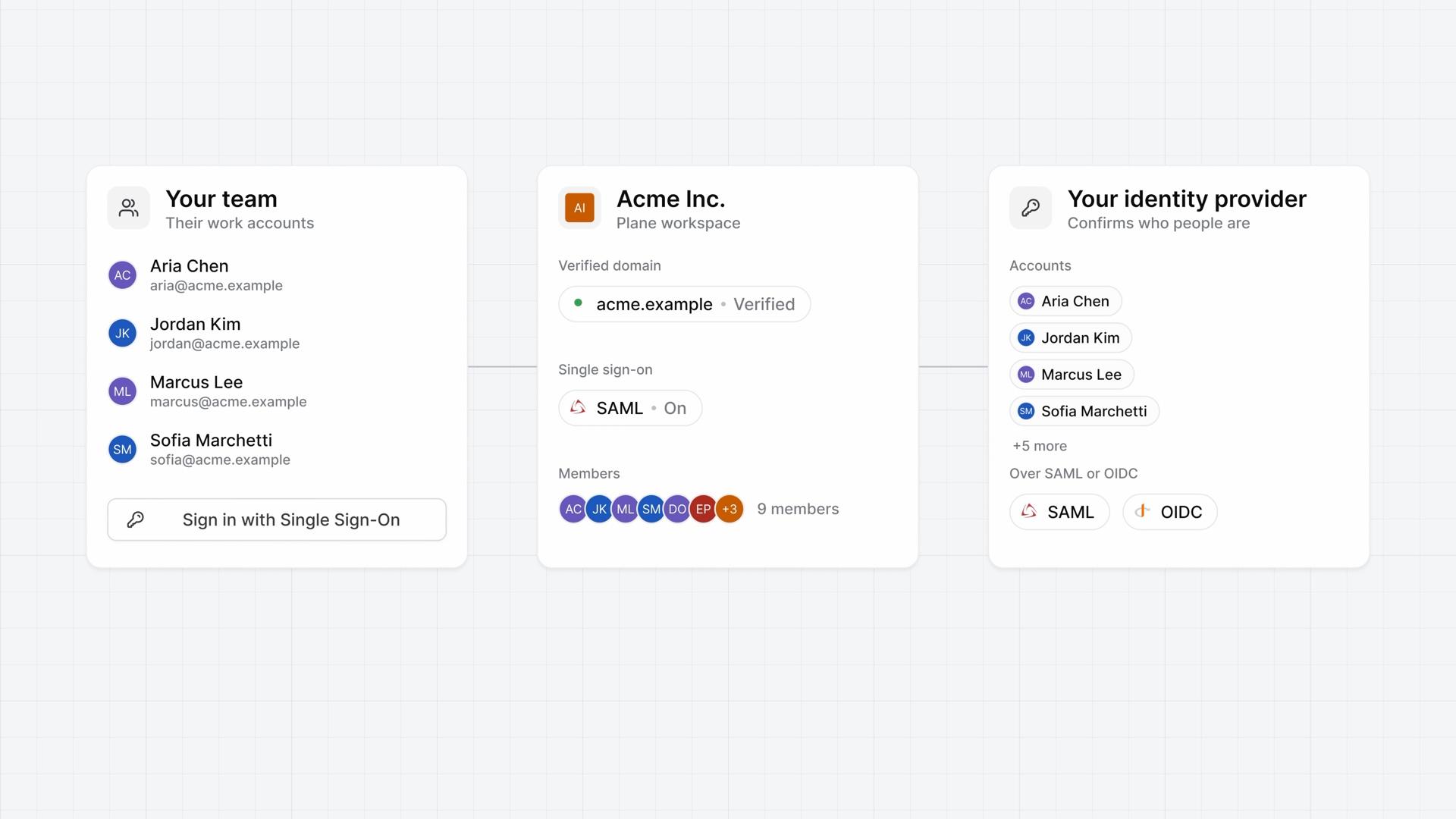
- Single sign-on lets people sign in to your Plane workspace with their work account, while your company's identity provider confirms who they are, over SAML or OIDC. On Business and higher, workspace admins set it up in Workspace settings, under Identity.
- The email domain comes first. Plane uses the domain in each email address to find your provider, and only one workspace can verify each domain.
- Add domain gives you a TXT record value to add on the domain itself in your DNS host's settings. DNS changes can take up to 72 hours, and the domain stays Pending until Verify domain finds the record and the status reads Verified.
- With the domain verified, choose Configure beside Enable SAML or Enable OIDC. Get setup details lists the URLs to register Plane with your provider, and the provider's own details go back into Plane.
- Configure and enable saves the provider switched on, and Configure only saves it switched off. A workspace signs people in through one provider at a time, and there's no test step, so try a sign-in yourself first.
- People choose Sign in with Single Sign-On and enter their work email, and Plane sends them to the provider of the workspace that verified that domain. A first sign-in creates a Plane account, but joining your workspace still takes an invite.
- Single sign-on doesn't replace other sign-in methods. Passwords and other accounts keep working, people outside your verified domains sign in as they do now, and no setting makes it the only way in.
- Removing someone from your identity provider doesn't remove them from the workspace, so remove them in Members too.
Sign in the company way
0:00Single sign-on lets people sign in to your Plane workspace with their work account. Your company's identity provider confirms who they are, over SAML or OIDC.
It's for companies that already manage people's accounts in one place. Plane uses those accounts instead of asking for another password.
Verify your email domain
0:35On Business and higher, workspace admins set up single sign-on in Workspace settings, under Identity.
The email domain comes first. Plane uses the domain in each email address to find your provider, and only one workspace can verify each domain.
- Choose Add domain, type your company's domain, and choose Add domain again.
- Plane shows a TXT record value. In your domain host's DNS settings, create a TXT record on the domain itself and paste the complete value.
- Choose Verify domain. Once Plane finds the record, the status reads Verified.
DNS changes can take up to 72 hours. If you choose I'll do it later, the domain stays Pending until you choose Verify in its menu. You can configure a provider only once the domain is verified.
Connect your identity provider
1:36- Under Single sign-on, choose Configure beside Enable SAML or Enable OIDC, whichever your provider uses.
- Start with Get setup details. It lists the URLs to copy into your identity provider when you register Plane there.
- Paste your provider's own details back into Plane. For SAML, that's its Entity ID, SSO URL, and Certificate. Logout URL is optional. For OIDC, it's the Client ID and Client secret, plus the provider's Authorize URL, Token URL, and Users' info URL.
- Choose Configure and enable to save the provider and switch it on, or Configure only to save it switched off.
A workspace signs people in through one provider at a time. There's no test step, so try a sign-in yourself before you tell your team.
Sign in through your provider
2:43- On the sign-in page, people choose Sign in with Single Sign-On, enter their work email, and choose Continue.
- Plane finds the workspace that verified the email's domain and sends them to your identity provider. Once the provider confirms them, they're signed in.
Someone signing in for the first time gets a Plane account, but they still need an invite to join your workspace.
People with an email address outside your verified domains never reach your provider, so they keep signing in the way they do now. Single sign-on doesn't replace other sign-in methods: passwords and other accounts keep working, and no setting makes it the only way in.
To change a provider, choose Edit, then Save changes. To stop using it, switch it off and choose Configure only.
Removing someone from your identity provider doesn't remove them from the workspace, so remove them in Members too. Syncing groups from your provider is part of Enterprise Grid.
See the domain and provider in place
3:48You've verified your domain and connected your identity provider, so your team can sign in to Plane with their work account.
Plans
- Business
- Single sign-on for the workspace, on Plane Cloud
Read next
Transcript
Show the transcript
Sign in the company way
0:02Single sign-on lets people sign in to your Plane workspace with their work account. Your company's identity provider confirms who they are, over SAML or OIDC.
0:14It's for companies that already manage people's accounts in one place. Plane uses those accounts instead of asking for another password.
0:24You'll verify your company's email domain, connect your identity provider, try a sign-in, and see what changes for members. Let's take a closer look.
Verify your email domain
0:38On Business and higher, workspace admins set up single sign-on in Workspace settings, under Identity.
0:45The email domain comes first. Plane uses the domain in each email address to find your provider, and only one workspace can verify each domain.
0:56Choose Add domain, type your company's domain, and choose Add domain again.
1:03Plane then shows a TXT record value. In your domain host's DNS settings, create a TXT record on the domain itself and paste the complete value.
1:15DNS changes can take up to 72 hours. If you choose I'll do it later, the domain stays Pending until you choose Verify in its menu.
1:25Choose Verify domain, and once Plane finds the record, the status reads Verified. Only then can you configure a provider.
Connect your identity provider
1:39With the domain verified, connect your identity provider. Under Single sign-on, choose Configure beside Enable SAML or Enable OIDC, whichever your provider uses.
1:52Start with Get setup details. It lists the URLs to copy into your identity provider when you register Plane there.
2:00Your provider then gives you its own details to paste back. For SAML, that's its Entity ID, SSO URL, and Certificate. Logout URL is optional.
2:13For OIDC, it's the Client ID and Client secret, plus the provider's Authorize URL, Token URL, and Users' info URL.
2:24Choose Configure and enable to save the provider and switch it on, or Configure only to save it switched off.
2:33A workspace signs people in through one provider at a time. There's no test step, so try a sign-in yourself before you tell your team.
Sign in through your provider
2:46On the sign-in page, people choose Sign in with Single Sign-On, enter their work email, and choose Continue.
2:54Plane finds the workspace that verified the email's domain and sends them to your identity provider. Once the provider confirms them, they're signed in.
3:04Someone signing in for the first time gets a Plane account, but they still need an invite to join your workspace.
3:12People with an email address outside your verified domains never reach your provider, so they keep signing in the way they do now.
3:20Single sign-on doesn't replace other sign-in methods. Passwords and other accounts keep working, and no setting makes it the only way in.
3:31To change a provider, choose Edit, then Save changes. To stop using it, switch it off and choose Configure only.
3:40Removing someone from your identity provider doesn't remove them from the workspace, so remove them in Members too. Syncing groups from your provider is part of Enterprise Grid.
See the domain and provider in place
3:53You've verified your domain and connected your identity provider, so your team can sign in to Plane with their work account.