Automate a project with a trigger, conditions, and actions
How a custom automation runs the actions you set in one project when its trigger fires and its conditions match, from building one to reading the record of each run.

What you will learn
- A custom automation is a rule for one project: when its trigger fires and its conditions match, Plane runs the actions you set.
- On Business and higher, a project admin builds one in Project settings, then Automations, with Create automation. The builder has a Trigger section and an Action section.
- There are five triggers: Work item created, Work item updated, State changed, Assignee changed, and Comment created. They are events, not a schedule.
- Conditions go under Provided and check state, type, label, assignees, priority, or creator, with is for one value or is any of for several. All of them must match.
- Actions run in the order you add them. Archive work item and Delete work item must come last, and an automation holds one of them at most.
- An automation acts only in its own project, its changes don't set off other automations, and it stays off until you choose Enable.
- The work item's activity credits every automation's change to Automation Bot. The automation's own Activity lists each run with its work item and time, and shows runs whose condition didn't match as failed while Show fails is on.
- You can edit an automation while it's enabled, and the edit applies from the next run. Disable it before you delete it.
A rule for one project
0:00A custom automation in Plane is a rule for one project. When its trigger fires and its conditions match, Plane runs the actions you set.
It makes the routine edits nobody should have to remember: triaging new bugs, adding assignees and labels, leaving a comment or link, and archiving.
Build an automation
0:30On Business and higher, a project admin builds one. This one hands work to QA when it reaches review.
- Open Project settings, then Automations, and choose Create automation.
- Give it a name and a description. The builder opens with two sections, Trigger and Action.
- Pick one of five triggers: Work item created, Work item updated, State changed, Assignee changed, or Comment created. A review handoff uses State changed.
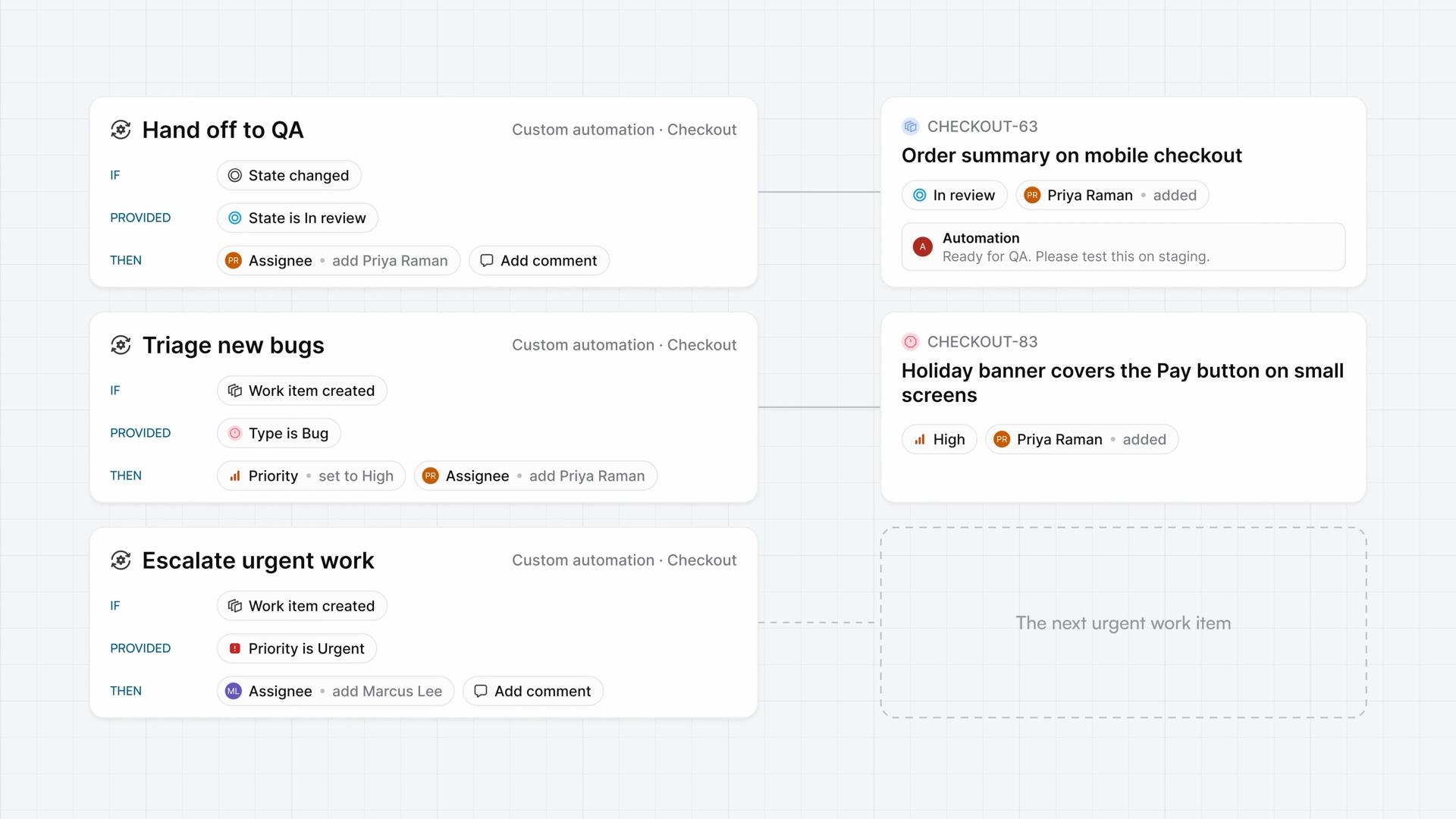
- Add conditions under Provided. They check state, type, label, assignees, priority, or creator, and all of them must match. Pick one value with is, or several with is any of. The handoff needs one condition: State is In review.
- Add the actions. They run in the order you add them. Change property adds the QA engineer as an assignee, and Add comment asks for a test on staging.
Add link attaches a URL, such as a runbook. Archive work item and Delete work item must come last, and an automation holds one of them at most.
An automation acts only in its own project, and its triggers are events, not a schedule. Changes it makes don't set off other automations.
It stays off until you choose Enable, which needs a trigger and at least one action.
Watch it run and read the record
2:02Once it's enabled, the next work item moved to In review sets it off. Plane adds the QA engineer, then posts the comment.
The work item's activity credits the change to Automation Bot. Every automation uses that name, so the activity doesn't say which one ran.
The automation's own Activity does. It lists each run with its work item and time, and a run opens to show who set it off. Show fails starts on, so state changes that didn't match the condition appear as failed runs. Their actions never ran.
You can edit an automation while it's enabled. The edit applies from the next run, and earlier runs stay listed with their changes in place.
Choose Disable to stop it. You can delete an automation only after you disable it.
Automations worth copying
3:00The handoff covers review. Two more handle new bugs and urgent work.
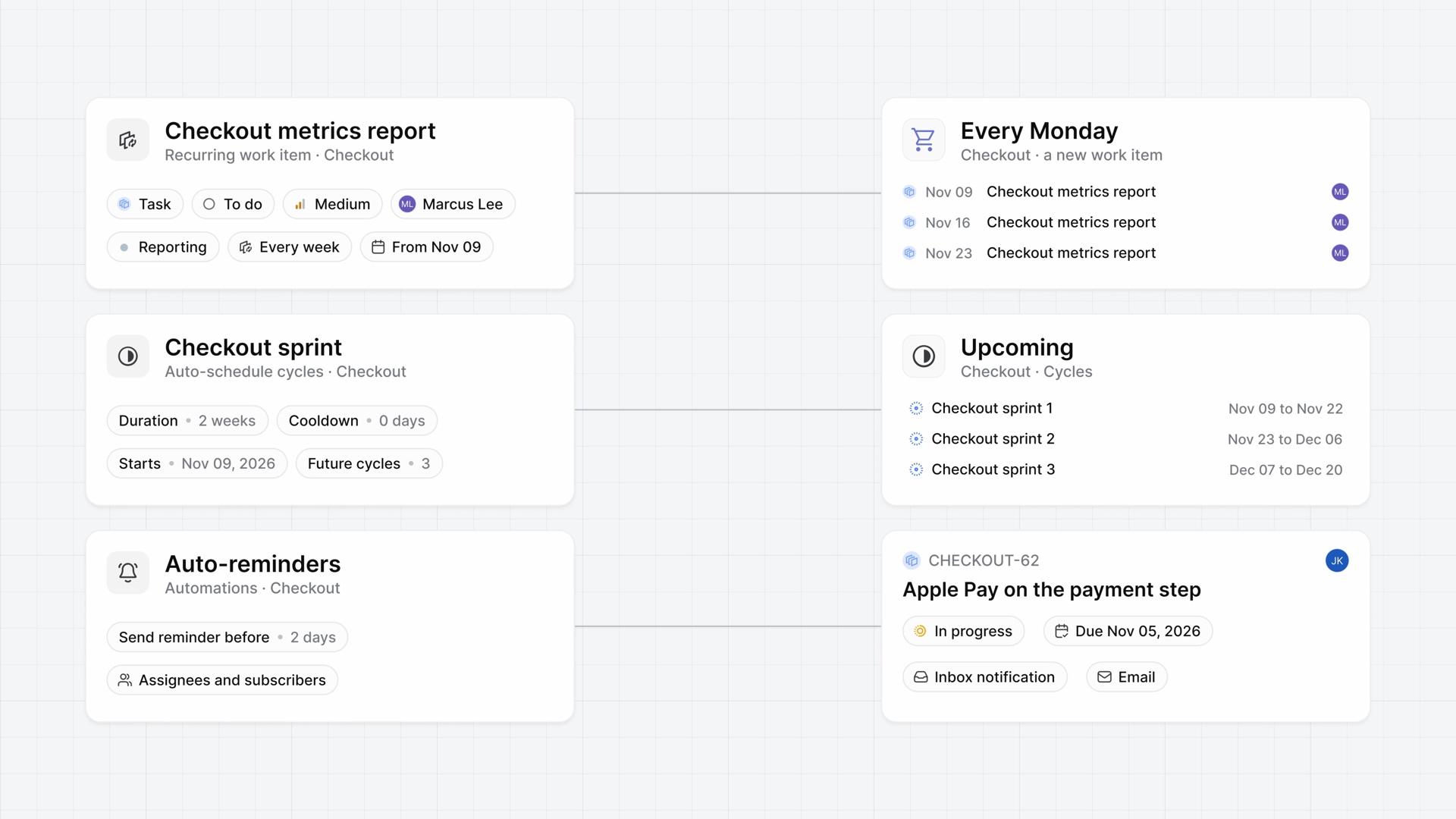
- New bugs: when a work item is created, provided its type is Bug, set Priority to High and add the QA engineer.
- Urgent work: with the same trigger, provided priority is Urgent, add the project lead, then a comment asking for an estimate today.
Put Archive work item and Delete work item behind a condition. An automation archives in any state, so on State changed alone it would archive every work item that moves.
The default automations on the same page, like Auto-archive closed work items, need no builder. You switch one on and pick a period.
Review your automations
3:52One Automations page now holds all three, enabled: new bugs triaged, urgent work escalated, and work handed to QA at review.
Plans
- Business
- Custom automations
Read next
Related lessons
Transcript
Show the transcript
A rule for one project
0:02A custom automation in Plane is a rule for one project. When its trigger fires and its conditions match, Plane runs the actions you set.
0:12It makes the routine edits nobody should have to remember: triaging new bugs, adding assignees and labels, leaving a comment or link, and archiving.
0:23You'll build one, watch it run on a work item, and read what it did. Let's take a closer look.
Build an automation
0:34On Business and higher, a project admin opens Project settings, then Automations, and chooses Create automation.
0:43Give it a name and a description, and the builder opens with two sections, Trigger and Action.
0:50Pick one of five triggers: Work item created, Work item updated, State changed, Assignee changed, or Comment created. A review handoff uses State changed.
1:04Conditions go under Provided. They check state, type, label, assignees, priority, or creator, and all of them must match.
1:15Pick one value with is, or several with is any of. The handoff needs one condition: State is In review.
1:24Actions run in the order you add them. Change property adds the QA engineer as an assignee, and Add comment asks for a test on staging.
1:35Add link attaches a URL, such as a runbook. Archive work item and Delete work item must come last, and an automation holds one at most.
1:46An automation acts only in its own project, and its triggers are events, not a schedule. Changes it makes don't set off other automations.
1:57It stays off until you choose Enable, which needs a trigger and at least one action.
Watch it run and read the record
2:07Once it's enabled, the next work item moved to In review sets it off. Plane adds the QA engineer, then posts the comment.
2:16The work item's activity credits the change to Automation Bot. Every automation uses that name, so the activity doesn't say which one ran.
2:26The automation's own Activity does. It lists each run with its work item and time, and a run opens to show who set it off.
2:36Show fails starts on, so state changes that didn't match the condition appear as failed runs. Their actions never ran.
2:45You can edit it while it's enabled. The edit applies from the next run, and earlier runs stay listed with their changes in place.
2:54Choose Disable to stop it. You can delete an automation only after you disable it.
Automations worth copying
3:04The handoff covers review. Two more handle new bugs and urgent work.
3:10When a work item is created, provided its type is Bug, the first sets Priority to High and adds the QA engineer.
3:19The second uses the same trigger, provided priority is Urgent. It adds the project lead, then a comment asking for an estimate today.
3:29Put Archive work item and Delete work item behind a condition. An automation archives in any state, so on State changed alone it would archive every work item that moves.
3:42The default automations on the same page, like Auto-archive closed work items, need no builder. You switch one on and pick a period.
Review your automations
3:54One Automations page now holds all three, enabled: new bugs triaged, urgent work escalated, and work handed to QA at review.