Follow one customer request from the form to the changelog
How Intake, Customers, a cycle, and a release work together on one customer request, from the form a customer fills in to the changelog of the release that ships it.

What you will learn
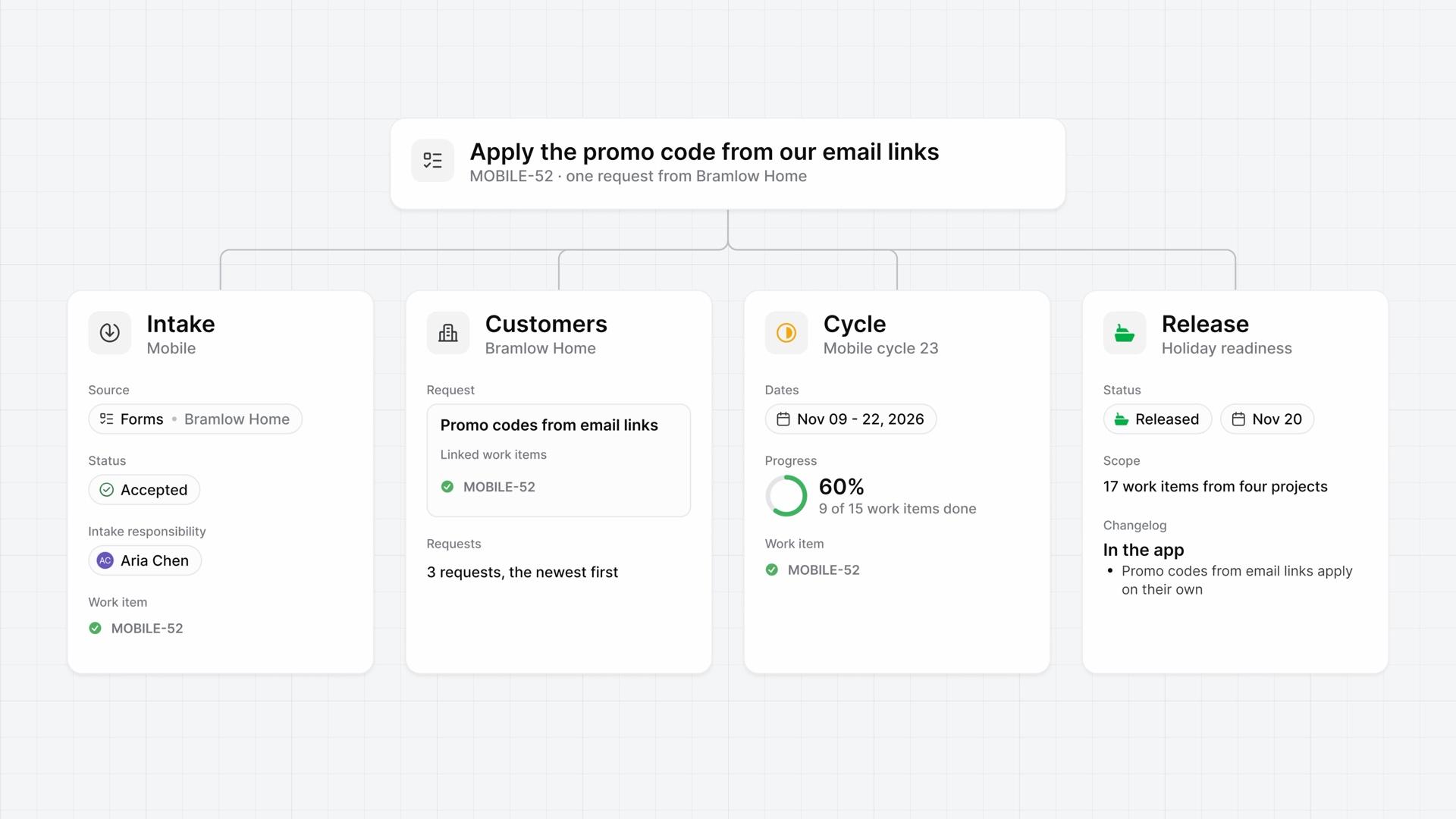
- On Business and higher, a project admin can give the project's Intake a public form and an email address, so customers need no Plane account to send a request. After the form's confirmation page, Plane sends the customer nothing.
- A request arrives in Intake as Pending, already a work item with its own ID, and Intake responsibility assigns it to whoever the project picked to review requests.
- A project admin chooses Accept, sets the state, priority, assignees, and labels, and chooses Add to project. The request moves to Intake's Closed tab as Accepted, and the work item keeps the same ID.
- From the work item, a workspace admin chooses Customer request, picks the customer, and names the request. The customer's record then holds the request linked to the work item, and the work item's details name the customer and the request.
- Plane subscribes whoever added the request to the work item, so each change reaches their Inbox, and the customer's record lists the work item with its current state, priority, and assignees.
- To ship it, pick a release in the work item's Releases property. A workspace release takes work items from any project.
- Release now sets the status to Released and saves the date, but deploys nothing, so your team still ships the code its usual way.
- Write the Changelog in the customer's terms. People with access to the release can read it, but Plane doesn't send it to customers.
Follow one request through Plane
0:00This lesson follows one customer request through Plane, from the form a customer fills in to the changelog of the release that ships it.
It puts several features to work together on a single request: Intake, Customers, a cycle, and a release, with where to look at each step.
Accept the request and attach the customer
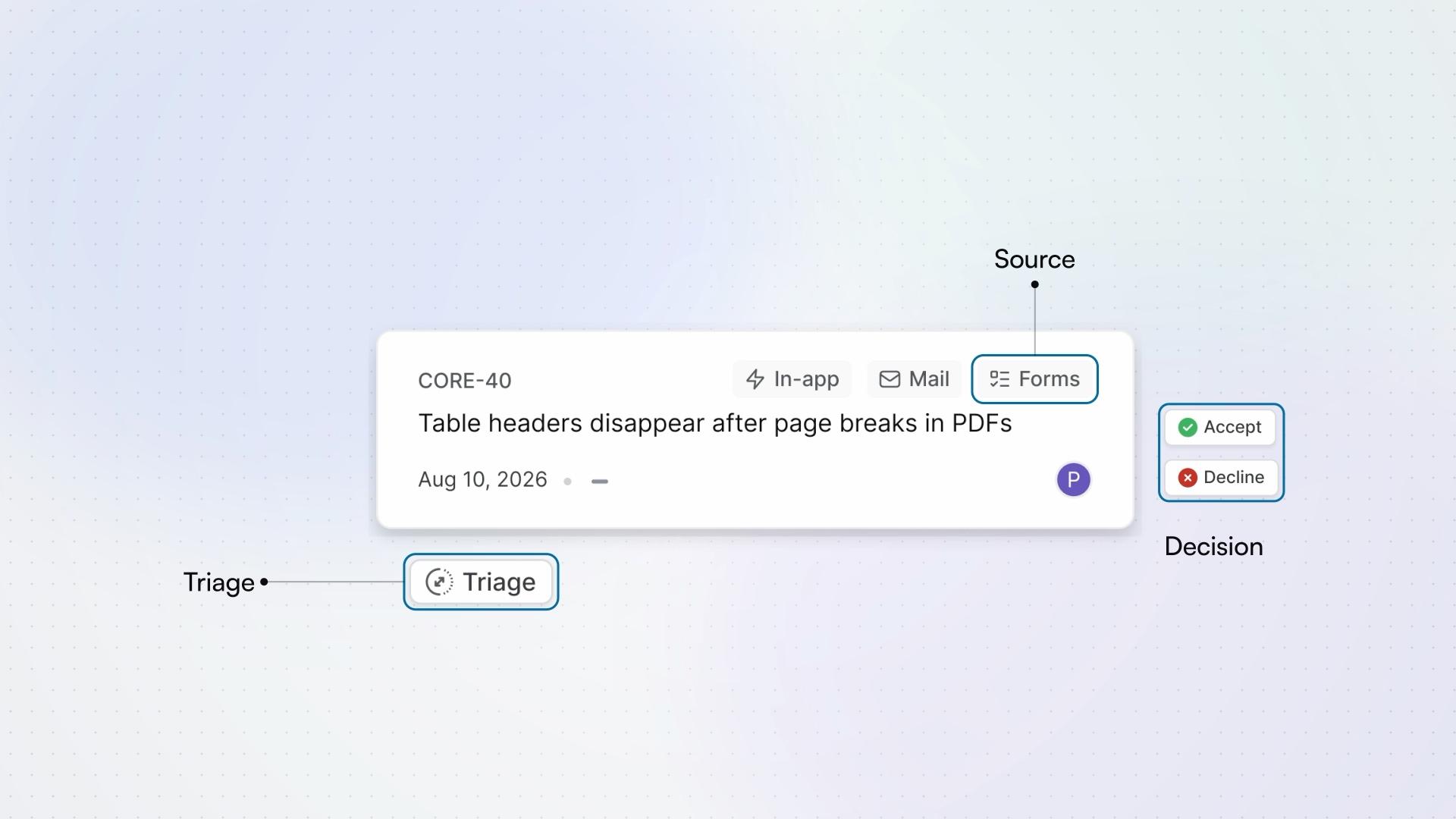
0:33On Business and higher, a project admin can give the project's Intake a public form and an email address, so customers need no Plane account to send a request.
A customer fills in the form with a name, an email, a title, and a description. After the confirmation page, Plane sends them nothing.
The request arrives in Intake as Pending, already a work item with its own ID. Intake responsibility assigns it to whoever the project picked to review requests.
- A project admin chooses Accept. In the form that opens, set its state, priority, assignees, and labels before it joins the project.
- Choose Add to project. The request moves to Intake's Closed tab as Accepted, and the work item keeps the same ID.
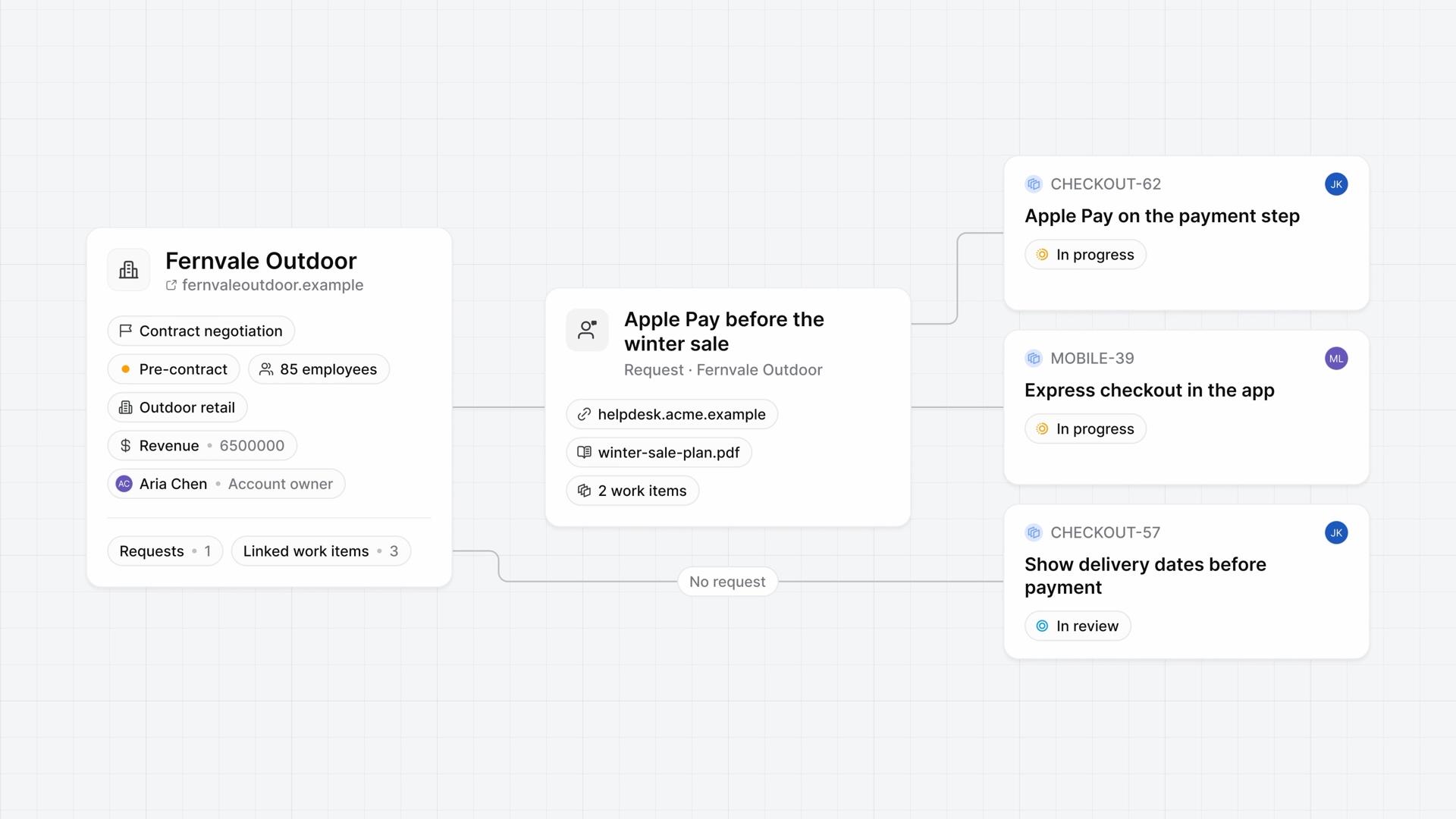
- From the work item, a workspace admin chooses Customer request, picks the customer, names the request, and chooses Create request.
The customer's record now holds the request, linked to the work item, and the work item's details name the customer and the request.
Plan the work and follow it
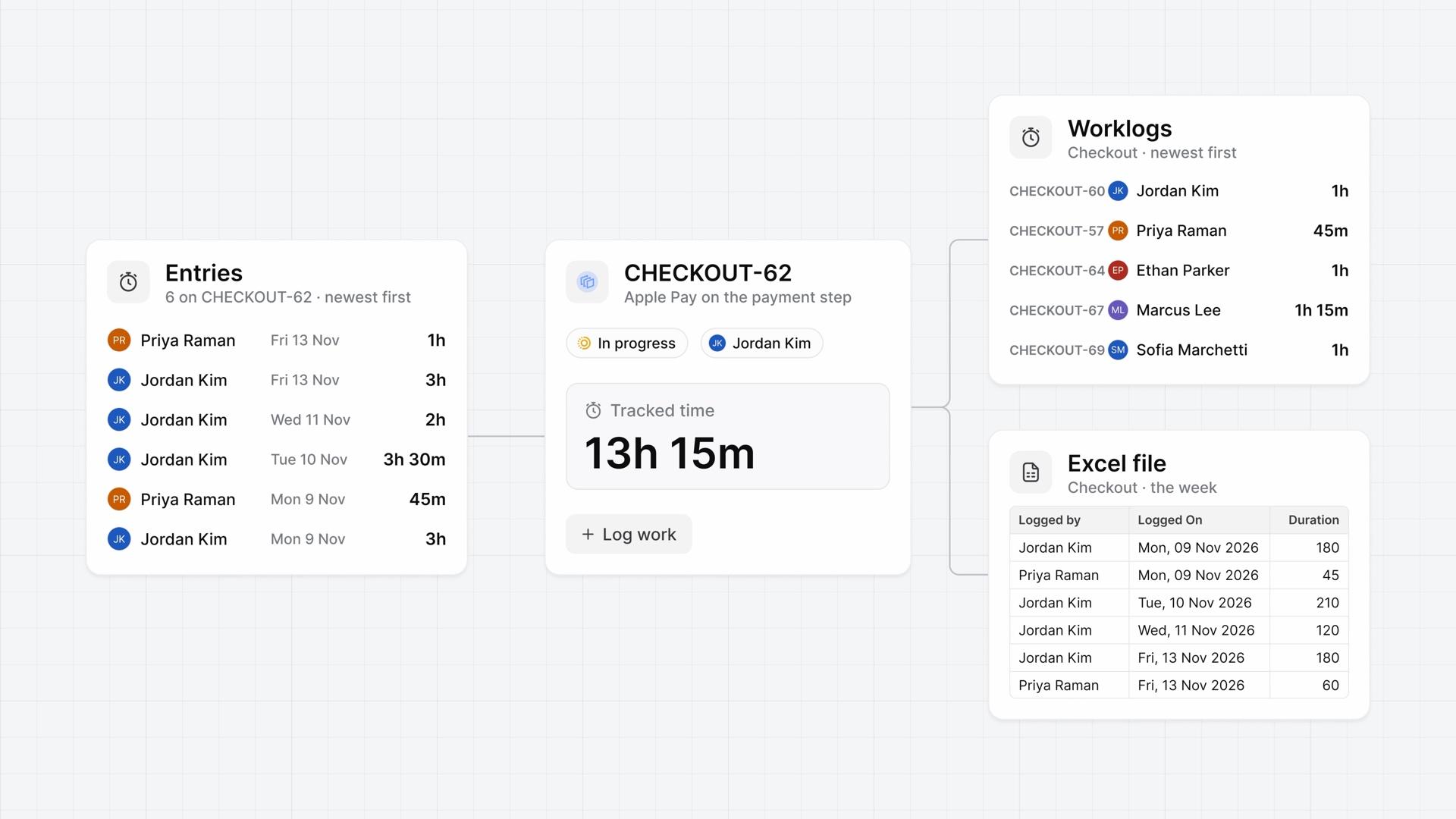
1:49- Set the work item's Cycle to the current cycle, so it's planned with the rest of the team's work. The list leaves out cycles that have ended.
- The engineer moves it through To do and In progress to In review, then adds the QA engineer as an assignee to test it.
Plane subscribed whoever added the request to the work item, so each of those changes reaches their Inbox.
To check progress without asking the team, open the customer's record. The request there lists the work item with its current state, priority, and assignees.
Once it passes testing, the QA engineer moves it to Done, and the cycle's progress counts it as completed.
Ship it and close the loop
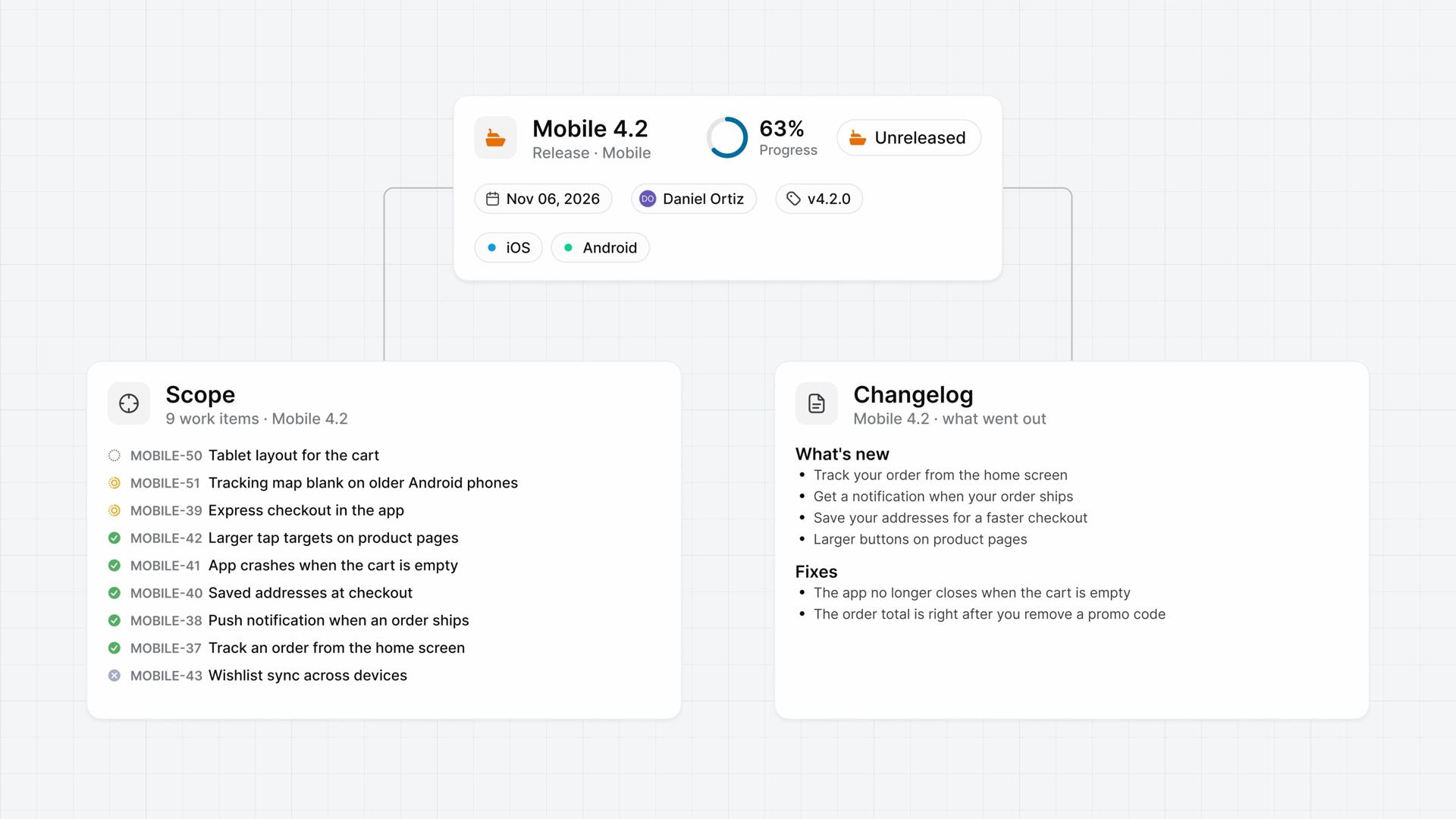
2:38- To ship it, pick a release in the work item's Releases property. A workspace release takes work items from any project.
- On the target date, once everything in the release's Scope is done or cancelled, a workspace admin chooses Release now.
- With nothing unresolved, the dialog only says how many work items will be released and shows the date. Choose Release.
Plane sets the status to Released and saves that date. It doesn't deploy anything, so your team still ships the code its usual way.
Then write the Changelog in the customer's terms. People with access to the release can read it, but Plane doesn't send it to customers.
Back on the customer's record, the request's work item reads Done. Open it, and its Releases property shows the release that shipped it.
See the request's whole trail
3:36Intake took the request in, the customer's record kept it linked, a cycle planned the work, and a release shipped it.
Plans
- Business
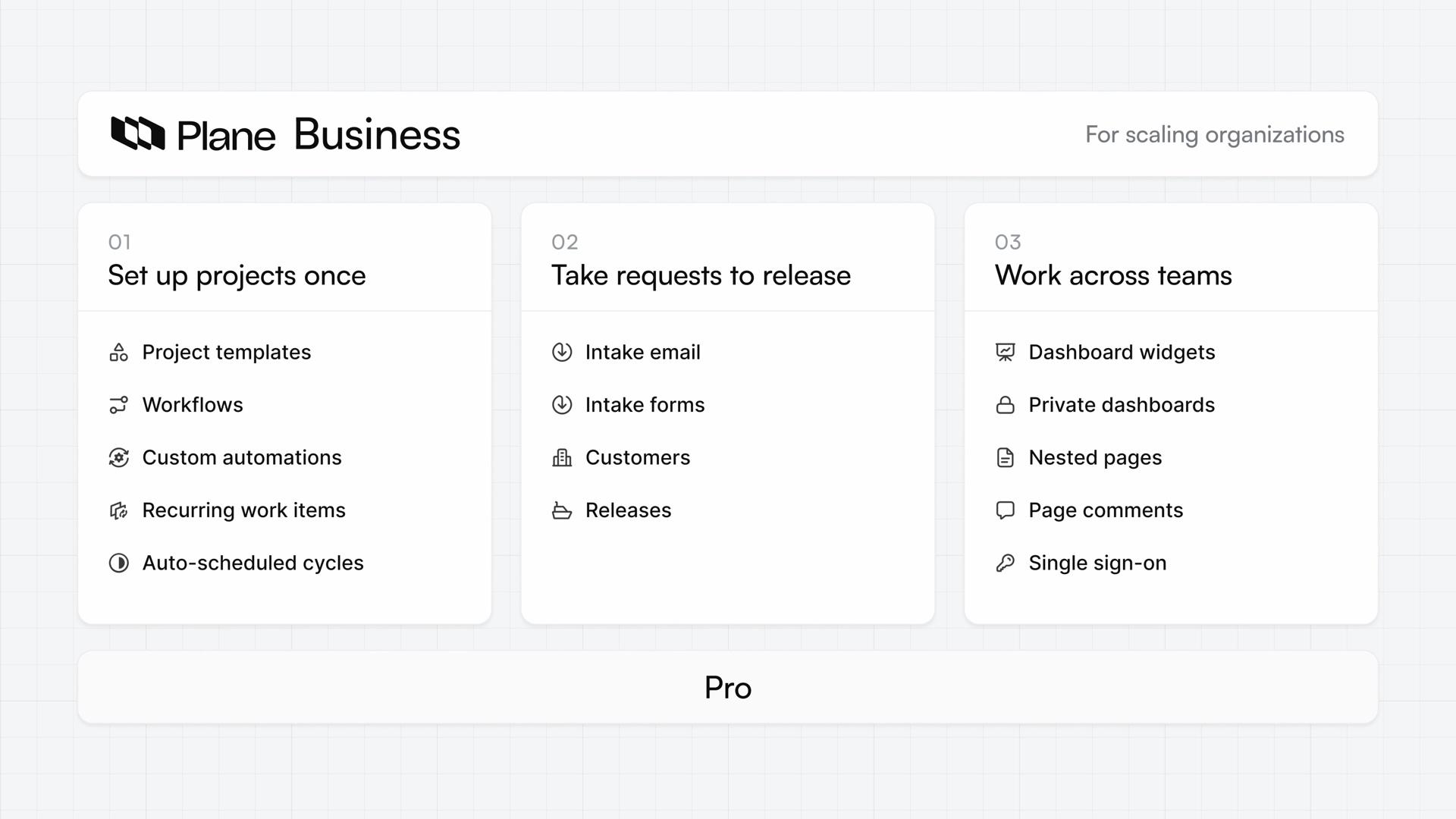
- Intake email and forms, Intake responsibility, customers, and releases
Read next
Related lessons
Transcript
Show the transcript
Follow one request through Plane
0:02This lesson follows one customer request through Plane, from the form a customer fills in to the changelog of the release that ships it.
0:11Most earlier lessons in this playlist set up one feature each. This one puts several of them to work together on a single request.
0:21You'll follow the request through Intake, Customers, a cycle, and a release, and see where to look at each step. Let's take a closer look.
Accept the request and attach the customer
0:35On Business and higher, a project admin can give the project's Intake a public form and an email address, so customers need no Plane account to send a request.
0:46A customer fills in the form with a name, an email, a title, and a description. After the confirmation page, Plane sends them nothing.
0:57The request arrives in Intake as Pending, already a work item with its own ID. Intake responsibility assigns it to whoever the project picked to review requests.
1:09A project admin chooses Accept. In the form that opens, they set its state, priority, assignees, and labels before it joins the project.
1:20Choose Add to project. The request moves to Intake's Closed tab as Accepted, and the work item keeps the same ID.
1:29From the work item, a workspace admin chooses Customer request, picks the customer, names the request, and chooses Create request.
1:39The customer's record now holds the request, linked to the work item, and the work item's details name the customer and the request.
Plan the work and follow it
1:52Set the work item's Cycle to the current cycle, so it's planned with the rest of the team's work. The list leaves out cycles that have ended.
2:01The engineer moves it through To do and In progress to In review, then adds the QA engineer as an assignee to test it.
2:10Plane subscribed whoever added the request to the work item, so each of those changes reached their Inbox.
2:18To check progress without asking the team, open the customer's record. The request there lists the work item with its current state, priority, and assignees.
2:29Once it passes testing, the QA engineer moves it to Done, and the cycle's progress counts it as completed.
Ship it and close the loop
2:40To ship it, pick a release in the work item's Releases property. A workspace release takes work items from any project.
2:49On the target date, everything in the release's Scope is done or cancelled, and a workspace admin chooses Release now.
2:58With nothing unresolved, the dialog only says how many work items will be released and shows the date. Choose Release.
3:07Plane sets the status to Released and saves that date. It doesn't deploy anything, so your team still ships the code its usual way.
3:17Then write the Changelog in the customer's terms. People with access to the release can read it, but Plane doesn't send it to customers.
3:26Back on the customer's record, the request's work item reads Done. Open it, and its Releases property shows the release that shipped it.
See the request's whole trail
3:37Intake took the request in, the customer's record kept it linked, a cycle planned the work, and a release shipped it.