Start projects, work items, and pages from templates
How templates give new projects, work items, and pages a saved starting point, from making each kind in Templates to starting something new from it.

What you will learn
- A template is a saved starting point for a project, a work item, or a page. You set it up once and reuse it, so each new one starts with the structure your team agreed on.
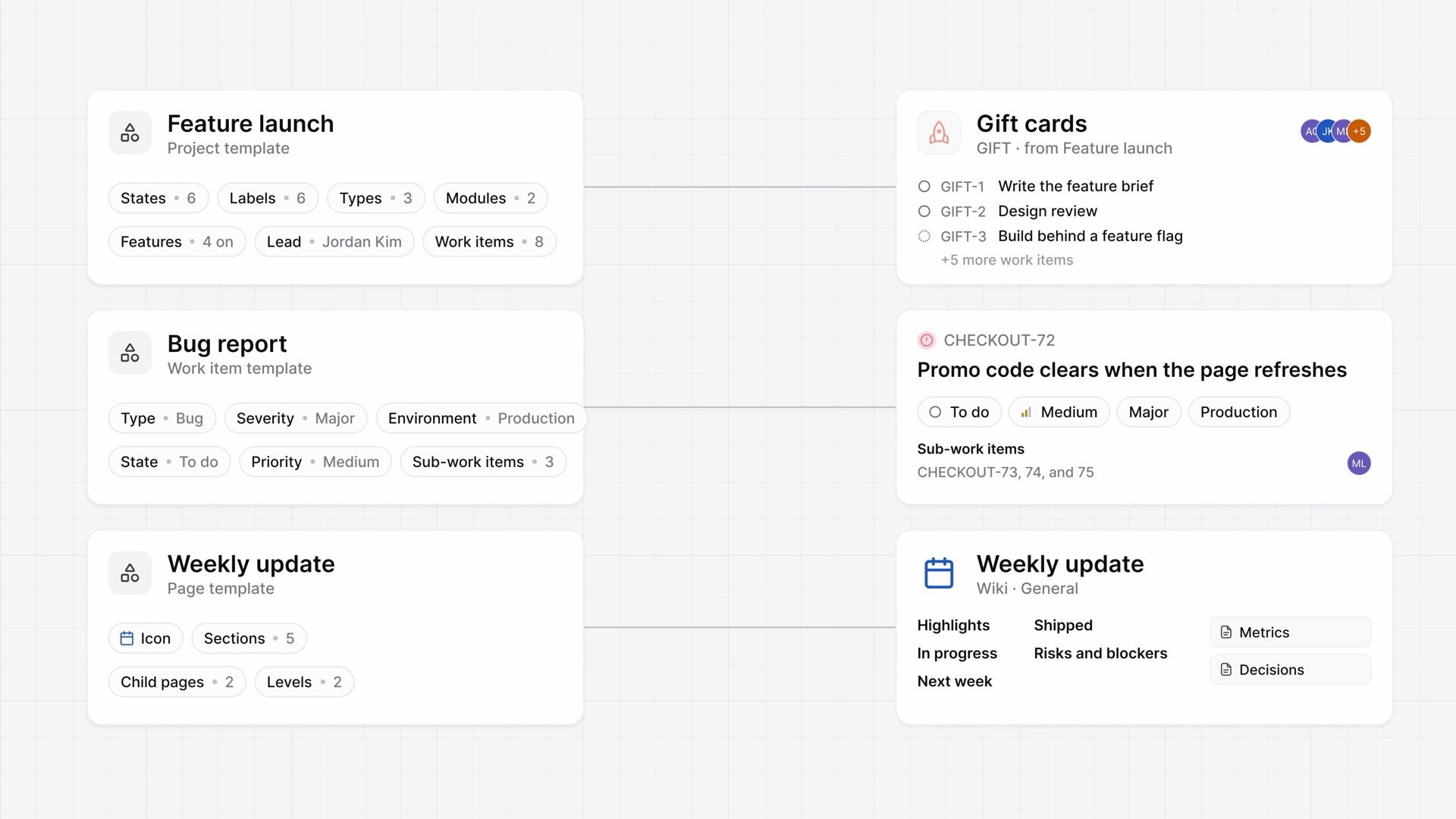
- On Business and higher, a workspace admin makes a project template in Workspace settings, then Templates: the project's lead, members, visibility, dates, and features, then its states, labels, work item types with their properties, and the work items each project needs on day one.
- Start a project from it with Pick a project template, next to Projects, or Use template on the Templates page. Give the project its own name and identifier, and everything else comes from the template.
- A project template doesn't carry workflows, automations, or recurring work items, and when you edit it, only new projects pick up the change.
- On Pro and higher, a work item template holds a title, a description, and a type with that type's properties, and can set state, priority, assignees, and labels and add sub-work items. It holds no dates, cycle, or estimate.
- Workspace admins make work item templates in Workspace settings and project admins in a project's settings, both under Templates. Each belongs to one project and one type, and each Templates page marks the other level's templates Derived from workspace or Derived from project.
- A page template, also on Pro and higher, starts a page with its sections, its icon, and its nested pages, up to six levels and 50 pages. Apply it with Choose from template on a new, empty page.
A saved starting point
0:00A template in Plane is a saved starting point for a project, a work item, or a page. You set it up once and reuse it.
Each new project, bug report, or weekly page then starts with the structure your team agreed on, so nobody rebuilds it from memory. This lesson makes one template of each kind and starts something new from each.
Start projects from a template
0:27On Business and higher, a project template sets up every new project the same way, down to its first work items.
- A workspace admin opens Workspace settings, then Templates, and chooses Create template, then Project templates.
- Name the template and say when to use it.
- Set up the project: its lead, members, visibility, dates, and the features it turns on.
- Below that, add its states and labels, its work item types and their properties, and the work items each project needs on day one.
To start a project from it, choose the plus next to Projects, then Pick a project template. Or choose Use template on the Templates page.
The form fills in. Give the project its own name and identifier, then create it. Everything else comes from the template.
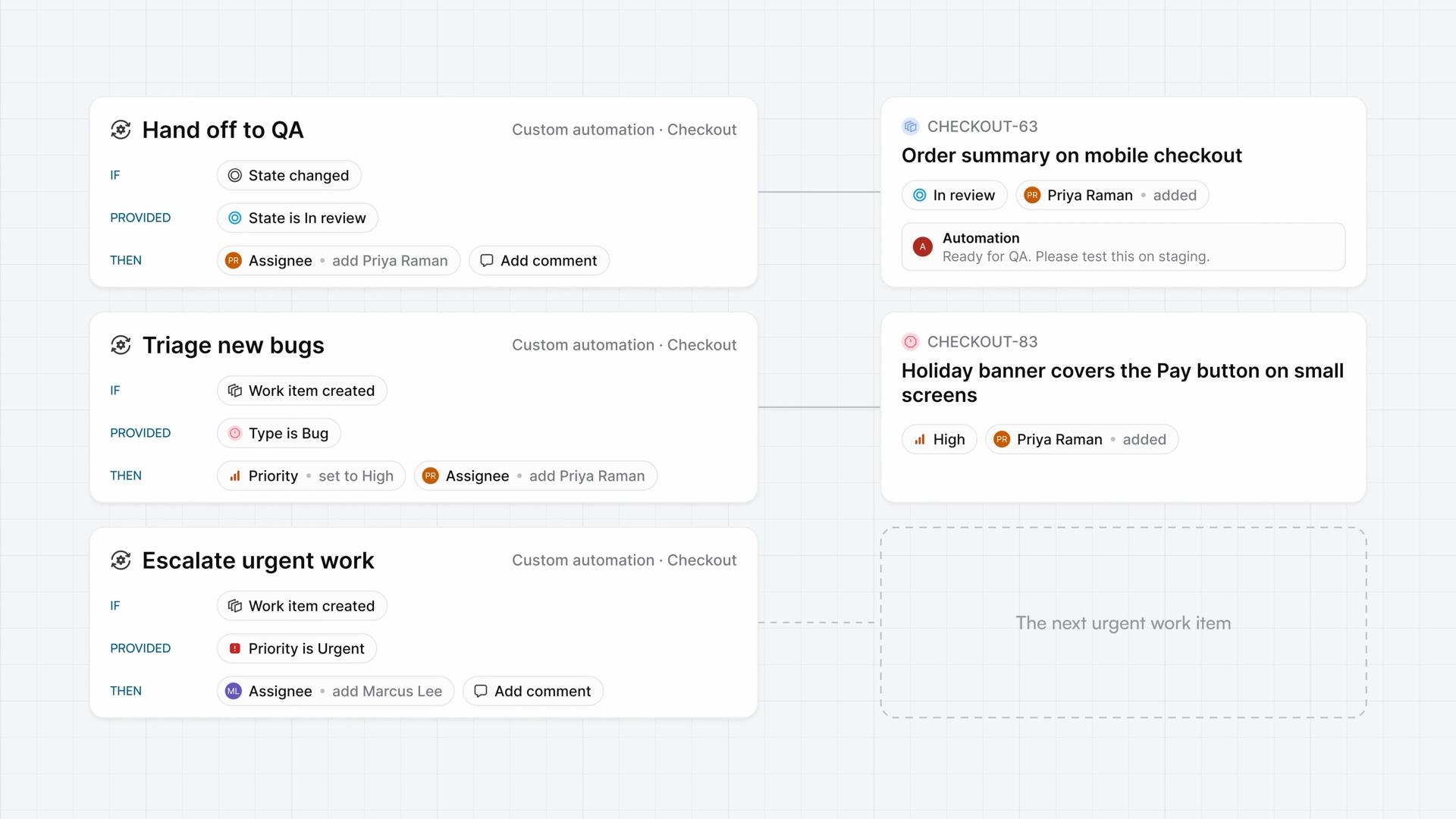
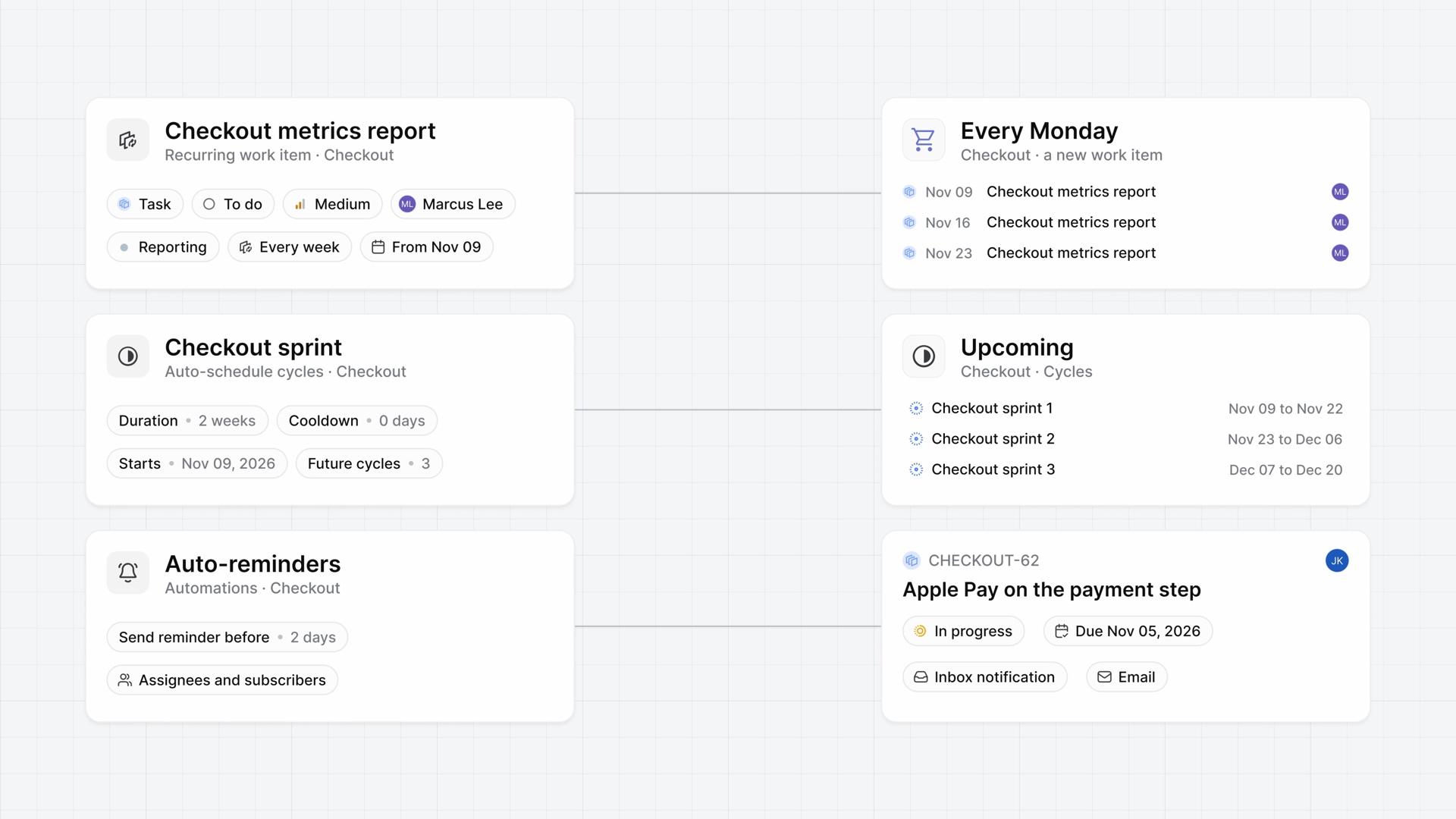
A template doesn't carry workflows, automations, or recurring work items. If you edit it later, only new projects pick up the change.
Fill in work items from a template
1:42Work item and page templates are on Pro and higher. A work item template starts a bug report with its fields already filled in.
It holds a title, a description, and a type with that type's properties. It can also set state, priority, assignees, and labels, and add sub-work items.
Workspace admins make them in Workspace settings, and project admins in a project's settings, both under Templates. Each one belongs to one project and one type. Each Templates page also shows the other level's templates, marked Derived from workspace or Derived from project.
For a bug report, pick the project and the Bug type, set Severity and Environment, and list the sub-work items every fix needs. Then use it:
- In the work item form, choose the Bug type, then Pick a work item template. Its values fill the form.
- Create the work item, and Plane adds its sub-work items too.
A work item template holds no dates, cycle, or estimate.
Lay out pages from a template
2:55A page template starts a page with its sections, its icon, and the pages nested under it already in place.
- In Templates, choose Create template, then Page templates.
- Name it, and write the page under Add your template.
- To nest a page, type
/and choose Page. A template holds up to six levels and 50 pages.
To use it, open a new, empty page in a project, the wiki, or a teamspace, and select Choose from template above the title. Pick the template and apply it. The page takes the template's title, icon, and content, and its child pages appear beneath it.
Review your templates
3:43One Templates page now holds all three: projects that start alike, work items filled in before anyone types, and pages with their sections and child pages.
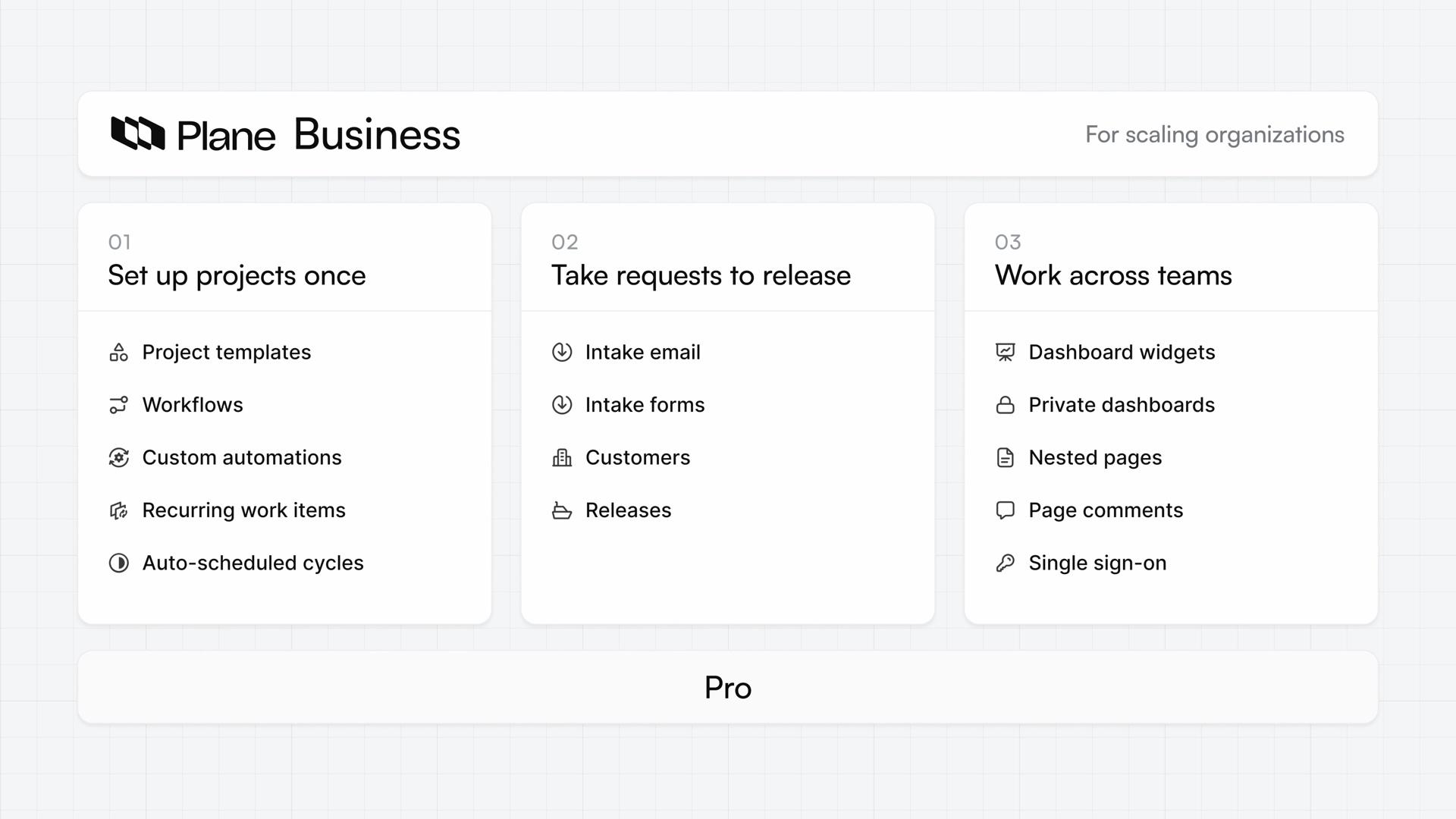
Plans
- Pro
- Work item templates and page templates
- Business
- Project templates
Read next
Related lessons
Transcript
Show the transcript
A saved starting point
0:02A template in Plane is a saved starting point for a project, a work item, or a page. You set it up once and reuse it.
0:11Each new project, bug report, or weekly page starts with the structure your team agreed on, so nobody rebuilds it from memory.
0:21You'll make one template of each kind and start something new from each. Let's take a closer look.
Start projects from a template
0:31On Business and higher, a project template sets up every new project the same way, down to its first work items.
0:40A workspace admin opens Workspace settings, then Templates, and chooses Create template, then Project templates.
0:49Name the template and say when to use it. Then set up the project: its lead, members, visibility, dates, and the features it turns on.
1:02Below that, add its states and labels, its work item types and their properties, and the work items each project needs on day one.
1:12To start a project from it, choose the plus next to Projects, then Pick a project template. Or choose Use template on the Templates page.
1:23The form fills in. Give the project its own name and identifier, then create it. Everything else comes from the template.
1:33A template doesn't carry workflows, automations, or recurring work items. Edit it later, and only new projects pick up the change.
Fill in work items from a template
1:46Work item and page templates are on Pro and higher. A work item template starts a bug report with its fields already filled in.
1:55It holds a title, a description, and a type with that type's properties. It can also set state, priority, assignees, and labels, and add sub-work items.
2:08Workspace admins make them in Workspace settings, project admins in a project's settings, both under Templates. Each belongs to one project and one type.
2:19Each Templates page also shows the other level's templates, marked Derived from workspace or Derived from project.
2:28For a bug report, pick the project and the Bug type, set Severity and Environment, and list the sub-work items every fix needs.
2:38In the work item form, choose the Bug type, then Pick a work item template. Its values fill the form.
2:47Create the work item, and Plane adds its sub-work items too. A template holds no dates, cycle, or estimate.
Lay out pages from a template
3:00A page template starts a page with its sections, its icon, and the pages nested under it already in place.
3:08In Templates, choose Create template, then Page templates. Name it, and write the page under Add your template.
3:17To nest a page, type a slash and choose Page. A template holds up to six levels and 50 pages.
3:25On a new, empty page in a project, the wiki, or a teamspace, select Choose from template above the title.
3:34Pick the template and apply it. The page takes the template's title, icon, and content, and its child pages appear beneath it.
Review your templates
3:45One Templates page now holds all three: projects that start alike, work items filled in before anyone types, and pages with their sections and child pages.