Log time on work items and see where it went
How time tracking logs time on each work item, from turning it on and logging hours to reading a project's worklogs and downloading them as a file.

What you will learn
- Time tracking lets a team log time on each work item, see where a project's hours go, and download them as a file. It is on Pro and higher.
- A project admin switches on Enable time tracking in Project settings, under Features, then Time tracking.
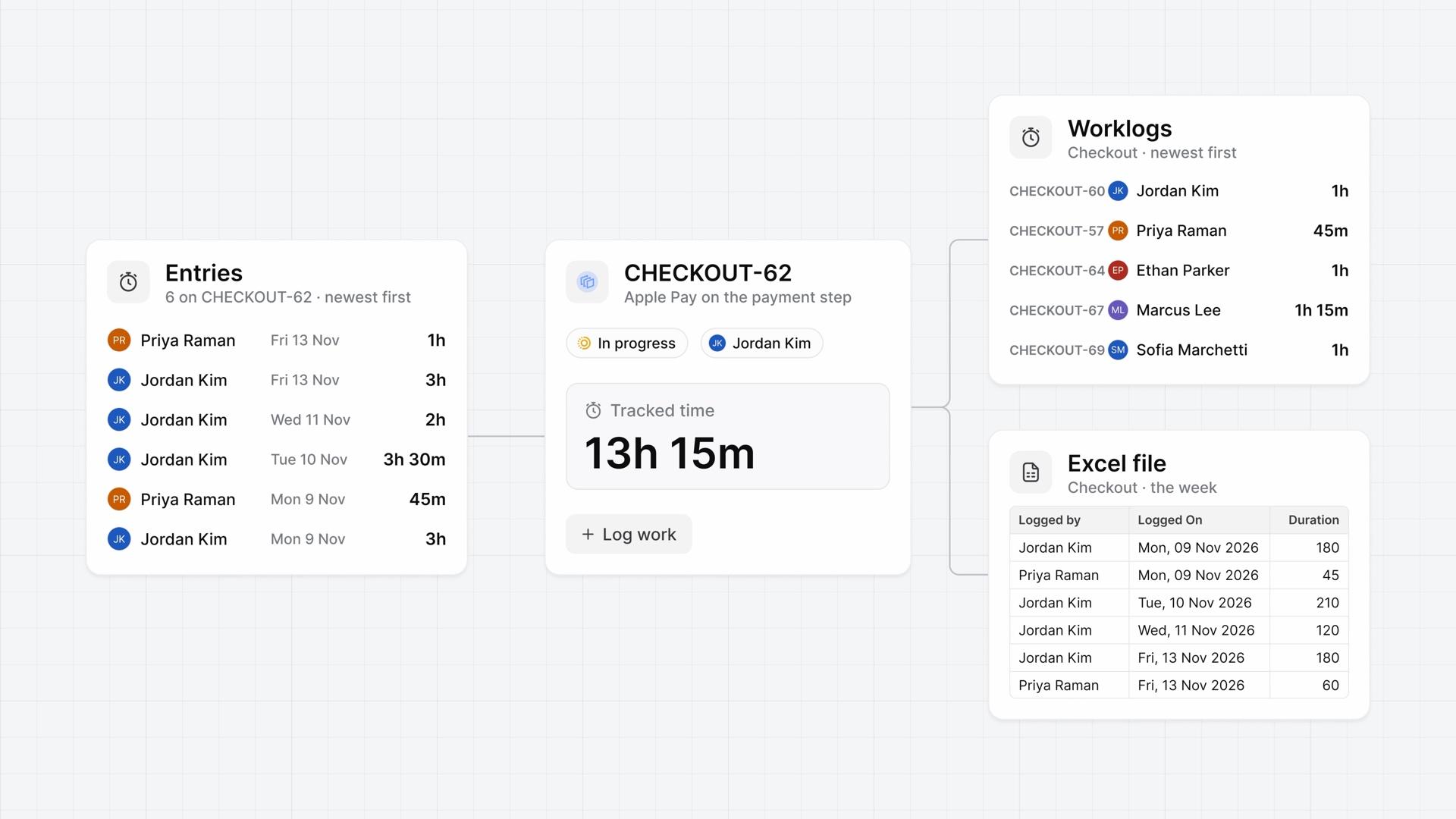
- Log work on a work item takes hours, minutes, or both, with an optional description. Each entry appears in the work item's activity and on its Worklogs tab, and Tracked time adds up every entry on that work item.
- Plane dates each entry when you save it, so log time on the day you do the work. Contributors change only their own entries, project admins can change anyone's, and commenters and guests can't log time.
- The project's Worklogs page lists every entry, newest first, with Users and Date range filters. It shows no totals, and every entry counts, whatever the work item's state.
- A parent's Tracked time counts only its own entries, not the time logged on its sub-work items.
- Workspace admins download the list as a CSV or Excel file that keeps the filters. Each row holds the project, the work item, who logged it, the day, the duration in minutes, and the description.
- Time tracking has no timer, no rates, and no approval step, and nobody can log time for someone else.
Know where the hours go
0:00Time tracking in Plane lets your team log time on each work item, see where a project's hours go, and download them as a file.
Teams use it to see what their work costs in time, to bill or report hours, and to plan the next round from real numbers.
Turn on time tracking and log time
0:31On Pro and higher, a project admin opens Project settings, then Features, then Time tracking, and switches on Enable time tracking.
- Open a work item in the project and choose Log work.
- Enter hours, minutes, or both, and add a description if you want one.
- Choose Save.
The entry appears in the work item's activity, with the person's name and the time they logged. The Worklogs tab lists only those entries, and Tracked time, in the work item's details, adds up every entry on that work item.
Plane dates each entry when you save it. There's no field for an earlier day, so log time on the day you do the work.
To fix an entry, open its menu and choose Edit or Delete. Delete takes effect at once, with no confirmation.
Contributors log time and change only their own entries. Project admins can change anyone's, and commenters and guests can't log time.
Read the project's time
1:40Project admins find all of the project's entries in Project settings, under Worklogs. The newest come first, ten to a page, and each row shows the work item, who logged the time and on what day, and how long it took.
- Filter by Users to follow one person's time.
- Filter by Date range to see a week or a month.
- Choose Clear all to bring back the full list.
The page lists entries but shows no totals. A work item's total is its Tracked time, and totals by person come from the download.
Every entry counts, whatever the work item's state, so time on cancelled or archived work items stays in the list. A parent's Tracked time counts only its own entries, not the time logged on its sub-work items.
Download and use the numbers
2:37Workspace admins can download the list.
- Choose Download for a CSV file, or Excel from its menu. The file keeps your filters.
- Plane builds the file in the background. Previous Downloads lists each one with who asked for it and its status.
- When it's ready, a Download link appears. Plane keeps the file for seven days by default.
In the file, each row holds the project, the work item, who logged it, the day, the duration in minutes, and the description. Add up those minutes in a spreadsheet, by person or by work item, then bill or report from the totals.
Workspace admins also have Worklogs in Workspace settings, with every project in one list and a Projects filter.
Time tracking has no timer, no rates, and no approval step. Each person logs their own time, and nobody can log it for them.
See where the week went
3:42One project now logs its time on each work item, lists every entry on its Worklogs page, and downloads the week as a file.
Plans
- Pro
- Time tracking and worklogs
Read next
Transcript
Show the transcript
Know where the hours go
0:02Time tracking in Plane lets your team log time on each work item, see where a project's hours go, and download them as a file.
0:11Teams use it to see what their work costs in time, to bill or report hours, and to plan the next round from real numbers.
0:21In one project, you'll turn it on, log time, read the project's worklogs, and download them. Let's take a closer look.
Turn on time tracking and log time
0:33On Pro and higher, a project admin switches on Enable time tracking in Project settings, under Features, then Time tracking.
0:43Open a work item in the project and choose Log work. Enter hours, minutes, or both, add an optional description, and choose Save.
0:55The entry appears in the work item's activity, with the person's name and the time they logged. The Worklogs tab lists only those entries.
1:05Tracked time, in the work item's details, adds up every entry on that work item.
1:11Plane dates each entry when you save it. There's no field for an earlier day, so log time on the day you do the work.
1:20To fix an entry, open its menu and choose Edit or Delete. Delete takes effect at once, with no confirmation.
1:29Contributors log time and change only their own entries. Project admins can change anyone's, and commenters and guests can't log time.
Read the project's time
1:43Project admins find all of the project's entries in Project settings, under Worklogs. The newest come first, ten to a page.
1:53Each row shows the work item, who logged the time and on what day, and how long it took.
2:00Filter by Users to follow one person's time, and by Date range to see a week or a month. Clear all brings back the full list.
2:10The page lists entries but shows no totals. A work item's total is its Tracked time, and totals by person come from the download.
2:20Every entry counts, whatever the work item's state, so time on cancelled or archived work items stays in the list.
2:29A parent's Tracked time counts only its own entries, not the time logged on its sub-work items.
Download and use the numbers
2:40Workspace admins can download the list. Choose Download for a CSV file, or Excel from its menu. The file keeps your filters.
2:50Plane builds the file in the background. Previous Downloads lists each one with who asked for it and its status.
2:58When it's ready, a Download link appears. Plane keeps the file for seven days by default.
3:05In the file, each row holds the project, the work item, who logged it, the day, the duration in minutes, and the description.
3:15Add up those minutes in a spreadsheet, by person or by work item, then bill or report from the totals.
3:23Workspace admins also have Worklogs in Workspace settings, with every project in one list and a Projects filter.
3:32Time tracking has no timer, no rates, and no approval step. Each person logs their own time, and nobody can log it for them.
See where the week went
3:43One project now logs its time on each work item, lists every entry on its Worklogs page, and downloads the week as a file.