Nest, share, and comment on wiki pages
How the wiki works for a team, from building a section out of nested pages and sharing a private page to resolving a comment thread, restoring a version, and exporting the section.

What you will learn
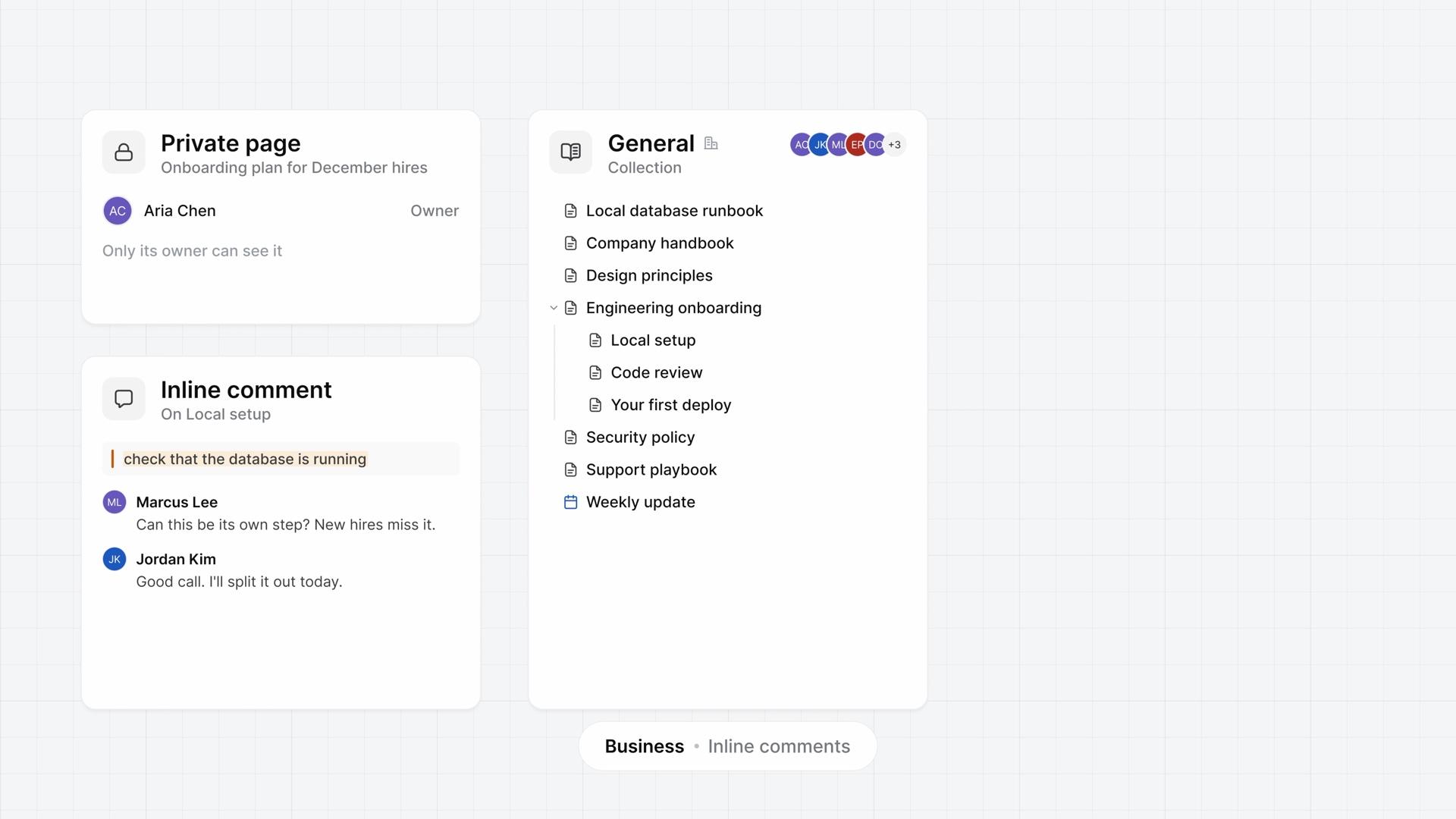
- The wiki is your workspace's knowledge base, with pages in collections that the whole team reads and writes together. On Business and higher, pages nest, private pages can be shared, and comments stay on the text they discuss.
- Type /page in a page, or choose the plus beside a page in the sidebar, to create a nested page. It takes its parent's access, collection, and shares, and nesting has no depth limit.
- Dragging a page onto another in the sidebar nests it, and Plane asks first if that changes who can see it.
- Only the owner shares a private page, and only from the top-level page, with each member set to can view, can comment, or can edit. The page moves to Shared in each person's sidebar.
- Lock stops every edit, the owner's included, and Lock page and all subpages covers a whole section.
- Select a sentence and choose Comment to start a thread under Inline in the Comments panel. Mark as resolved removes the highlight, and Show resolved under Filters brings the thread back.
- Plane keeps one version per person per editing session, and a page keeps its twenty newest. Restoring a parent page also resets its nested pages.
- Export gives a PDF or Markdown file. For PDF, Include nested pages packs the whole section into one ZIP, a file per page, up to a hundred pages.
Keep what the team knows in one place
0:00The wiki is your workspace's knowledge base, with pages in collections that the whole team reads and writes together.
On Business and higher, pages nest inside other pages, you can share a private page with chosen people, and comments stay on the text they discuss.
Build a section from nested pages
0:34There are two ways to create a nested page:
- In a page, type
/pageand press Enter. Plane creates a nested page and adds a block for it at your cursor. - Hover a page in the sidebar and choose the plus beside it. Plane creates a nested page and opens it.
A nested page takes its parent's access, collection, and shares. Change who can see the parent, and every page beneath it follows.
To nest an existing page, drag it onto another in the sidebar. If that changes who can see it, Plane asks first.
Nesting has no depth limit, and it works in project and teamspace pages too.
Restore a version and export
2:31Plane keeps one version per person per editing session, and a pause of over ten minutes starts a new one.
- Open Version history from the page's menu. The panel lists versions by day with their editors, and a page keeps its twenty newest.
- Select one to read it with its changes highlighted, or choose Compare versions and pick any two.
- Choose Restore this version, and it becomes the current page. The restore shows up as a new version of its own.
Restoring a parent page also resets its nested pages. It deletes pages added since that version and brings back deleted ones.
To export:
- Choose Export in the page's menu.
- Pick PDF or Markdown, with or without images.
- For PDF, turn on Include nested pages to pack the whole section into one ZIP, a file per page, up to a hundred pages.
The export runs while the dialog stays open, then downloads. Leaving the page cancels it. Markdown exports only the open page.
See the finished section
3:44One handbook section now holds its steps as nested pages, a private page reaches only the people it's for, and the thread is resolved.
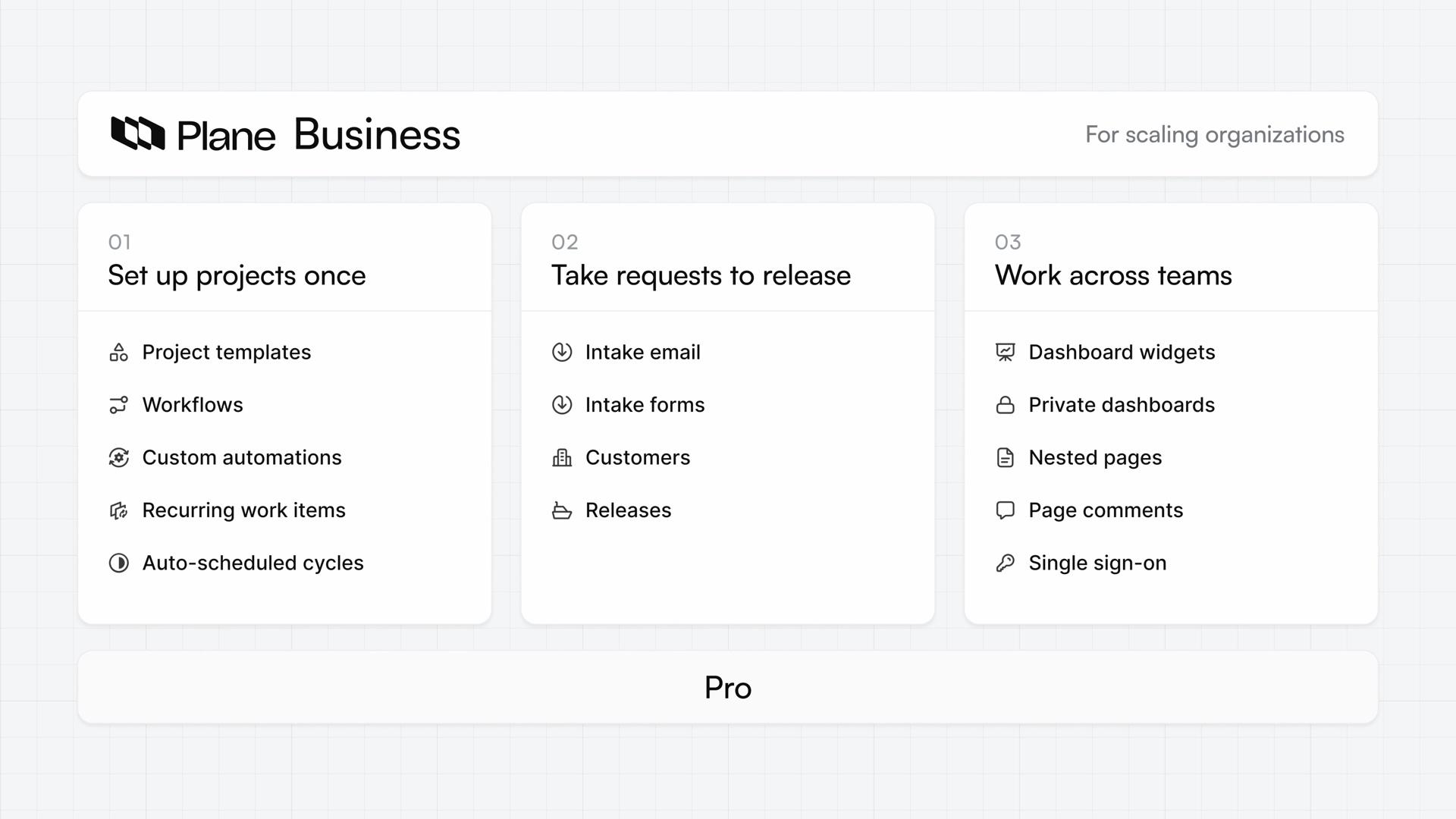
Plans
- Pro
- The wiki, with locks, version history, and export
- Business
- Nested pages, sharing a private page, and inline comments
Read next
Related lessons
Transcript
Show the transcript
Keep what the team knows in one place
0:02The wiki is your workspace's knowledge base, with pages in collections that the whole team reads and writes together.
0:10On Business and higher, pages nest inside other pages, you can share a private page with chosen people, and comments stay on the text they discuss.
0:21You'll build a handbook section from nested pages, share a private page, resolve a thread, restore a version, and export the section. Let's take a closer look.
Build a section from nested pages
0:37In a page, type /page and press Enter. Plane creates a nested page and adds a block for it at your cursor.
0:46Or hover a page in the sidebar and choose the plus beside it, which creates a nested page and opens it.
0:54A nested page takes its parent's access, collection, and shares. Change who can see the parent, and every page beneath it follows.
1:04Drag an existing page onto another in the sidebar to nest it. If that changes who can see it, Plane asks first.
1:12Nesting has no depth limit, and it works in project and teamspace pages too.
Share a page and settle a thread
1:22Wiki pages are either public, for everyone who uses the wiki, or private, for their owner and anyone they share them with.
1:31Only the owner can share, and only from the top-level page. Choose Share, add members, and set each to can view, can comment, or can edit.
1:43Choose Share again to save. The page moves to Shared in each person's sidebar, and only the owner can lock, archive, move, or delete it.
1:54Lock stops every edit, the owner's included. On a page with nested pages, Lock page and all subpages covers the whole section.
2:04To discuss a sentence, select it and choose Comment. The thread opens in the Comments panel, under Inline.
2:12Everyone who can open the page sees its threads, and anyone with comment or edit access can reply.
2:20When it's settled, hover the thread and choose Mark as resolved. The sentence loses its highlight, and Show resolved under Filters brings the thread back.
Restore a version and export
2:34Plane keeps one version per person per editing session, and a pause of over ten minutes starts a new one.
2:41Open Version history from the page's menu. The panel lists versions by day with their editors, and a page keeps its twenty newest.
2:51Select one to read it with its changes highlighted, or choose Compare versions and pick any two.
2:58Restoring a parent page also resets its nested pages. It deletes pages added since that version and brings back deleted ones.
3:08Choose Restore this version, and it becomes the current page. The restore shows up as a new version of its own.
3:16To export, choose Export in the page's menu, then pick PDF or Markdown, with or without images.
3:25For PDF, Include nested pages packs the whole section into one ZIP, a file per page, up to 100 pages.
3:35The export runs while the dialog stays open, then downloads. Leaving the page cancels it. Markdown exports only the open page.
See the finished section
3:46One handbook section now holds its steps as nested pages, a private page reaches only the people it's for, and the thread is resolved.