Repeat work items, schedule cycles, and send reminders
How a project creates its own routine work items, keeps its next cycles ready, and reminds people before work is due, each on a schedule you set.

What you will learn
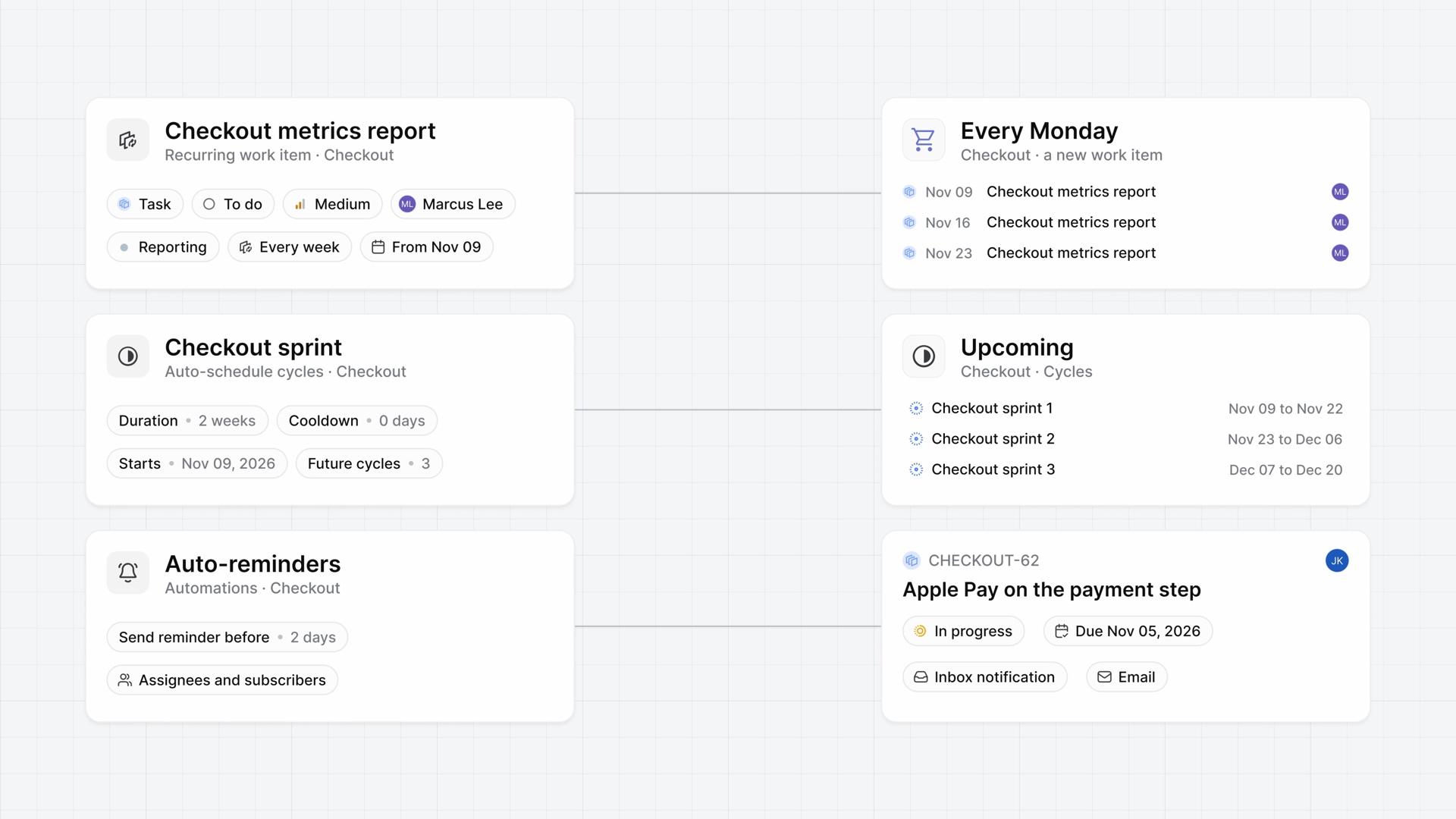
- A recurring work item tells Plane to create the same work item on a schedule: Daily, Weekly, Monthly, Yearly, or Custom, from a start date to an optional end date.
- Plane creates one on the start date and on each repeat, around midnight in the project's time zone. If it starts today, the first one arrives right away.
- Each one is an ordinary work item, created in the name of whoever set it up, with no due date, cycle, or sub-work items. Edits apply only to work items made later, and deleting the recurring work item keeps the ones already made.
- There's no pause switch. To stop a recurring work item on a set day, give it an end date.
- Auto-schedule cycles creates the project's next cycles from a title, a duration in weeks, a cooldown in days, a first start day, and up to three future cycles. When one starts, Plane adds another.
- With Auto-rollover work items on, work items that aren't done or cancelled move into the next cycle when a cycle ends. Changing the schedule later affects only new cycles.
- Auto-reminders sends the work item's assignees and subscribers an Inbox notification and an email 1 to 7 days before it's due, only for work items with a due date that aren't done or cancelled.
Routine work that runs itself
0:00Plane can create routine work items, set up your next cycles, and send reminders, each on a schedule you set, so nobody has to remember. They're for the weekly report, the cycle after this one, and the due date nobody saw coming.
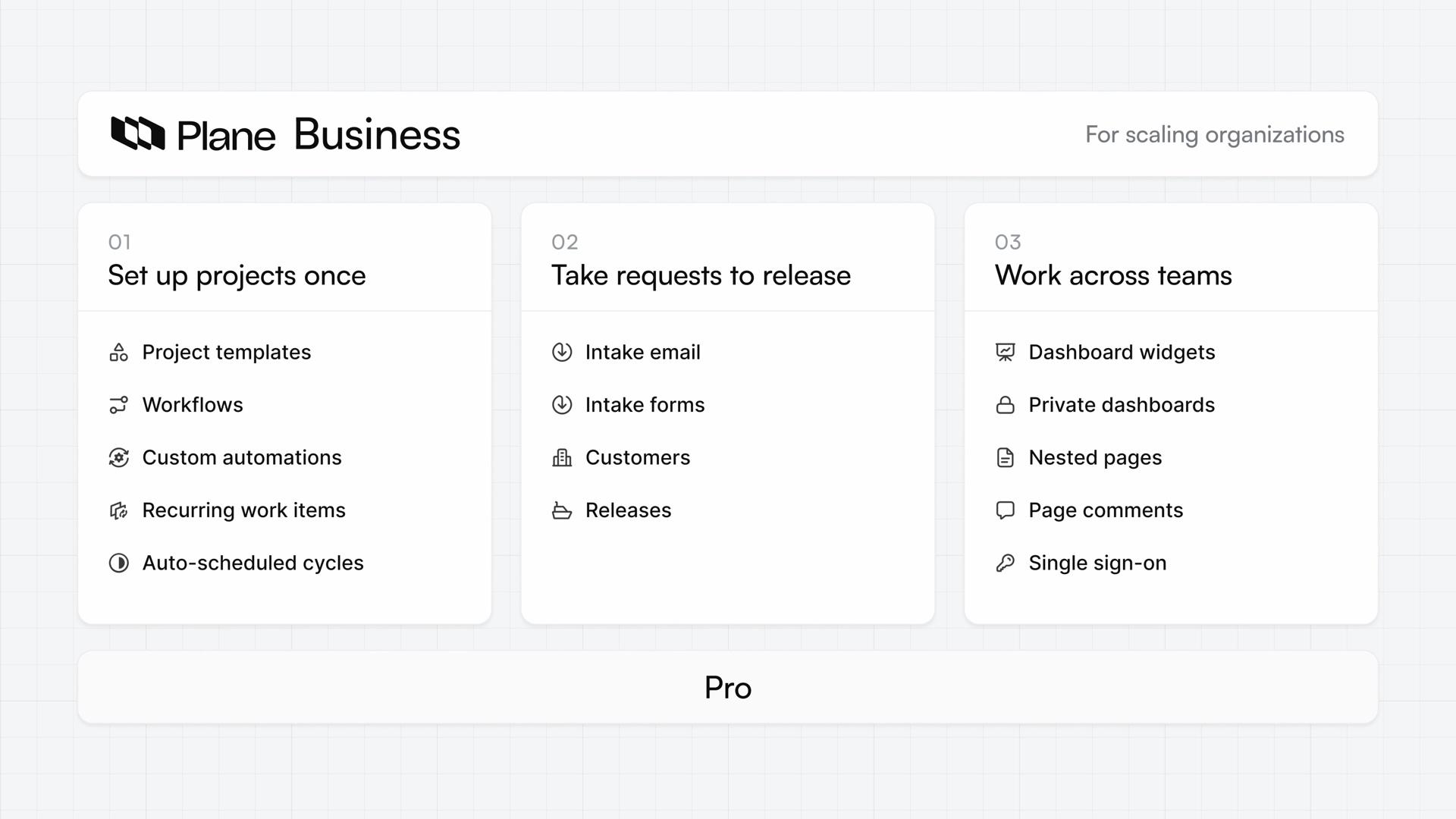
All three are project settings, so one project can run all three. They're on Business and higher.
Repeat work items on a schedule
0:27A recurring work item tells Plane to create the same work item on a schedule. Find them in Project settings, under Recurring work items. Each row shows how often it repeats, like every week or every 3 months.
- Choose Create recurring work item. The form opens with the work item itself: its type, title, description, state, priority, assignees, and labels.
- Under Schedule, set a start date, and an end date if it should stop.
- Choose Daily, Weekly, Monthly, Yearly, or Custom, such as every 2 weeks.
Plane creates one on the start date and on each repeat, around midnight in the project's time zone. If it starts today, the first one arrives right away.
Each one is an ordinary work item, created in the name of whoever set it up. It has no due date, cycle, or sub-work items.
A recurring work item's menu has Edit and Delete. Edits apply only to work items it makes later, and deleting it keeps the ones already made. There's no pause switch: to stop one on a set day, give it an end date.
Keep the next cycles ready
1:50Switch on Auto-schedule cycles, in Project settings under Cycles, and Plane creates your next cycles with their dates, so the team can plan ahead.
- Give the schedule a title, a duration in weeks, and a cooldown in days between cycles.
- Pick the day the first cycle starts.
- Choose how many future cycles to keep ready, up to three.
Each cycle gets the title and a number and appears under Upcoming. When one starts, Plane adds another.
Turn on Auto-rollover work items, and when a cycle ends, its work items that aren't done or cancelled move into the next cycle.
If you change the schedule later, only new cycles follow it. The ones it already made stay as they are.
Remind people before work is due
2:43With Auto-reminders on, people know before a work item is due. It sits in Project settings, under Automations, next to the switches that archive and close work items.
- Switch on Auto-reminders.
- Set Send reminder before, anywhere from 1 day to 7 days ahead.
The work item's assignees and subscribers get both an Inbox notification and an email.
Reminders cover only work items with a due date that aren't done or cancelled, and none go out once the date has passed. Work items made by a recurring work item have no due date, so they get no reminder until someone adds one.
Review what runs on its own
3:31One project now makes its own routine work items, keeps its next three cycles ready, and reminds people before anything is due.
Plans
- Business
- Recurring work items, auto-scheduled cycles, and auto-reminders
Read next
Related lessons
Transcript
Show the transcript
Routine work that runs itself
0:02Plane can create routine work items, set up your next cycles, and send reminders, each on a schedule you set, so nobody has to remember.
0:13They're for the weekly report and the cycle after this one. And for the due date nobody saw coming.
0:20You'll set up all three in one project and see what each one does. Let's take a closer look.
Repeat work items on a schedule
0:31On Business and higher, a recurring work item tells Plane to create the same work item on a schedule.
0:38Find them in Project settings, under Recurring work items. Each row shows how often it repeats, like every week or every 3 months.
0:48Create recurring work item opens a form for the work item itself: its type, title, description, state, priority, assignees, and labels.
1:00Under Schedule, set a start date, and an end date if it should stop. Then choose Daily, Weekly, Monthly, Yearly, or Custom, such as every 2 weeks.
1:13Plane creates one on the start date and on each repeat, around midnight in the project's time zone. If it starts today, the first one arrives right away.
1:23Each one is an ordinary work item, created in the name of whoever set it up. It has no due date, cycle, or sub-work items.
1:33A recurring work item's menu has Edit and Delete. Edits apply only to work items it makes later, and deleting it keeps the ones already made.
1:44There's no pause switch. To stop one on a set day, give it an end date.
Keep the next cycles ready
1:54Switch on Auto-schedule cycles, in Project settings under Cycles, and Plane creates your next cycles with their dates, so the team can plan ahead.
2:04Give the schedule a title, a duration in weeks, and a cooldown in days between cycles.
2:11Then pick the day the first cycle starts and how many future cycles to keep ready, up to three.
2:18Each cycle gets the title and a number and appears under Upcoming. When one starts, Plane adds another.
2:26Turn on Auto-rollover work items, and when a cycle ends, its work items that aren't done or cancelled move into the next cycle.
2:36Change the schedule later, and only new cycles follow it. The ones it already made stay as they are.
Remind people before work is due
2:47With Auto-reminders on, people know before a work item is due.
2:52It sits in Project settings, under Automations, next to the switches that archive and close work items.
3:00Switch it on and set Send reminder before, anywhere from 1 day to 7 days ahead.
3:08The work item's assignees and subscribers get both an Inbox notification and an email.
3:14Reminders cover only work items with a due date that aren't done or cancelled, and none go out once the date has passed.
3:23Work items made by a recurring work item have no due date, so they get no reminder until someone adds one.
Review what runs on its own
3:33One project now makes its own routine work items, keeps its next three cycles ready, and reminds people before anything is due.